> ## Content Index
> Fetch the complete content index at: https://blog.afi.io/llms.txt
> Use this file to discover other available public pages before exploring further.
# Google Nearby Search API
- URL: https://blog.afi.io/blog/google-nearby-search-api/
- Published: 2024-05-31T07:55:00.000Z
- Updated: 2026-08-21T05:44:40.000Z
- Description: How to use the Google Nearby Search API to find nearby places, businesses and points of interest.
- Author: Afian Anwar
- Tags: googlemaps
In previous blog posts, I showed how to retrieve information about a point of interest using the [Google Maps Places Autocomplete](https://developers.google.com/maps/documentation/places/web-service/place-autocomplete?ref=blog.afi.io), [Place Details](https://developers.google.com/maps/documentation/places/web-service/place-details?ref=blog.afi.io) and [Place Photos](https://developers.google.com/maps/documentation/places/web-service/place-photos?ref=blog.afi.io) APIs. In this one, we will use the Google Nearby Search API (commonly known as the Nearby Places API) to build a real estate search app to help home buyers and renters get to know new neighborhoods. We'll go through a worked example ([demo](https://places-api-demo.afi.dev/?ref=blog.afi.io) / [source code](https://github.com/afilabs/places%5Fapi%5Fdemo?ref=blog.afi.io)) of how to use the [Nearby Search API](https://developers.google.com/maps/documentation/places/web-service/nearby-search?ref=blog.afi.io), discuss pricing and build the app!
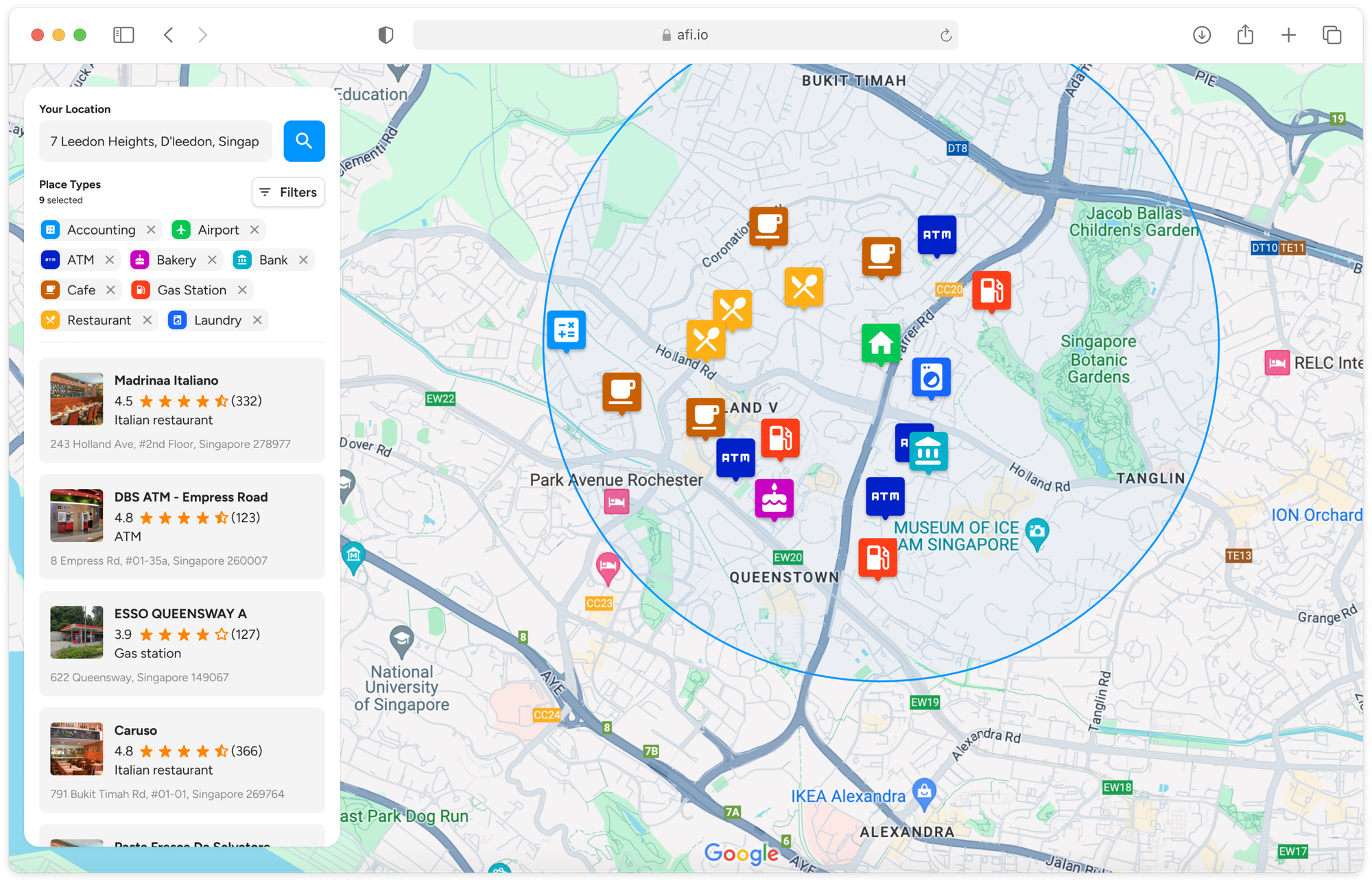
What our real estate search app built on the Google Nearby Search API looks like
Part 1: [Finding the right place with the Google Places API](https://afi.io/blog/finding-the-right-place-with-the-google-places-api/?ref=blog.afi.io)
Part 2: [Google address autocomplete with the Places API](https://www.afi.io/blog/google-address-autocomplete-with-the-places-api/?ref=blog.afi.io)
Part 3: [Google Place Details and Place Photos API](https://www.afi.io/blog/google-place-details-and-place-photos-api/?ref=blog.afi.io)
Part 4: **Google Nearby Search API (this article)**
Part 5: [Google Places Text Search](https://www.afi.io/blog/google-places-text-search/?ref=blog.afi.io)
The [Nearby Search API](https://developers.google.com/maps/documentation/places/web-service/nearby-search?ref=blog.afi.io) lets you search for places within a specified area. You can refine your search by providing keywords or specifying the type of place you are looking for. There are two versions of the API:
1. **Older Version**: Requires a GET request to the [https://maps.googleapis.com/maps/api/place/nearbysearch](https://maps.googleapis.com/maps/api/place/nearbysearch?ref=blog.afi.io) endpoint. Read my blog post on [using the Nearby Search API to build a restaurant search and discover app](https://afi.io/blog/osrm-table-api-free-and-open-source-distance-matrix-api/?ref=blog.afi.io).
2. **Newer Version**: Uses a POST request to [https://places.googleapis.com/v1/places:searchNearby](https://places.googleapis.com/v1/places:searchNearby?ref=blog.afi.io) and is called "Nearby Search (New)." Very creative.
[Places API DemoHow to use the Google Nearby Search API to find nearby places, businesses and points of interest.](https://places-api-demo.afi.dev/?ref=blog.afi.io)
For this blog post, we'll be using the "Nearby Search (New)" API ([docs](https://developers.google.com/maps/documentation/places/web-service/nearby-search?ref=blog.afi.io)).
💡
Wondering if you should upgrade to [Nearby Search (New)](https://developers.google.com/maps/documentation/places/web-service/nearby-search?ref=blog.afi.io)? You probably should. The old Places API endpoints have been moved to [legacy status](https://developers.google.com/maps/legacy?ref=blog.afi.io) and will soon be deprecated.
### Google Nearby Search API example
I'll now go through a worked example of the Google Nearby Search API using [Pinnacle@Duxton](https://maps.app.goo.gl/f3i5xk9JSAEwhYhFA?ref=blog.afi.io) as our search location. The Pinnacle@Duxton is a public housing project in Singapore where apartments can easily [sell for around $1.5 mil SGD](https://www.99.co/singapore/insider/the-pinnacle-duxton-ath-2024/?ref=blog.afi.io) ($1.15 mil USD). It's in very high demand due to its central location near public transport and close proximity to the many restaurants, bars and cafes in the Chinatown and posh [Duxton Hill](https://www.timeout.com/singapore/things-to-do/duxton-hil?ref=blog.afi.io) neighborhoods.
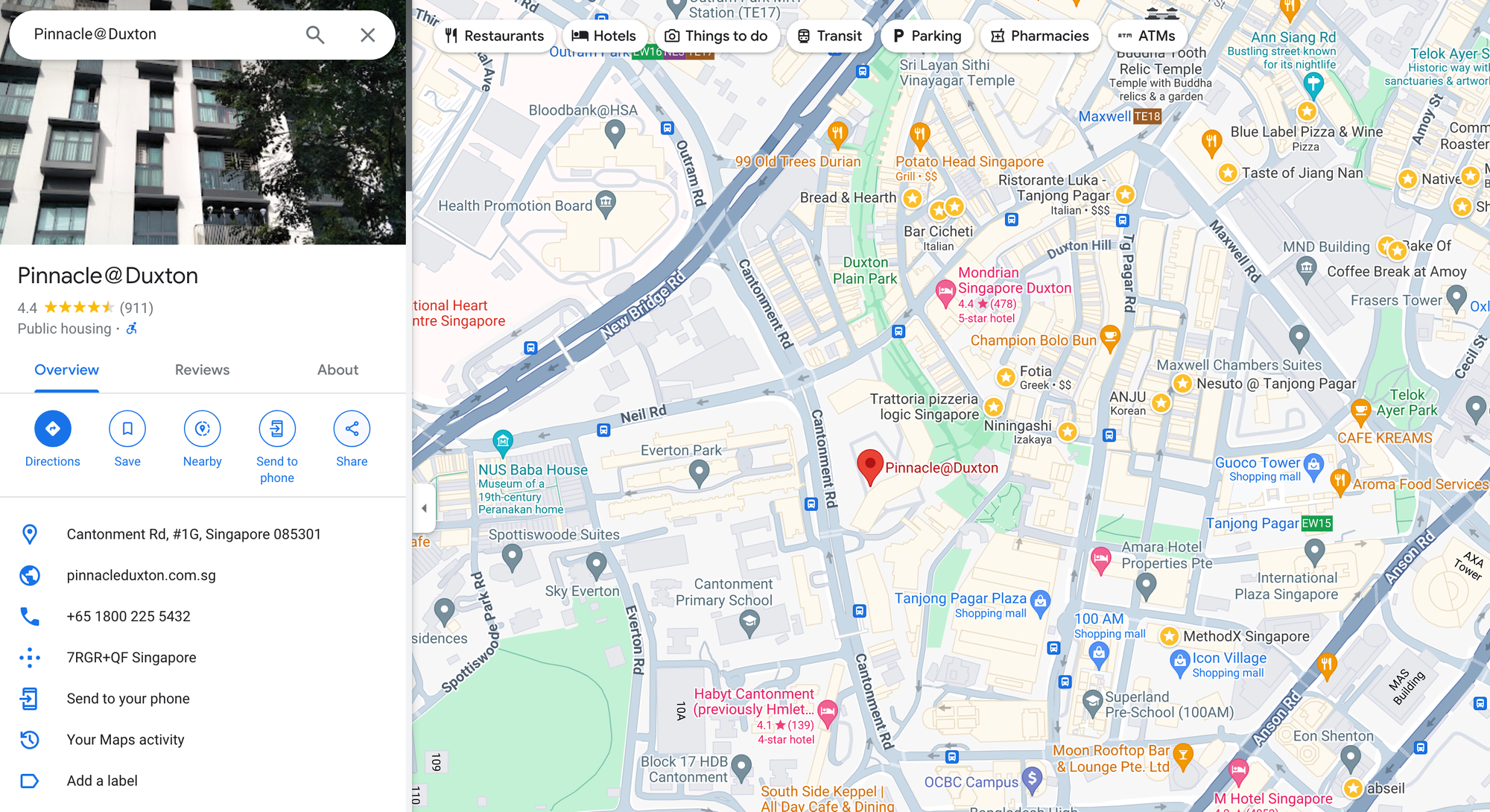
A Google Maps entry for Pinnacle@Duxton, an expensive public housing project in Singapore
Let's say you are a prospective home buyer and want to check out what food options are nearby. The first step is to get the latitude and longitude of The Pinnacle. This is pretty easy . Go to Google Maps, enter [Pinnacle@Duxton](https://maps.app.goo.gl/f3i5xk9JSAEwhYhFA?ref=blog.afi.io) into the search bar and copy the GPS coordinates from the URL.
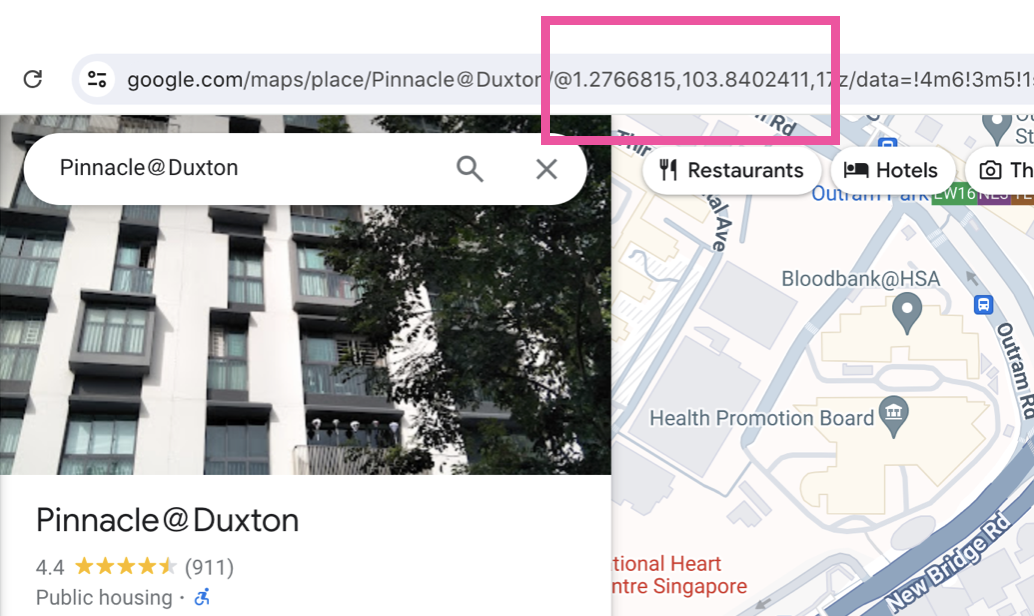
Retrieving the latitude and longitude of a Google Maps entry
Next, use the [measure distance tool](https://support.google.com/maps/answer/1628031?hl=en&co=GENIE.Platform%3DDesktop&ref=blog.afi.io) to visually approximate how large you want your search radius to be. It looks like 500 meters is sufficient to include most of the nearby restaurants and cafes.
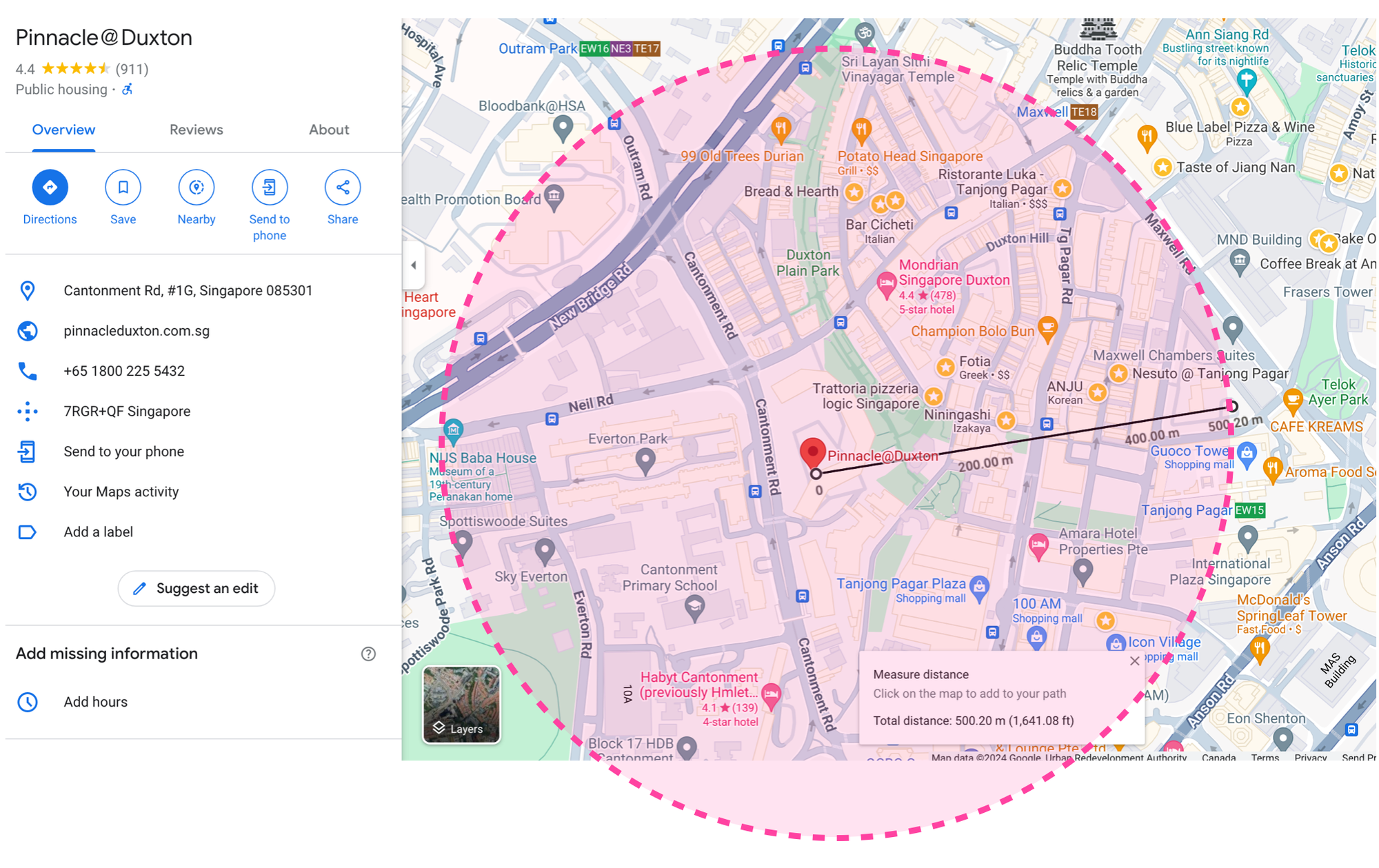
500 meter search radius measured using the Google Maps ruler tool
Lastly, we need to check the [Places API documentation](https://developers.google.com/maps/documentation/places/web-service/place-types?ref=blog.afi.io#table-a) to see what `types` of places we can search for. Since we are only interested in food, we'll restrict our search to "bar", "cafe" and "restaurant".
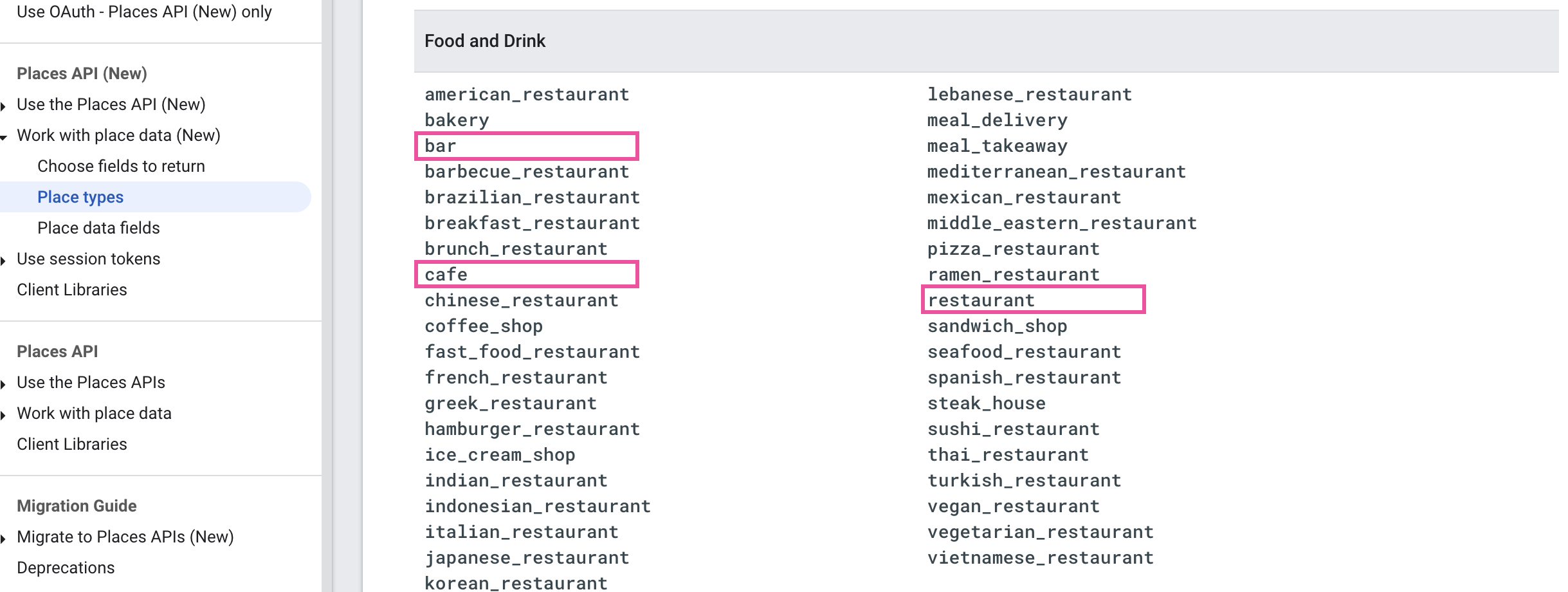
List of available types in the Google Places API
Now we are ready to make our first call to the Google Places Nearby Search API.
**Endpoint** `POST` [https://places.googleapis.com/v1/places:searchNearby](https://places.googleapis.com/v1/places:searchNearby?ref=blog.afi.io)
**Headers**
Content-Type: *application/json; charset=utf-8*
X-Goog-Api-Key: *YOUR\_API\_KEY*
X-Goog-FieldMask*: places.displayName,places.id,places.types,places.formattedAddress,places.photos,places.priceLevel,places.userRatingCount,places.rating*
**Body**
```
{
"includedTypes": [
"restaurant", "cafe", "bar"
],
"maxResultCount": 1,
"locationRestriction": {
"circle": {
"center": {
"latitude": 1.2769282,
"longitude": 103.8363251
},
"radius": 500
}
}
}
```
Here's the response from the Nearby Search API. For brevity, I've limited the `maxResultCount` to 1\. In a real production application, this value would likely be set to at least 10 (the default and maximum value of `maxResultCount` is 20). There's no additional cost for returning more places.
**Output**
```
{
"places": [
{
"id": "ChIJE7ZtOWwZ2jERFcasWYmljJQ",
"types": [
"coffee_shop",
"cafe",
"store",
"food",
"point_of_interest",
"establishment"
],
"formattedAddress": "4 Everton Park, #01-40, Singapore 080004",
"rating": 4.7,
"priceLevel": "PRICE_LEVEL_INEXPENSIVE",
"userRatingCount": 1827,
"displayName": {
"text": "Nylon Coffee",
"languageCode": "en"
},
"photos": [
{
"name": "places/ChIJE7ZtOWwZ2jERFcasWYmljJQ/photos/AelY_CtKgWTv_oiurjqVdgdjqOZ5wOlZ44iaf0xxAyH5vjmRg5_wlACSnP9ha3tS57sPdA5mXb6TPMq6tIhyY4vKqEMva75e48TSDxRWOkwMX5PW2Y4v7riILfoL3uDzMmxyqT8-WTfnv3O7ddYd0-Em4nwzBah9rFzvlboS",
"widthPx": 3996,
"heightPx": 2249,
"authorAttributions": [
{
"displayName": "Nylon Coffee",
"uri": "//maps.google.com/maps/contrib/104310332821424592273",
"photoUri": "//lh3.googleusercontent.com/a-/ALV-UjW-vt45Gb_A1cebaEMsNCrdW5eu9c5meEpPaJzbYfOSu_C5C_T2=s100-p-k-no-mo"
}
]
},
// ... 9 more similar entries
]
}
]
}
```
The key element in the returned JSON is `places`, an array of `place` objects that contains detailed information about a single place. Results are ranked based on three criteria:
- **Prominence**: This is a measure of how well-known or significant a place is. It considers the popularity and importance of a place. More popular and significant places are ranked higher. Note: Google does not make this prominence metric publicly available.
- **Proximity**: The distance of the place from the specified location in the request. Closer places are generally ranked higher.
- **User Ratings and Reviews**: Places with higher ratings and more reviews are likely to be ranked higher. The quality and recency of the reviews also play a role.
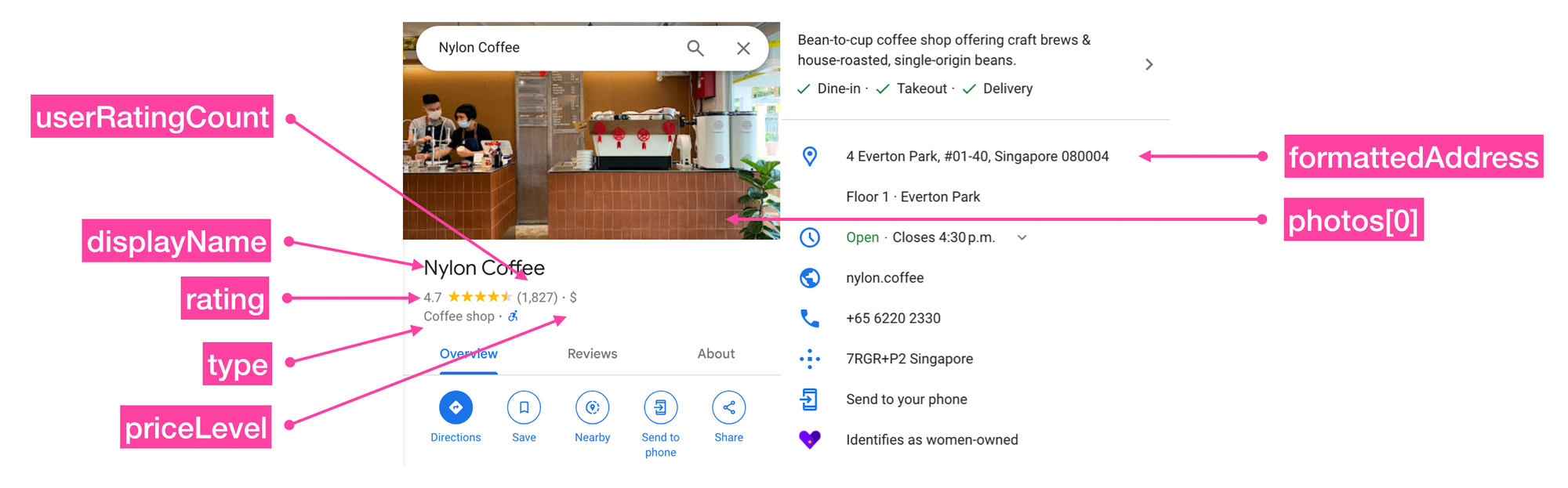
Mapping of fields in the results returned by the Google Nearby Search API
In the example above, the Places API returned [Nylon Coffee](https://nylon.coffee/?ref=blog.afi.io), one of my all time favorite cafes, as its top result.
Within each `place` object,
`id` is the [place ID](https://developers.google.com/maps/documentation/places/web-service/place-id?ref=blog.afi.io) of the `place`. The place ID uniquely identifies a place in the Google Map's database, and can be used to retrieve the place's name, address, photos, reviews etc.
`types` is an array of [place types](https://developers.google.com/maps/documentation/places/web-service/supported%5Ftypes?ref=blog.afi.io) that can be used to label the `place` e.g. \["cafe", "bar"\] might be used to describe a hip cafe that also serves beer. Types are inferred from the [Google My Business categories](https://support.google.com/business/answer/7249669?hl=en&ref=blog.afi.io) that businesses select when creating a listing on Google Maps. Because submitting an accurate category helps potential customers find their business, listing owners are generally honest about the categories that best describe their business.
💡
The new Places API supports include/exclude filters that makes it easy to be specific about the kind of `place` you are looking for. Hungry but hate sushi? Try adding: `"includedTypes": ["restaurant"], "excludedTypes": ["sushi_restaurant"]` to your request.
`formattedAddress` is the nicely formatted address used in the place's Google Maps listing.
`rating` is the average rating provided by Google Maps users.
`priceLevel` is how expensive the restaurant is relative to others in the same general location. It ranges from "PRICE\_LEVEL\_INEXPENSIVE" ($) to "PRICE\_LEVEL\_VERY\_EXPENSIVE" ($$$$ - [docs](https://developers.google.com/maps/documentation/places/web-service/reference/rpc/google.maps.places.v1?ref=blog.afi.io#google.maps.places.v1.PriceLevel)). I've never eaten at a "PRICE\_LEVEL\_VERY\_EXPENSIVE" restaurant before, but Elon Musk probably has.
`userRatingCount` is the number of Google Maps users who have left a rating for this business.
`displayName` is the name of the `place` shown on Google Maps (usually this is submitted by the listing owner, but sometimes a Google Maps employee will improve it for clarity).
`photos` is an array of listing owner and publicly submitted photos of the `place`. Each `photo` object contains a `photoURI` that can be used to retrieve a thumbnail of the photo using the [Place Photos API](https://developers.google.com/maps/documentation/places/web-service/place-photos?ref=blog.afi.io).
💡
Each of the fields listed above were returned in the response because we asked them to be included using the HTTP header `X-Goog-FieldMask`.
### Google Nearby Search API pricing
There are [three pricing tiers](https://developers.google.com/maps/documentation/places/web-service/usage-and-billing?hl=en&ref=blog.afi.io) for the new Places API - Basic ($32 CPM), Advanced ($35 CPM) and Preferred ($40 CPM). Which pricing tier your API call falls under depends on which fields you included in the `X-Goog-FieldMask` header.
Basic: This version of the Places API returns you a basic set of information about the area of interest which includes `places.name`, `places.photos`, and `places.id`.
Advanced: The advanced tier allows users to display additional information about a place including `places.priceLevel`, `places.rating`, `places.regularOpeningHours`.
Preferred: This highest tier includes extra, value added information that your users might be willing to pay extra for. These include `places.allowsDogs`, `places.curbsidePickup`, and `places.delivery`.
🌎
You can find an exhaustive list of `place` fields and their corresponding tiers at the [SKU: Nearby Search usage and billing guide](https://developers.google.com/maps/documentation/places/web-service/usage-and-billing?ref=blog.afi.io#basic-nearbysearch).
You are only billed for the Places API SKU you consume e.g. if you select any fields from the Place Details (Preferred) SKU, then you are billed at $40 CPM, or $0.04 per request. In our example above, the response returned included `priceLevel` and `rating` , so we will be billed at $35 CPM for the advanced tier.
### Building a real estate search app using the Google Nearby Search API
We've seen how the Nearby Search API allows us to search for places within a specified area around a given location. This is a perfect fit for a real estate search app that lets potential home buyers and renters find points of interest, businesses, or services in neighborhoods they are interested in. Here's how our app (live demo: [https://places-api-demo.afi.dev/](https://places-api-demo.afi.dev/?ref=blog.afi.io)) works:
0:00
/0:09
1×
The user enters his desired address into a [Google Maps Place Autocomplete](https://developers.google.com/maps/documentation/javascript/place-autocomplete-new?ref=blog.afi.io) search bar, which then brings up the location and highlights amenities such as bars, restaurants and supermarkets within a 500 meter radius.
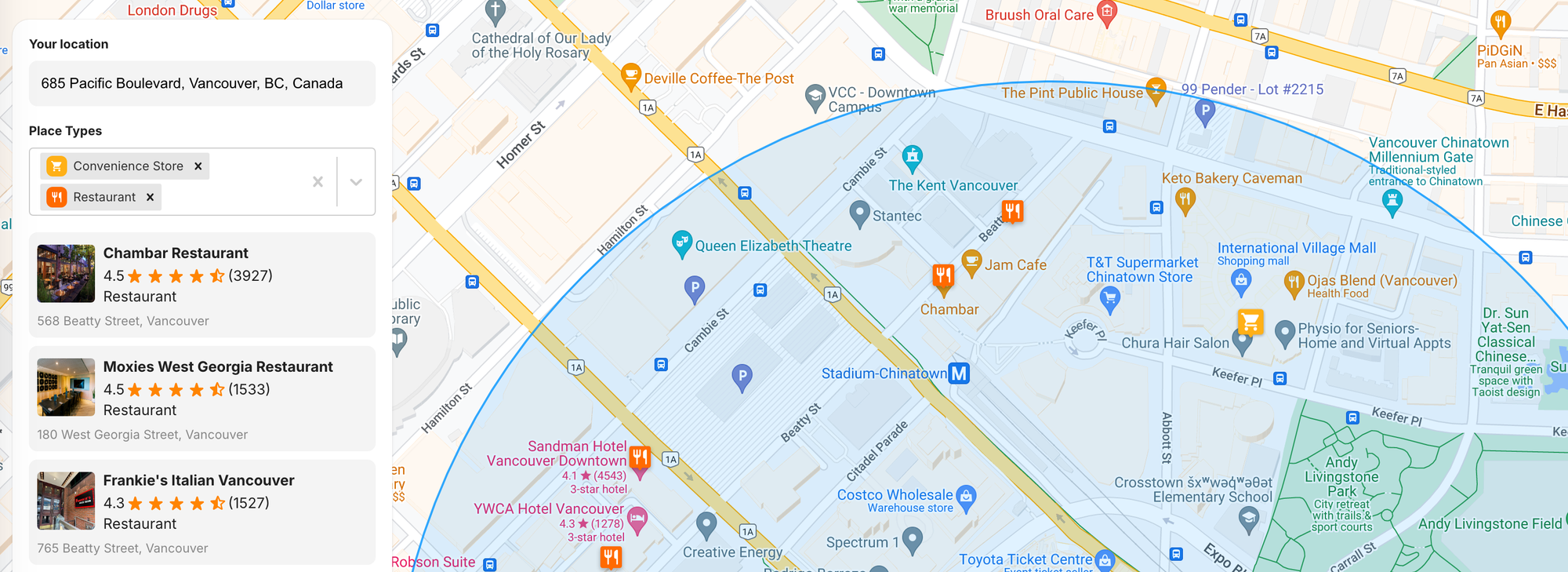
A search radius of 500 meters applied to our Google Nearby Search API call
Photos, ratings, and user reviews for each amenity are available through the [Google Maps Place Details API](https://developers.google.com/maps/documentation/javascript/place-details?ref=blog.afi.io). Users can click on any listing to view more information and open the listing's page directly on Google Maps.
### How our code is organized
We'll be using the new Google Maps React components from [@vis.gl/react-google-maps](https://visgl.github.io/react-google-maps/?ref=blog.afi.io) to quickly set up our app. This library simplifies the integration of Google Maps components into a React web app. While it's not the first React component library for Google Maps, it is the only one that's officially supported.
The primary advantage of using a component library is speed. It's easy to find examples and code snippets online that you can quickly incorporate into your app. However, the downside is that the library abstracts much of the work involved in authenticating and calling the Google Maps API, which can result in a loss of control and flexibility in your app's functionality. Additionally, since [react-google-maps](https://github.com/visgl/react-google-maps?ref=blog.afi.io) is just a wrapper around the older Maps JavaScript API, it doesn't support features available in newer versions of the Places API, like specifying multiple types in a Nearby Search.
> [Afi Labs](https://www.afi.io/?ref=blog.afi.io) can help you build apps that use the Google Places API or other Google Maps APIs. [👋 Say Hello!](https://afi.io/?ref=blog.afi.io#contact-us) to start working together.
Like all our tutorials, [source code for this project is freely available on Github](https://github.com/afilabs/places%5Fapi%5Fdemo?ref=blog.afi.io).
### Getting started with Google Nearby Search in production
[places-api-demo](https://github.com/afilabs/places%5Fapi%5Fdemo?ref=blog.afi.io) is a single page React app built on top of [Autocomplete example code](https://github.com/visgl/react-google-maps/tree/main/examples/autocomplete?ref=blog.afi.io) from the react-google-maps library. Here's how our app is organized:
```
src
├── App.jsx
├── /Components
│ ├── /Map
│ │ ├── index.jsx
│ │ ├── MapHandler.jsx
│ │ ├── Marker.jsx
│ ├── /Constants
│ │ ├── index.jsx
│ ├── PlaceAutocompleteInput.jsx
│ ├── PlaceItem.jsx
│ ├── PlaceList.jsx
│ ├── PlaceSearch.jsx
│ ├── PlaceTypeSelector.jsx
│ ├── Rating.jsx.jsx
```
**App.jsx**
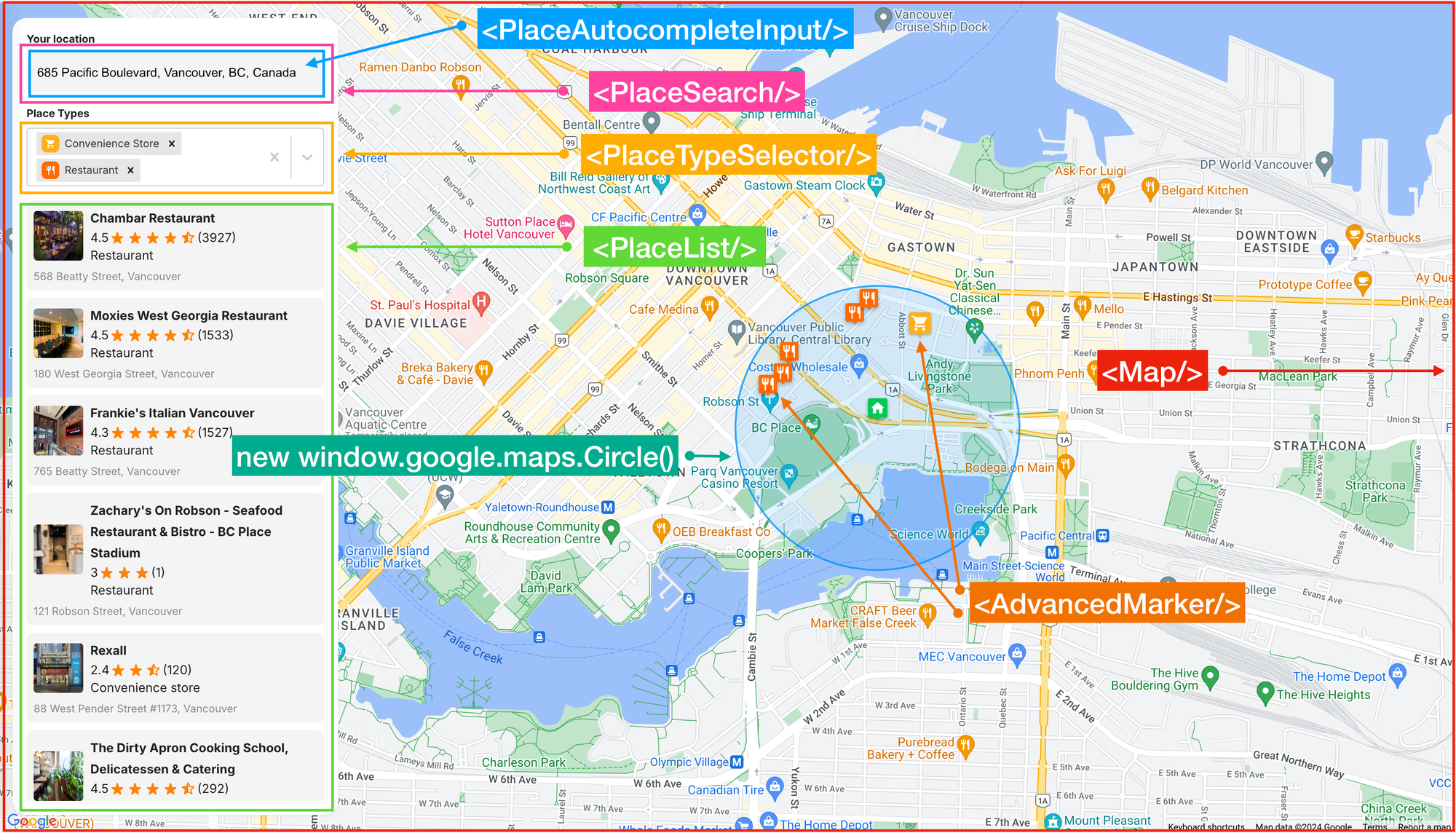
Overview of how our React components are organized in our real estate app
`App.jsx` is the main entry point into the app. It handles the overall structure, routing, and layout (above).
```
/* App.jsx */
return (
);
```
`` is the component that loads the Google Maps JavaScript API and provides context and functions to other components and hooks in the library. To work, `` only requires the Google Maps Platform API Key, which must be supplied via the `apiKey` prop. In our code, the API key is stored in the `.env` file located in the project's root directory.
**PlaceSearch.jsx**
`PlaceSearch.jsx` does several things. First, it is a [container component](https://www.freecodecamp.org/news/separation-of-concerns-react-container-and-presentational-components/?ref=blog.afi.io) that passes location and place information from the autocomplete widget in its child component, ``, to the parent ``. The `` component listens for changes to the value of `myLocation` and `allResults`, and updates itself accordingly.
```
/* PlaceSearch.jsx */
import { useMap, useMapsLibrary } from '@vis.gl/react-google-maps';
import PlaceAutocompleteInput from './PlaceAutocompleteInput';
import { PLACE_TYPES } from '../Constants';
import './PlaceSearch.scss';
const PlaceSearch = ({ onSelectPlace, onNearbyResultsReceived }) => {
const map = useMap();
const googleMaps = useMapsLibrary('places');
const [placeService, setPlaceService] = useState(null);
const [autocompleteToken, setAutocompleteToken] = useState(null);
useEffect(() => {
if (googleMaps && map) {
setPlaceService(new googleMaps.PlacesService(map));
setAutocompleteToken(new googleMaps.AutocompleteSessionToken());
}
}, [map, googleMaps]);
}
```
Second, it calls the `useMap()` and `useMapLibrary()` hooks to directly access the `google.map.Map` instance in `` as well as various [Maps JavaScript API libraries](https://developers.google.com/maps/documentation/javascript/libraries?ref=blog.afi.io). Once this is done, you can directly access the [PlacesLibrary API](https://developers-dot-devsite-v2-prod.appspot.com/maps/documentation/javascript/reference/library-interfaces?ref=blog.afi.io#PlacesLibrary) and all the methods it contains with a two lines of code: `const googleMaps = useMapsLibrary('places');` and `setPlaceService(new googleMaps.PlacesService(map));`.
Third, it generates a new Place Autocomplete session token to group the query and selection phases of the autocomplete search into a single session for accurate billing: `setAutocompleteToken(new googleMaps.AutocompleteSessionToken());`
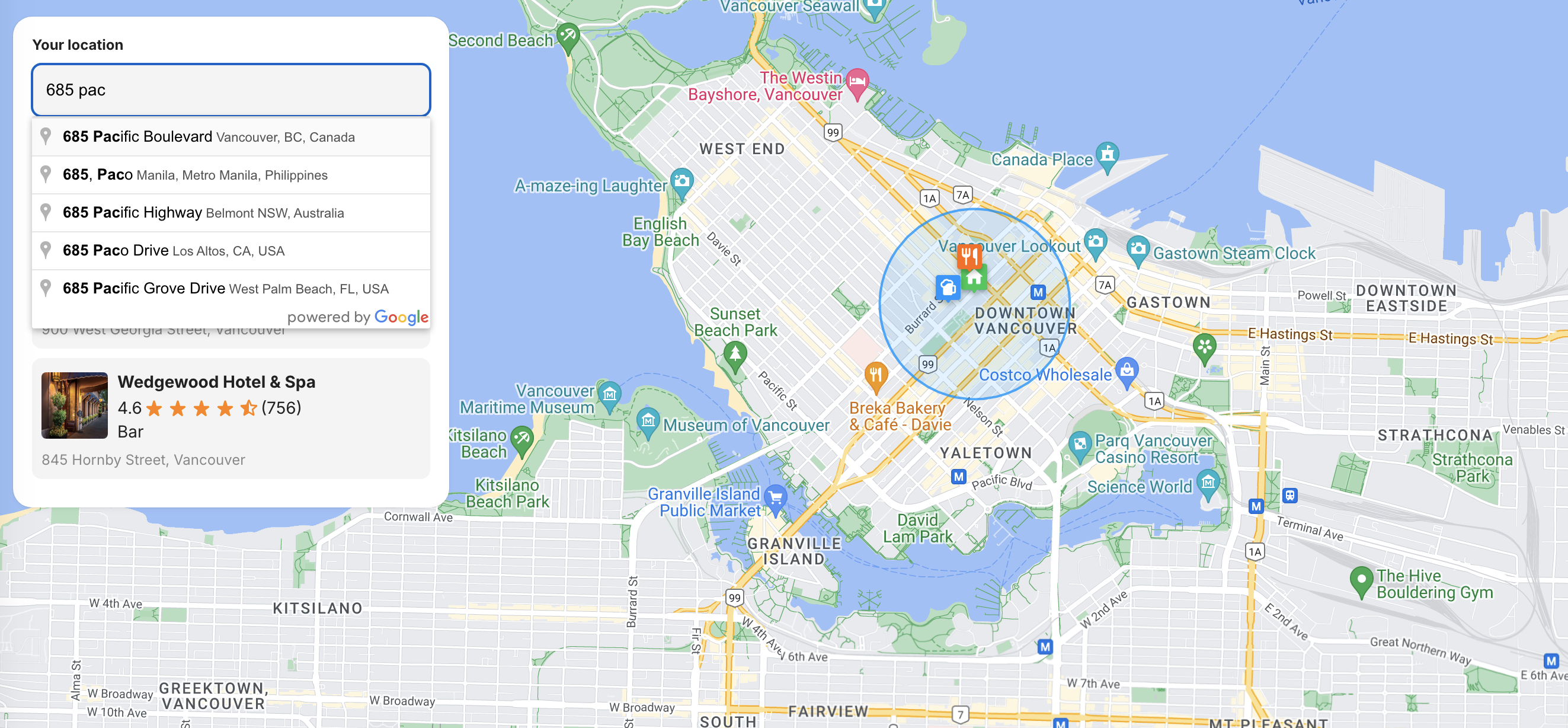
Place Autocomplete widget used to retrieve address suggestions
When the user selects an address from the autocomplete widget in ``, the `handlePlaceSelect()` function gets called:
```
/* PlaceSearch.jsx */
const handlePlaceSelect = useCallback(
(place) => {
if (!place || !placeService) return;
placeService.getDetails(
{
placeId: place.place_id,
fields: ["geometry", "name", "formatted_address", "type"],
sessionToken: autocompleteToken,
},
(result) => {
onSelectPlace(result);
searchNearbyPlaces(result);
setAutocompleteToken(new googleMaps.AutocompleteSessionToken());
},
);
},
[placeService, onSelectPlace, searchNearbyPlaces, autocompleteToken],
);
```
`handlePlaceSelect()` uses the `useCallback` hook to memoize the function so that it is only re-created when one of its dependencies changes.
The `place` object returned by the `getDetails()` method of the [Place Autocomplete API](https://developers.google.com/maps/documentation/places/web-service/place-autocomplete?ref=blog.afi.io) looks like this:
```
{
"formatted_address": "685 Pacific Blvd, Vancouver, BC V6B 0R4, Canada",
"geometry": {
"location": {
"lat": 49.2771031,
"lng": -123.1088116
},
"viewport": {
"south": 49.2757106197085,
"west": -123.1099146302915,
"north": 49.2784085802915,
"east": -123.1072166697085
}
},
"name": "685 Pacific Blvd",
"place_id": "ChIJU5dionxxhlQROLRdJPfVT60",
"types": [
"premise"
],
"html_attributions": []
}
```
This information is used in two ways. First, the `onSelectPlace()` method sends the place object to the parent component's `setMyLocation` state handler in `App.jsx`. Then, the `Map.jsx` component detects changes to the `myLocation` state and automatically centers the Google Map on the new location coordinates.
👨💻
For an in depth look at [Google Places Autocomplete](https://developers.google.com/maps/documentation/javascript/examples/places-autocomplete?ref=blog.afi.io), see our tutorial on the [Google address autocomplete with the Places API](https://www.afi.io/blog/google-address-autocomplete-with-the-places-api/?ref=blog.afi.io).
Second, the `place` object is used to call the `searchNearbyPlaces()` method:
```
/* PlaceSearch.jsx */
const searchNearbyPlaces = useCallback(
(placeDetails) => {
if (!placeService || !placeDetails.geometry) return;
const allTypes = new Set(Object.keys(PLACE_TYPES));
placeService.nearbySearch(
{
location: placeDetails.geometry.location,
radius: 500,
includedTypes: [...allTypes],
},
(results) => {
console.log(
results.map((p) => ({
types: p.types.join(", "),
vicinity: p.vicinity,
matchedType: p.types.find((t) => allTypes.has(t)),
})),
);
const filteredPlaces = results
.map((place) => ({
...place,
type: place.types.find((t) => allTypes.has(t)),
}))
.filter((place) => place.type);
onNearbyResultsReceived(filteredPlaces);
},
);
},
[placeService, onNearbyResultsReceived],
);
```
Here, we call the Nearby Search API by passing in the `location`, `radius` and `includedTypes` parameters. `includedTypes` is an array of location types retrieved using `import { PLACE_TYPES } from '../Constants';`. It contains an array of strings such as "atm", "bank", "bar" etc that match [place types](https://developers.google.com/maps/documentation/places/web-service/place-types?ref=blog.afi.io#table-a) we'd like to have near our location. Here's what a single result returned from the Nearby Search API looks like:
```
{
"business_status": "OPERATIONAL",
"geometry": {
"location": {
"lat": 49.2801271,
"lng": -123.109935
},
"viewport": {
"south": 49.2788225697085,
"west": -123.1113308802915,
"north": 49.28152053029149,
"east": -123.1086329197085
}
},
"icon": "https://maps.gstatic.com/mapfiles/place_api/icons/v1/png_71/restaurant-71.png",
"icon_background_color": "#FF9E67",
"icon_mask_base_uri": "https://maps.gstatic.com/mapfiles/place_api/icons/v2/restaurant_pinlet",
"name": "Chambar Restaurant",
"opening_hours": {
"open_now": true
},
"photos": [
{
"height": 1365,
"html_attributions": [
"Chambar Restaurant"
],
"width": 2048
}
],
"place_id": "ChIJq2tI6HtxhlQRBaKUv59cS9E",
"plus_code": {
"compound_code": "7VJR+32 Vancouver, BC, Canada",
"global_code": "84XR7VJR+32"
},
"price_level": 3,
"rating": 4.5,
"reference": "ChIJq2tI6HtxhlQRBaKUv59cS9E",
"scope": "GOOGLE",
"types": [
"restaurant",
"bar",
"cafe",
"food",
"point_of_interest",
"establishment"
],
"user_ratings_total": 3931,
"vicinity": "568 Beatty Street, Vancouver",
"html_attributions": [],
"type": "restaurant"
}
```
If the place types match i.e. `type: place.types.find((t) => allTypes.has(t))`, we pass them to the `onNearbyResultsReceived` prop for `App.jsx` to display on the map and place listing.
**Map/index.jsx**
`Components/Map/index.jsx` (I'll refer to this as `Map.jsx` from now on) is responsible for rendering and managing a Google Map instance within our React application. It provides a React-friendly way to embed and interact with Google Maps. It handles the initialization and configuration of the map, such as setting the initial center, zoom level, and other map options as well as allowing us to add various map features, such as markers, info windows, polygons, and other overlays by adding these features as children of the `GMap` component.
```
/* Components/Map/index.jsx */
import React, { useEffect } from "react";
import { useMap, Map as Gmap } from "@vis.gl/react-google-maps";
import MapHandler from "./MapHandler";
import Marker from "./Marker";
const Map = ({ myLocation, places, activePlace, onMarkerClick }) => {
const map = useMap();
const handleMarkerClick = (place) => {
onMarkerClick(place);
};
useEffect(() => {
if (activePlace?.place_id) {
map.panTo(activePlace.geometry?.location);
}
}, [activePlace, map]);
return (
<>
{myLocation && (
)}
{places?.map((place) => (
handleMarkerClick(place)}
/>
))}
);
};
export default Map;
```
When the user selects a new location from the autocomplete widget, the location's coordinates are sent back to the parent `App.jsx`, and passed to `Map.jsx` via the `activePlace` prop:
```
/* App.jsx */
```
Whenever the user selects a new location and `activePlace` is updated, the `useEffect()` hooks in `Map.jsx` and `MapHandler.jsx` automatically pan to and centers the map on that location.
```
/* Components/Map/index.jsx */
useEffect(() => {
if (activePlace?.place_id) {
map.panTo(activePlace.geometry?.location);
}
}, [activePlace, map]);
```
```
/* Components/Map/MapHandler.jsx */
useEffect(() => {
if (!map || !place) return;
if (place.geometry?.viewport) {
map.setCenter(place.geometry?.location);
map.setZoom(17);
}
});
```
**MapHandler.jsx**
`/Components/Map/MapHandler.jsx` is a child of component of `Map.jsx`. It's only job is to wait for updates to `activePlace`, pan to the new `activePlace.geometry.location`, and draw a circle around it to represent the search radius of our call to the Nearby Search API.
```
/* Components/Map/MapHandler.jsx */
const updateCircle = () => {
if (circleRef.current) {
circleRef.current.setCenter(place.geometry?.location);
} else {
circleRef.current = new window.google.maps.Circle({
strokeColor: "rgba(0, 148, 255, 1)",
strokeOpacity: 0.8,
strokeWeight: 2,
fillColor: "rgba(0, 148, 255, 0.35)",
fillOpacity: 0.35,
map,
center: place.geometry?.location,
radius: 500,
});
}
};
```
The circle is given a blue outline and semi transparent fill `rgba(0, 148, 255, 0.35)` like so:
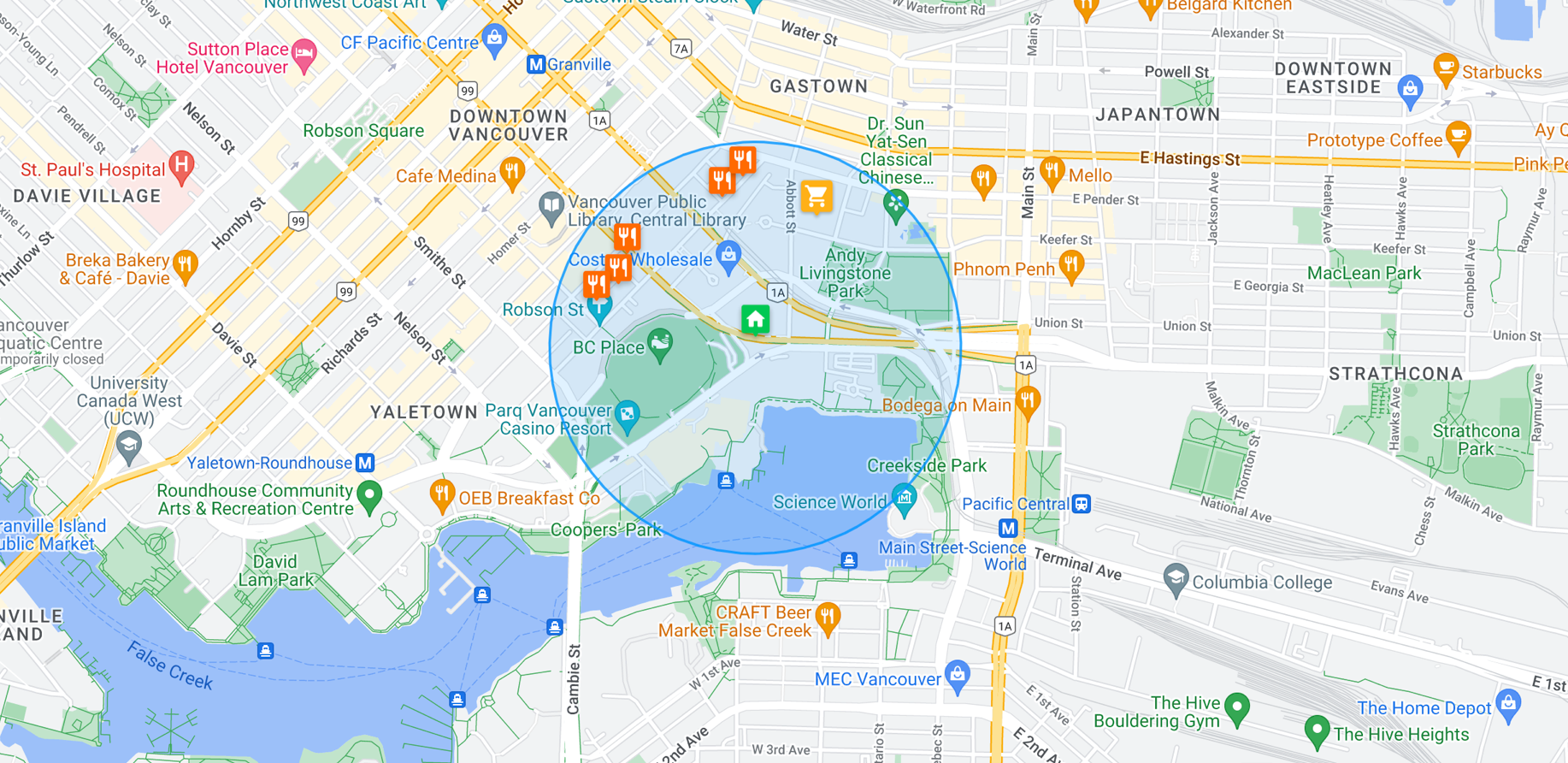
A circle drawn on Google Maps using new window.google.maps.Circle() function
Lastly, we add it to the `` component by passing `map` into the constructor of `window.google.maps.Circle()`.
**Marker.jsx**
The `` component, located in `/Components/Map/marker.jsx`, is nested within the `` component. It allows us to add an [AdvancedMarkerElement](https://developers.google.com/maps/documentation/javascript/reference/advanced-markers?ref=blog.afi.io#AdvancedMarkerElement) to the map which by default, appears as the red, balloon-shaped pin we all know and love. But it also, allows for customization, which I'll show you how to do below.
`` accepts the following props:
`id`: a unique identifier - for convenience we use `place_id`.
`style`: additional styling, if needed e.g. `{ width: 30 }`.
`position`: the geographical coordinates (latitude and longitude) of the marker.
`active`: boolean indicating whether this marker is currently active or selected.
`onToggle`: function to be called when the marker is clicked.
`type`: string representing the type of place or marker, which determines the icon to be used.
```
/* Components/Map/MapHandler.jsx */
import React from "react";
import { AdvancedMarker } from "@vis.gl/react-google-maps";
import { ReactComponent as HomeMarker } from "../../assets/images/home_marker.svg";
import { PLACE_TYPES } from "../../Constants";
import "./Marker.scss";
const Marker = ({ id, style, position, active, onToggle, type }) => {
const Icon = type === "Home" ? HomeMarker : PLACE_TYPES[type].markerIcon;
return (
);
};
export default Marker;
```
The `` component in `` determines which SVG to use. Here's how it works:
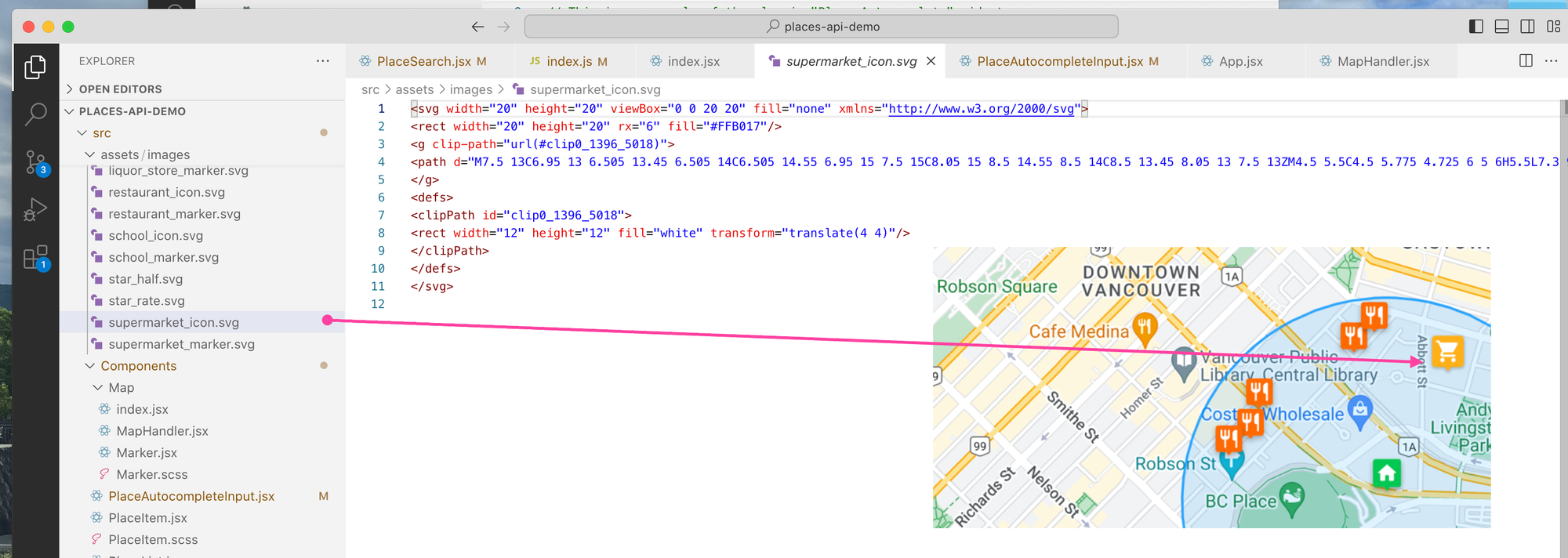
How icons are stored in the assets/images folder of our real estate search app
`const Icon = type === 'Home' ? HomeMarker : PLACE_TYPES[type].markerIcon;` checks to see if `type` is "Home". If it is, it assigns `HomeMarker` to the `Icon` variable. This is the equivalent of:
```
let Icon;
if (type === 'Home') {
Icon = HomeMarker;
} else {
Icon = PLACE_TYPES[type].markerIcon;
}
```
And in the return statement, `` now becomes ``.
But how exactly did we draw the custom home icon on the map? For this, we use inline SVG directly in React components by importing the SVG directly with: `import { ReactComponent as HomeMarker } from '../../assets/images/home_marker.svg';`. The `ReactComponent` import syntax is specific to [Create React App](https://create-react-app.dev/?ref=blog.afi.io) (the build tool we used to scaffold our app) and other React setups that support this feature. It allows the SVG to be imported as a React component, not just as a static image.
If the `type` isn't "Home", then it looks up the corresponding marker icon in the `PLACE_TYPES` object using type as the key and assigns it to the `Icon` variable. `PLACE_TYPES` is an object retrieved from `/Constants/index.js`, made available via the `import { PLACE_TYPES } from '../../Constants';` statement.
```
/* Constants/index.js */
import { ReactComponent as BankIcon } from '../assets/images/bank_icon.svg';
export const PLACE_TYPES = {
atm: { label: 'ATM', dropdownIcon: BankIcon, markerIcon: BankMarker },
bank: { label: 'Bank', dropdownIcon: BankIcon, markerIcon: BankMarker },
bar: { label: 'Bar', dropdownIcon: BarIcon, markerIcon: BarMarker },
// ... 14 more entries
};
```
So `PLACE_TYPES['atm'].markerIcon;` resolves to `BankMarker`, which is embedded as an SVG via `import { ReactComponent as BankIcon } from '../assets/images/bank_icon.svg';`.
To check that this works, you can add the line `const IconTest = PLACE_TYPES['atm'].markerIcon;` to `Marker.jsx` and replace the `` component with `` i.e. ``. Rerun the app and you should now see each point of interest marker use the 🏦 icon.
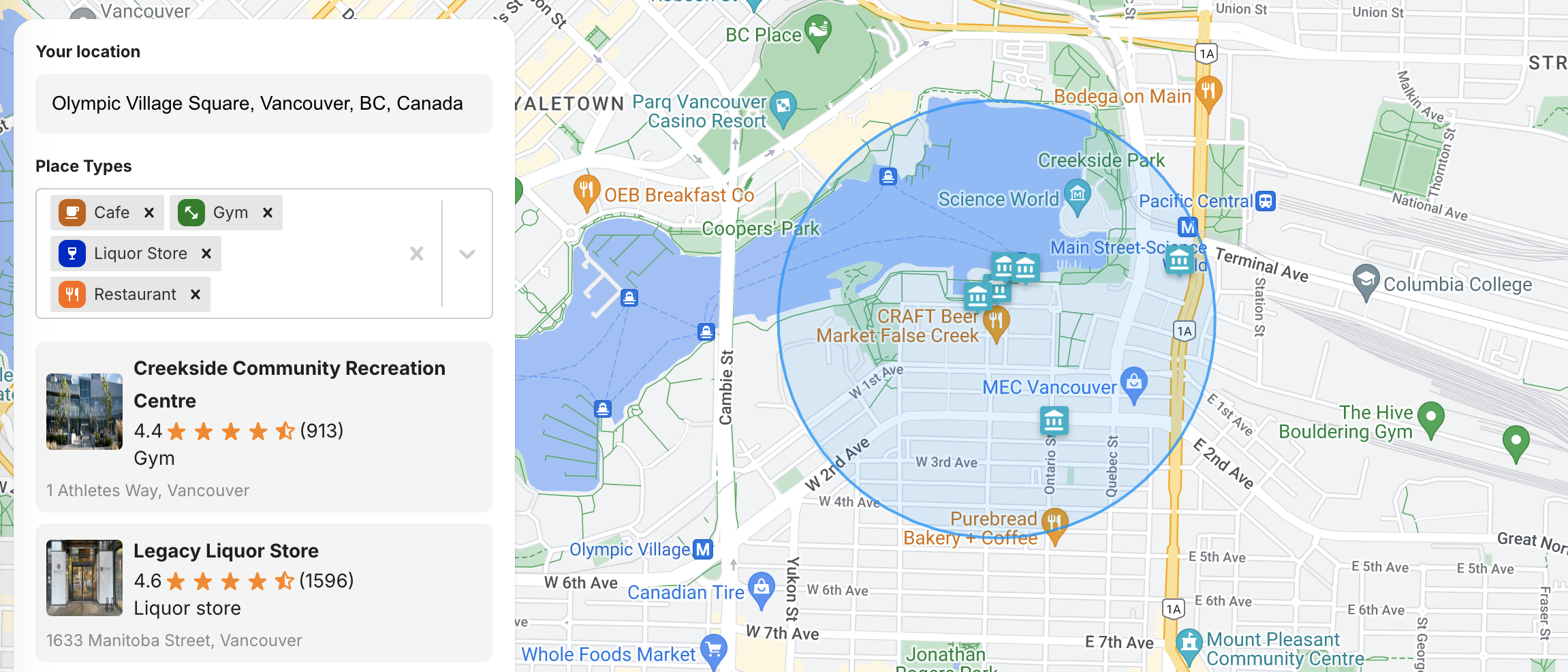
Customizing the component on Google Maps
### PlaceTypeSelector.jsx
To make it easy to see at a glance what amenities are nearby, we group the results returned by the Nearby Search API and display them in a multi select box from [react-select](https://react-select.com/home?ref=blog.afi.io). The first step is to pick out the unique place `types` from the list of places returned by Nearby Search and match them with the `types` we are interested in from `PLACE_TYPE_OPTIONS` as defined in `/Constants/index.js`.
```
/* Constants/index.js */
export const PLACE_TYPE_OPTIONS = Object.keys(PLACE_TYPES).map((key) => ({
value: key,
label: PLACE_TYPES[key].label,
icon: PLACE_TYPES[key].dropdownIcon,
}));
```
The next bit of code maps over `allResults` (the results from Nearby Search) to create a new array that consists only of the `type` properties of each result. Next, `[...new Set(...)]` creates a new set with these types, which automatically removes any duplicates because a Set only allows unique values. The spread operator (`...`) is then used to convert this Set back into an array, which contains only the unique types from the original `allResults`.
```
/* Utils/index.js */
export const getAvailablePlaceTypeOptions = (allResults, placeTypeOptions) => {
const uniqueTypes = [...new Set(allResults.map((result) => result.type))];
return placeTypeOptions.filter((option) =>
uniqueTypes.includes(option.value),
);
};
```
Once this is done, the function returns an array of filtered `placeTypeOptions` that match the types found in `allResults`. So if you are only looking for entries that match `type` "bar", "cafe" and "restaurant" and are `allResults` is made up of 10 "hotel", 2 "bar" and 1 "restaurant" entries, the output of our function would be an array: `["bar", "restaurant"]`.
Let's call the output `placeTypeOptions`. This is passed into `` via the `options` prop:
```
/* App.jsx */
;
```
And displayed in the multi select field of the `` component.

Using the react-select library to display place types
**PlaceList.jsx**
`PlaceList.jsx` is simpler compared to other React components in our app. It takes an array of place objects, `placeList`, as a prop. Each place object already conforms to the types defined in `/Constants/index.js`."
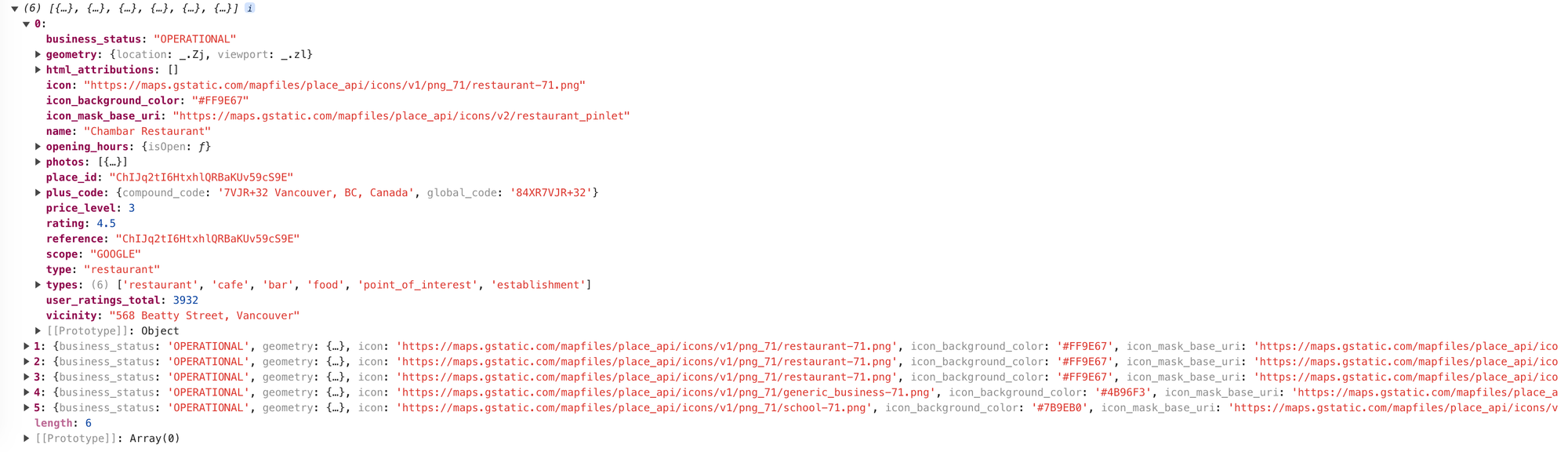
Place objects returned by the Nearby Search API
In the return statement of `PlaceList.jsx`, we iterate over `placeList` and use the spread operator, `{...place}`) to inject all properties of the `place` object as props to ``, which means every key-value pair in `place` becomes a prop of ``.

component props
**PlaceItem.jsx**
`PlaceItem.jsx` is a child component of `PlaceList.jsx`, and it is tasked with displaying the data for each place as an individual entry. The `name`, `rating`, `type`, `user_ratings_total` and `vicinity` props are each assigned to their respective HTML elements for display.

Mapping of fields returned by the Nearby Search API to displayed attributes in search results
To test the app, visit [https://places-api-demo.afi.dev/](https://places-api-demo.afi.dev/?ref=blog.afi.io) and enter any address to see what amenities are available nearby. To run this app locally, all you need to do is [fork it from Github](https://github.com/afilabs/places%5Fapi%5Fdemo?ref=blog.afi.io) and run `npm install` followed by `npm start`. You will also need to update the .env file with your Google Maps API key.
### What's next
In this blog post, we utilized multiple [Google Places APIs](https://developers.google.com/maps/documentation/places/web-service/overview?ref=blog.afi.io) to create a real estate search app that shows nearby amenities. We specifically used the [Google Nearby Search API](https://developers.google.com/maps/documentation/places/web-service/nearby-search?ref=blog.afi.io) to limit the search radius, filter results by type, and retrieve photos, ratings, and other valuable information about amenities in the chosen area."
In the next post, we'll look at the last API in this tutorial series, [Text Search](https://developers.google.com/maps/documentation/places/web-service/text-search?ref=blog.afi.io).
**This article was written by** [**Afi Labs**](https://afi.io/?ref=blog.afi.io)**, a** [**Google Maps Premier Partner**](https://www.afi.io/?ref=blog.afi.io) **and reseller. We build route optimization, navigation, and fleet tracking software on Google Maps, and offer volume pricing on GMP licensing.** [**Talk to an engineer**](https://www.afi.io/contact%5Fus?ref=blog.afi.io) **or** [**follow Afian on LinkedIn**](https://www.linkedin.com/in/afian-anwar/?ref=blog.afi.io)**.**
Next: [Part 5: Google Text Search API](https://afi.io/blog/google-places-text-search/?ref=blog.afi.io)