
Google Maps with React: Add a Google Map and style it
How to add a Google Map to your website in React and style it using cloud based styling.

In this tutorial, you'll learn how to add a Google Map to your React app with the @vis.gl/react-google-maps library and style it any way you want. Full source code for what we are going to build can be found in our GitHub repository at react_google_maps_demo (coming soon!).

Part 1: React Google Maps: Build with Google Maps using React
Part 2: Google Maps with React: Add a Google Map and style it (this article)
Part 3: Add markers and info windows to a Google Map using React
Part 4: How to draw shapes on your Google Map in React
Part 5: The place autocomplete widget in react-google-maps
Part 6: Draw a route polyline using prebuilt web components in React
Part 7: Places UI Kit web components in React
Run a Google Maps app in React
Before we write any code, let's cover what you'll need to get started:
- A web server. We'll be using Vite, a modern build tool and development server for frontend projects.
- A Google Maps API key (get a free demo key).
- An IDE like VS Code. You could also use a lightweight text editor such as Sublime Text.
- Node.js, a runtime environment that lets Javascript run on your computer, outside of a browser.
- A command line app such as Terminal (MacOS) or PowerShell (Windows).
Scaffold our React app
- Open Terminal and create a new project folder called
react_google_maps_demo, then switch into it. - Type
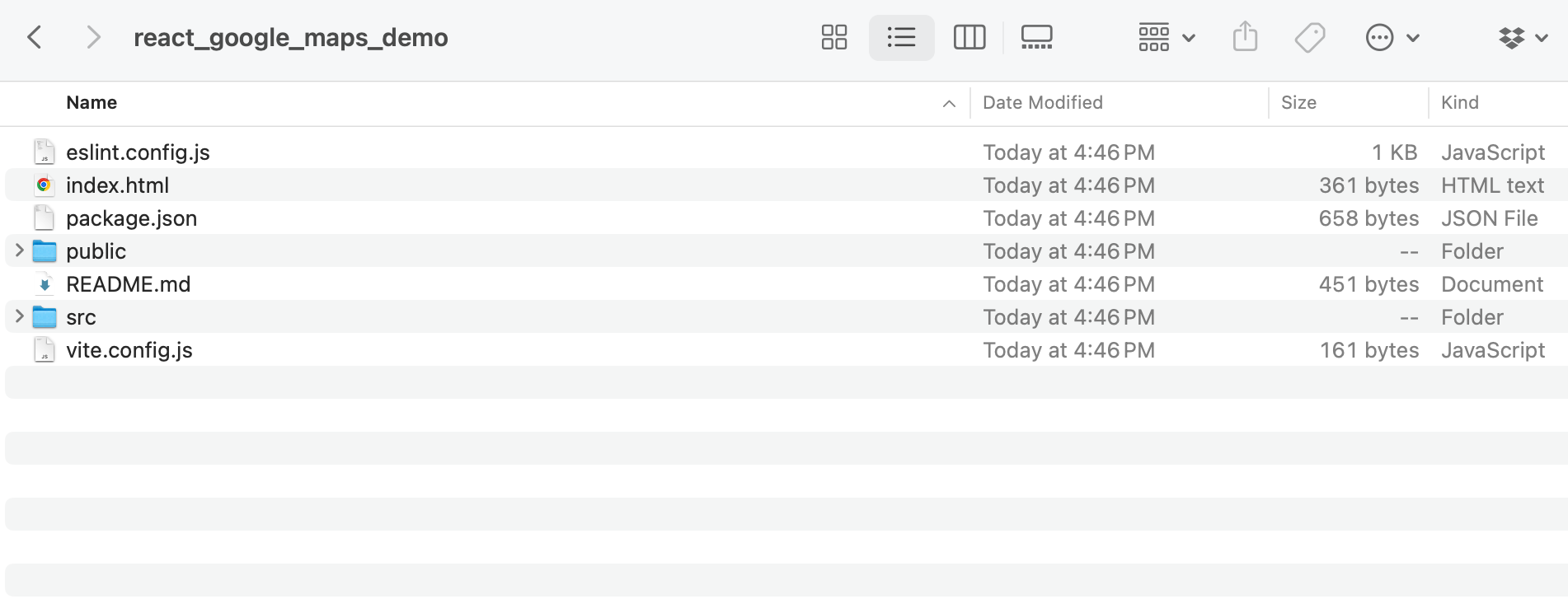
npm create vite@6.0.0 . – --template reactto create a new Vite React project in the current folder. - You should now see a bunch of new files and folders being created:
Test run the app
To make sure everything is working fine, run npm install followed by npm run dev. npm install downloads all the dependencies into a node_modules folder. npm run dev starts the local dev server.
Then open your browser and go to http://localhost:5173. You should see the default Vite + React welcome page.
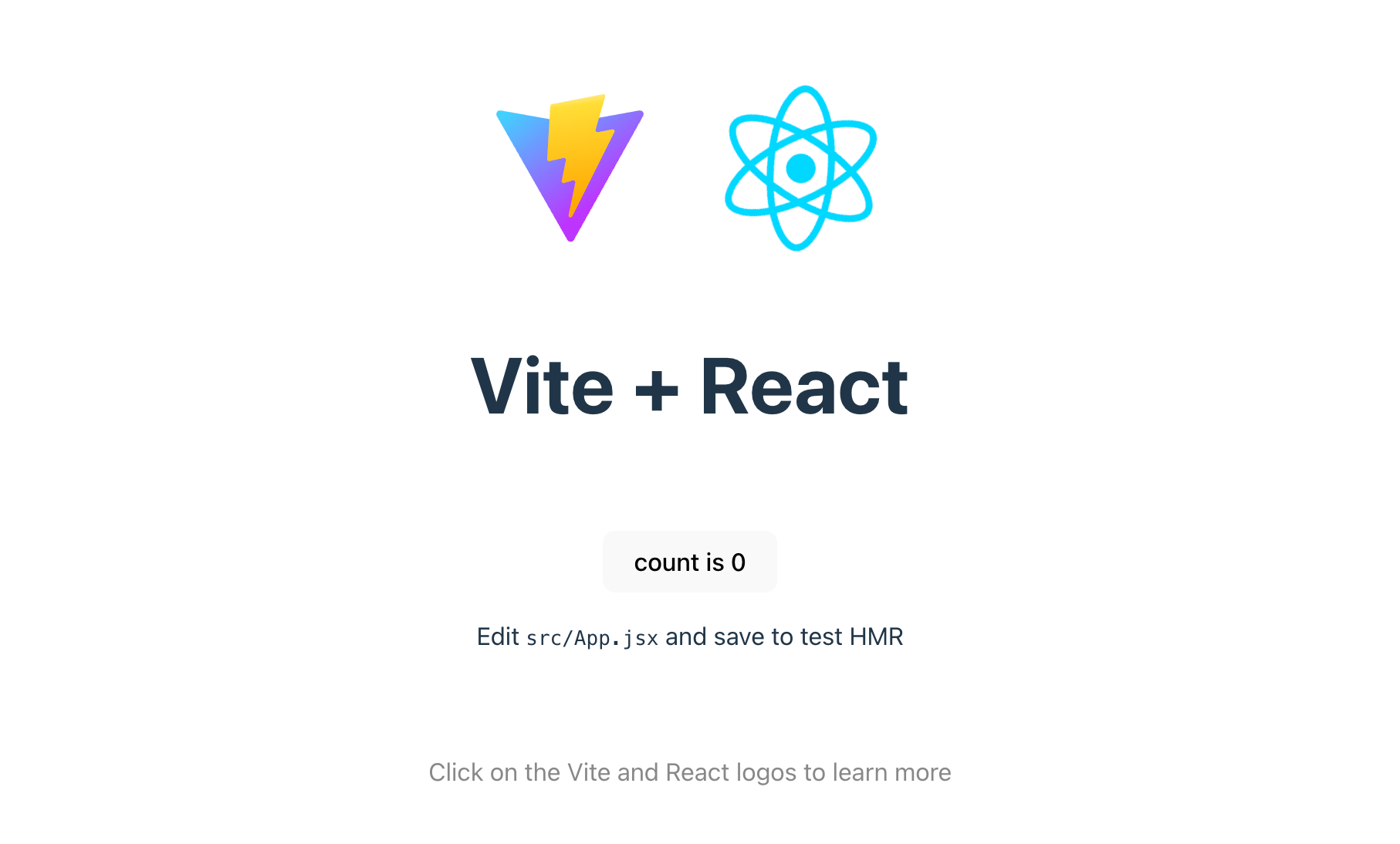
If you see the logos above, that's great! You now have a working React app that you can reuse throughout this tutorial series. This is also a good time to set up Git and push your code to GitHub. It's not required, but it's good practice, especially if you plan to collaborate with others.
Create a .env file
Next, we'll create a .env file so that we can securely store our Google Maps API key and Map ID (used for cloud based map styling). If you hardcode the key directly in your JSX and push it to GitHub, it's publicly visible and anyone can find and use it. Putting it in a .env file and adding .env to .gitignore means the key stays on your machine and never gets committed.
.env file keeps it out of your code repository, but it will still be visible in the browser's source code at runtime. To protect it, restrict the key to only the URLs you own.In the root of your project directory, create a new file and name it .env. Add the following lines of code to it:
VITE_GOOGLE_MAPS_API_KEY=YOUR_API_KEY
VITE_GOOGLE_MAPS_MAP_ID=YOUR_MAP_ID
Replace the API key with the a valid Google Maps API key (get a free demo key here).
Install the React Google Maps library
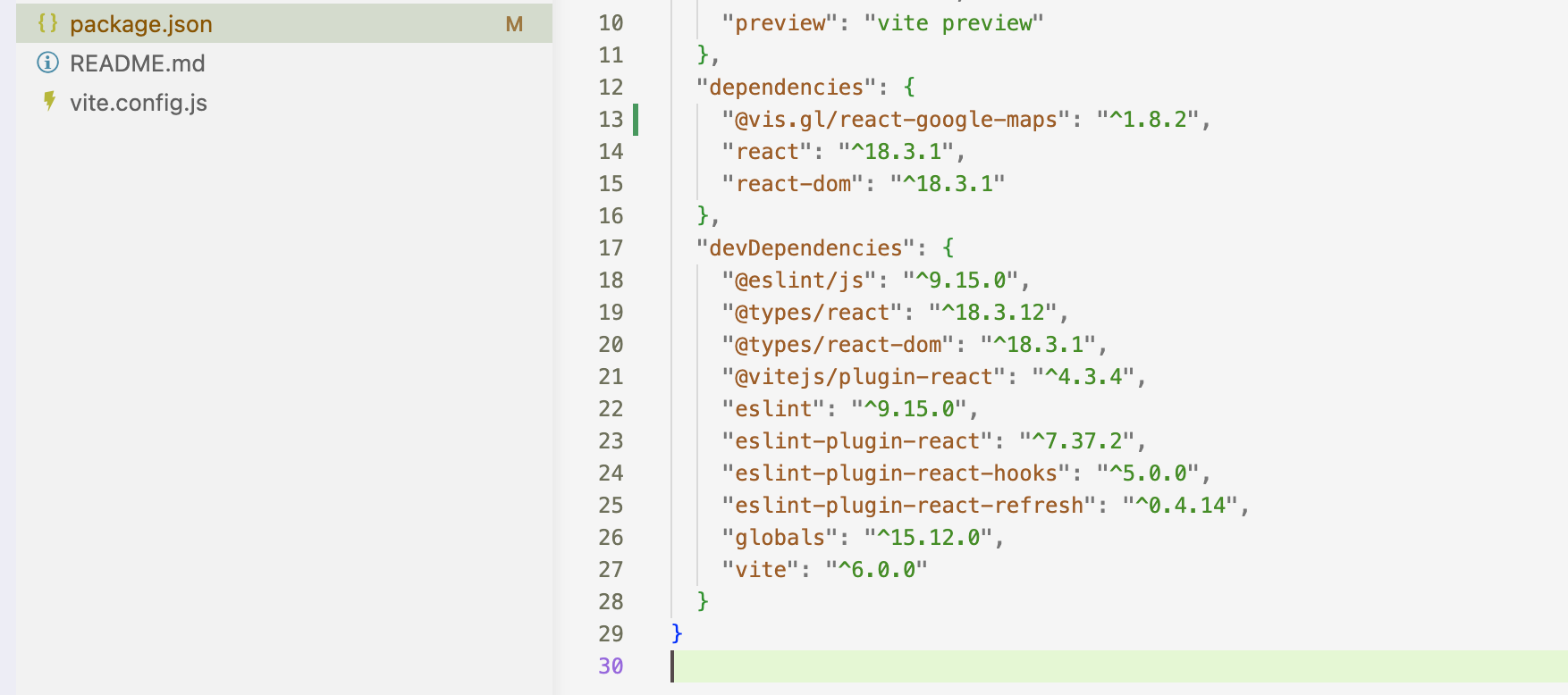
To use @vis.gl/react-google-maps, we first need to install it. In your project root run npm install @vis.gl/react-google-maps. This command downloads the @vis.gl/react-google-maps package and adds it to your project. Once this is done, you'll see it added to your package.json as a dependency (the actual package files can be found in your /node_modules folder).
Add a Google Map to App.jsx
App.jsx is the root component of our React app. It defines the overall layout and manages shared state. Since the goal of our app is much more modest (we simply want to display a Google Map), it's just the file where we'll put our map.
To load the Maps Javascript API with the React framework, we need to use the <APIProvider/> component that's part of @vis.gl/react-google-maps. First, add an import statement at the top of App.jsx.
import {APIProvider} from '@vis.gl/react-google-maps';Next, add the <APIProvider/> component in the return statement of App.jsx (this returns the JSX that React will render as HTML in the browser).
return (
  <APIProvider apiKey={import.meta.env.VITE_GOOGLE_MAPS_API_KEY}></APIProvider>
);
import.meta.env.VITE_GOOGLE_MAPS_API_KEY will make Vite pull the Google Maps API key from the .env file.
Third, add an import statement for the <Map/> component at the start of App.jsx
import {Map} from '@vis.gl/react-google-maps';and add the actual component code in between the <APIProvider/> tags.
<Map
  style={{ width: "100vw", height: "100vh" }}
  defaultCenter={{ lat: 49.2827, lng: -123.1207 }}
  defaultZoom={12}
></Map>;
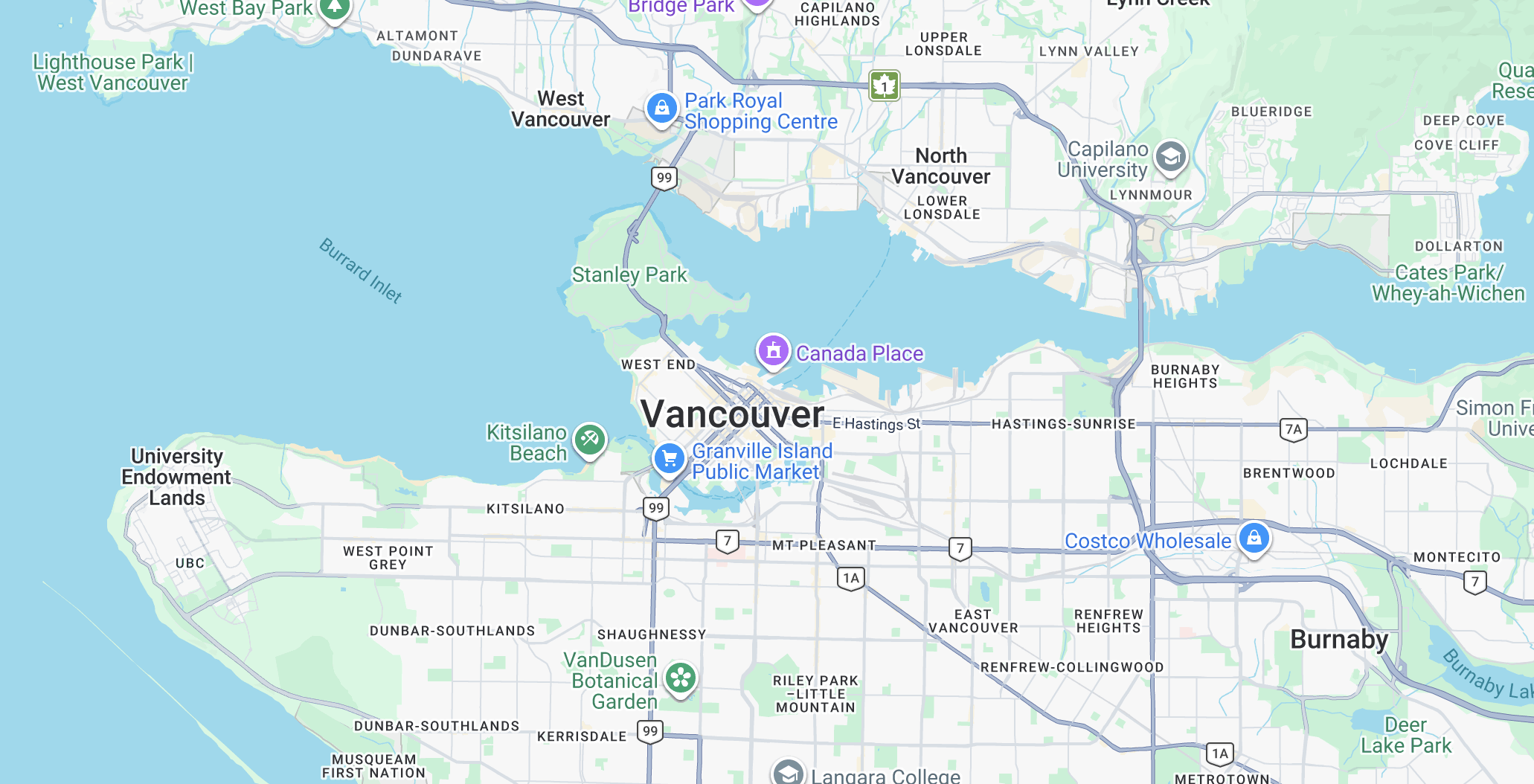
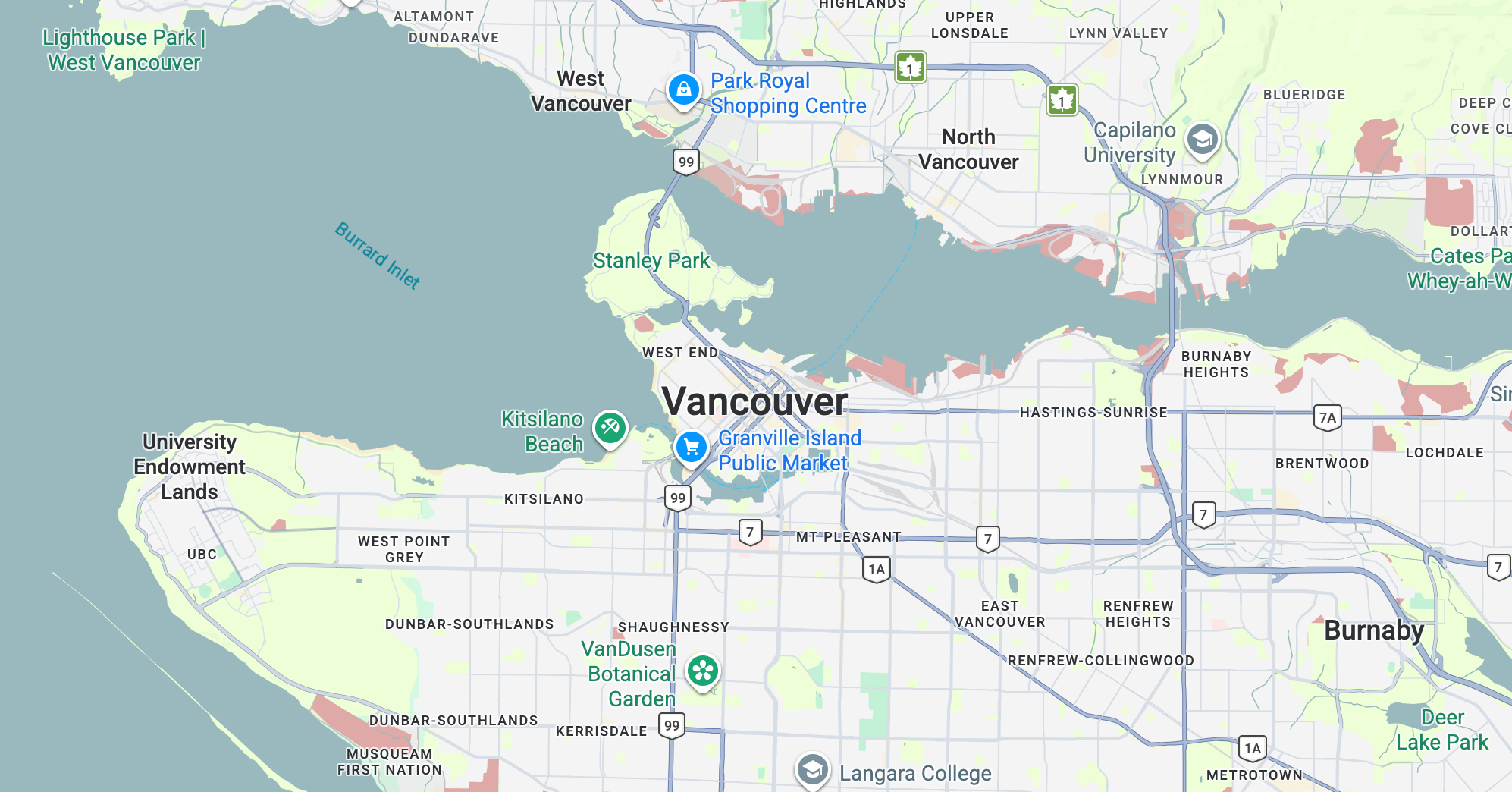
Switch back to the command line and run npm run dev. If everything worked correctly, you should see a full screen Google Map centered on Vancouver, Canada.
Apply cloud based maps styles
Next, let's use Google Maps new cloud based maps styling feature to customize our map.
- Head to the Google Maps Map Styles page of your Google Cloud Console.
- Click [+ Create Style] and then select the JSON tab.
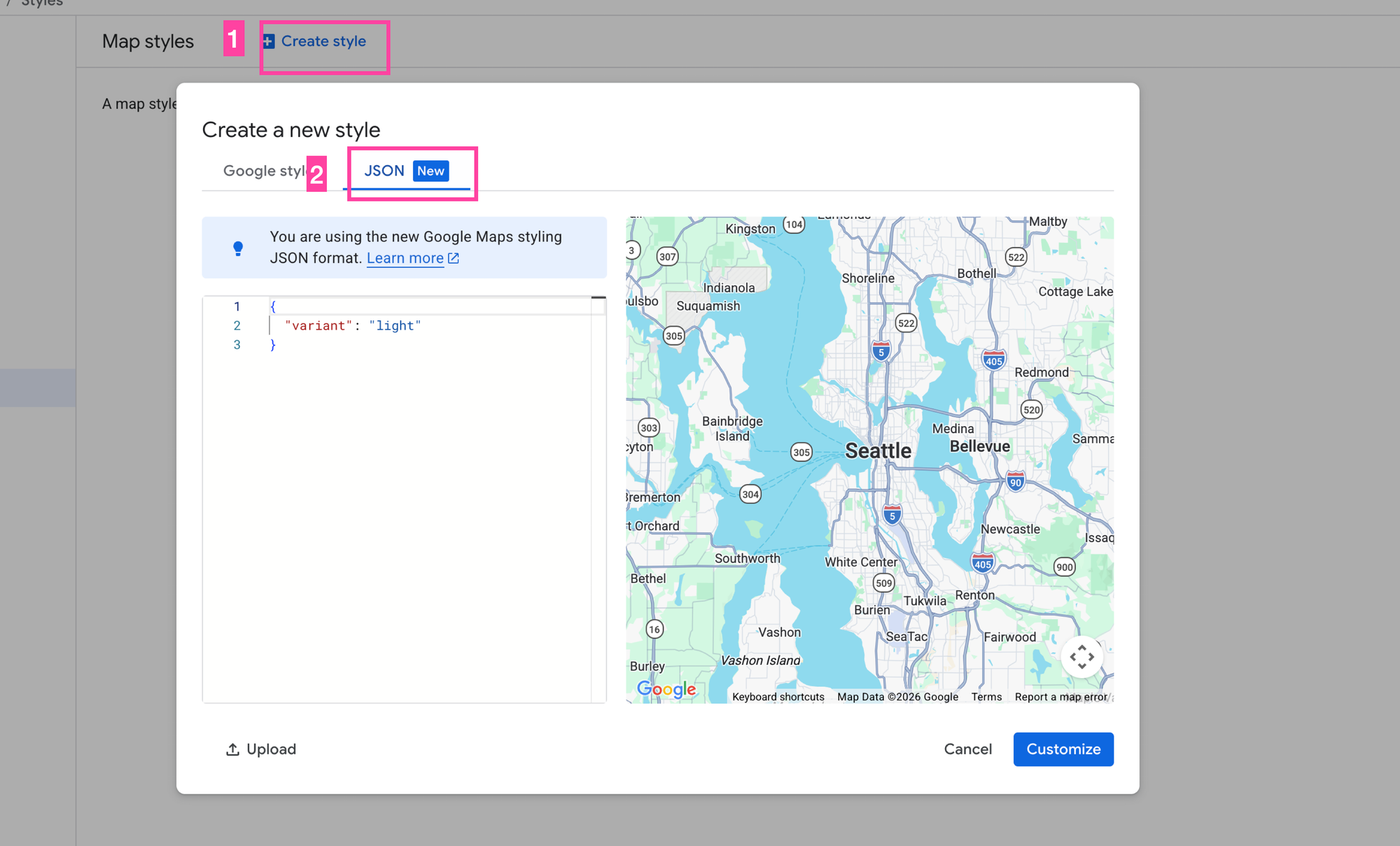
- Copy paste the following lime green / red style I've made for this example into the text box.
{
  "variant": "light",
  "styles": [
    {
      "id": "infrastructure.urbanArea",
      "geometry": {
        "visible": true,
        "fillOpacity": 1,
        "fillColor": "#f4f4f5"
      }
    },
    {
      "id": "natural.land.landCover.dryCrops",
      "geometry": {
        "fillOpacity": 1,
        "fillColor": "#edffd8"
      }
    },
    {
      "id": "natural.land.landCover.forest",
      "geometry": {
        "fillOpacity": 1,
        "fillColor": "#edffd8"
      }
    },
    {
      "id": "natural.land.landCover.shrub",
      "geometry": {
        "fillOpacity": 1,
        "fillColor": "#dea9a6"
      }
    },
    {
      "id": "natural.water",
      "geometry": {
        "fillOpacity": 1,
        "fillColor": "#9ab9be"
      }
    },
    {
      "id": "pointOfInterest.recreation.golfCourse",
      "geometry": {
        "fillOpacity": 1,
        "fillColor": "#dea9a6"
      }
    },
    {
      "id": "pointOfInterest.recreation.natureReserve",
      "geometry": {
        "fillOpacity": 1,
        "fillColor": "#edf1d5"
      }
    },
    {
      "id": "pointOfInterest.recreation.park",
      "geometry": {
        "fillOpacity": 1,
        "fillColor": "#edffd8"
      }
    }
  ]
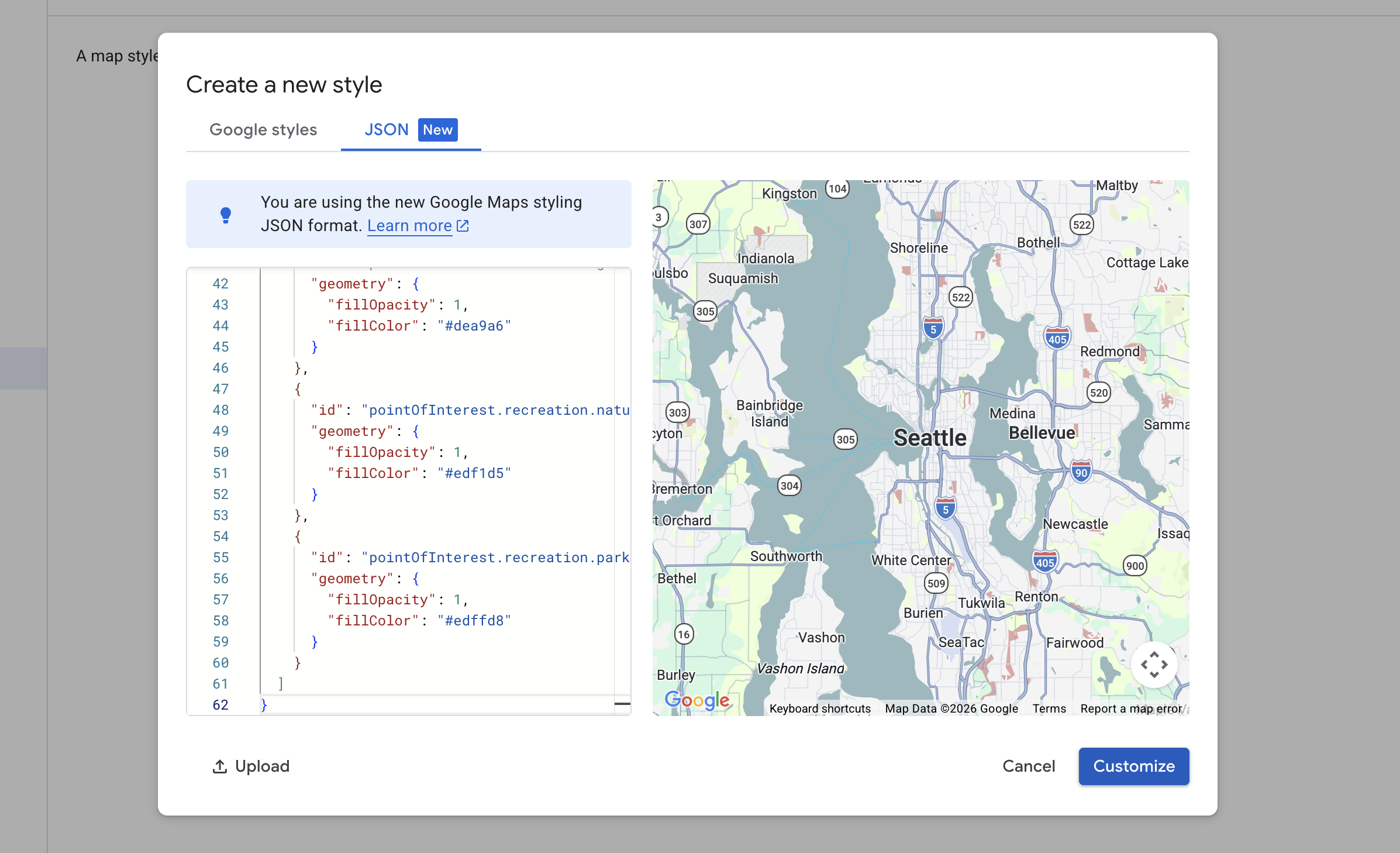
}- Once that's done, you should see the new style applied to the map on the right. Hit [Customize].
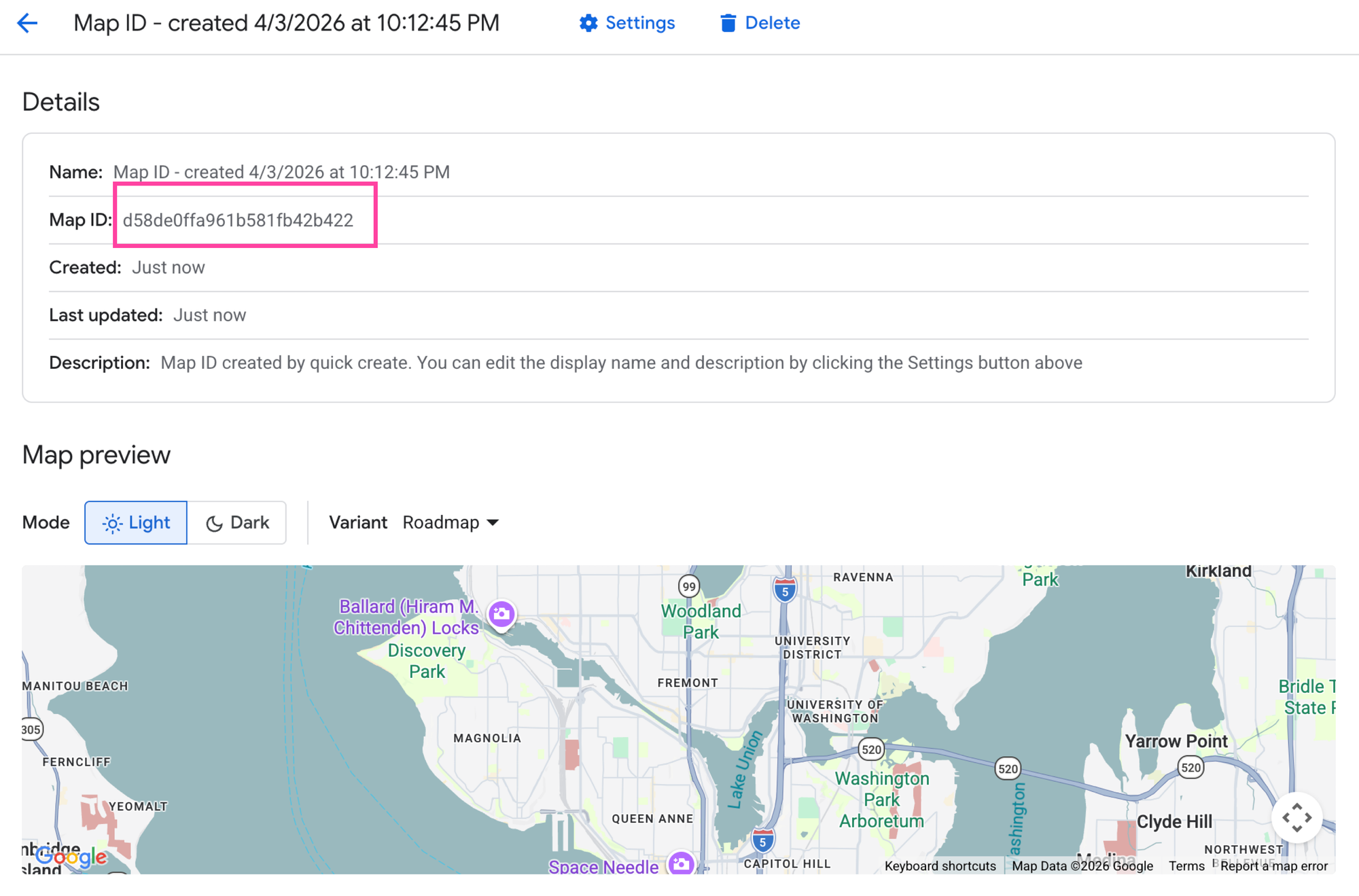
- Once the style is saved, look for the [Quick Create] button and press it. This will generate a Map ID.
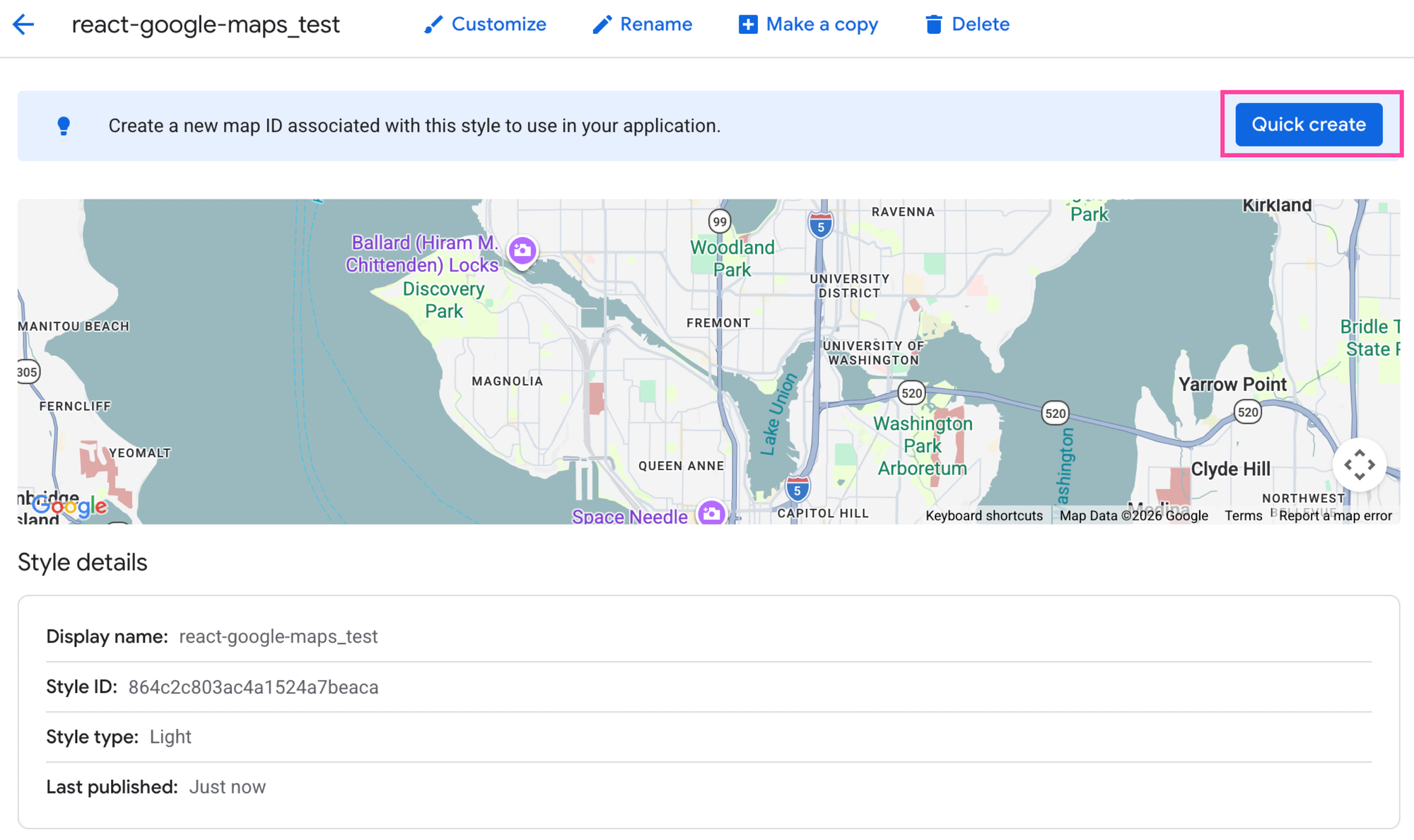
- CLICK [SAVE]. Copy the Map ID and save it to the
VITE_GOOGLE_MAPS_MAP_IDfield in the.envfile from earlier.
- Add the
mapIdprop to the<Map/>component like so:
<Map
  style={{ width: "100vw", height: "100vh" }}
  defaultCenter={{ lat: 49.2827, lng: -123.1207 }}
  defaultZoom={12}
  mapId={import.meta.env.VITE_GOOGLE_MAPS_MAP_ID}
></Map>;
Restart your app and you should see the new style applied to your map.
Coming up next
And that's a wrap for this first tutorial on adding a Google Map in React. Our next blog post will build on this by showing you how to add map markers and info windows to your map.
👋 As always, if you have any questions or suggestions for me, please reach out or say hello on LinkedIn.
Next: Part 3: Add markers and info windows to a Google Map using React