
Create a Waze and Google Maps deep link using Maps URLs
Add turn by turn navigation to your app for free using Google Maps and Waze deep linking / Maps URLs.

Waze and Google Maps are the most popular navigation apps in the world, with an estimated 75% combined market share. And for good reason. Both offer an excellent turn-by-turn experience backed by accurate, real time traffic data, shared anonymously by millions of drivers every day.
Most people use these apps directly. But if you've ever delivered food or packages, you may have used a handy feature that launches Waze or Google Maps with the delivery address already filled in. That feature is called deep linking. In this post, I'll show you how it works, why it's useful, and where it's commonly used, along with working sample code you can drop into your own app right away.
Part 1: Create a Waze and Google Maps deep link using Maps URLs (this article)
Part 2: Fleet tracking with the Google Navigation Connect API
Part 3: Turn by turn directions with Waze using the Navigation Connect API
What is Waze and Google Maps deep linking?
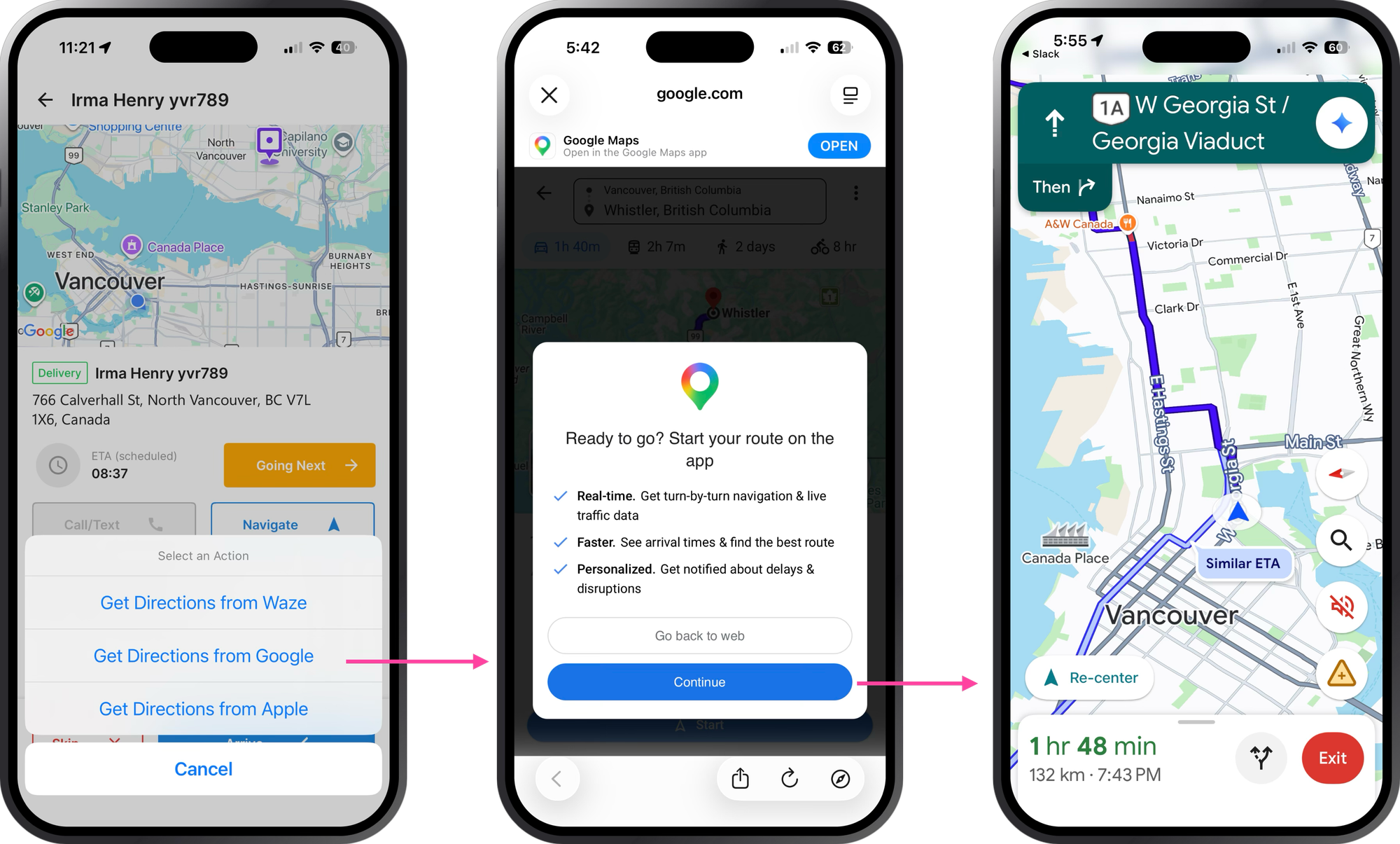
Deep linking is a way to launch Waze and Google Maps directly from a third party app. The mechanism for doing this is called Maps URLs, which are specially formatted URLs that opens up the default browser on your phone. The browser detects that you are trying to load http://google.com/maps for example, and asks if you'd rather open the Google Maps app on your phone directly. If you agree, it loads the destination and the route from your current location automatically.
The most important thing to know about Waze and Google Maps deep linking is that it is completely free.
When is Waze and Google Maps deep linking useful?
You should use deep linking when you want your drivers to have turn-by-turn navigation, but you don't want to spend the time and money (it's free!) building navigation directly into your app.
It's a good fit if you can live with these trade offs:
- No branded navigation experience. You get Google Maps or Waze as-is. No custom colors, logo or styling to match your app.
- No live tracking during navigation. Once Google Maps or Waze launches, your app moves to the background and its location tracking stops.
- The driver leaves your app. While they're in the navigation app, they'll miss any in-app notifications or updates. If you run a food delivery platform and the delivery address changes mid-route, there's no easy way to update the driver's route while they're in transit.
Deep linking is very much fire and forget. Before relying on it, you need to be confident that the delivery address won't change, and that your drivers have the patience and training to exit the navigation app and return to yours to finish the job.
How does Google Maps deep linking work?
For Google Maps, use the following URL format to launch the app on Android and iOS (if the Google Maps app is installed).
Endpoint: GET
https://www.google.com/maps/dir/?api=1&
origin={ORIGIN}&
destination={DESTINATION}&
travelmode={TRAVEL_MODE}&
dir_action=navigate
{ORIGIN} defines the starting point from which to display directions. The value can be either a place name, address, or comma separated latitude/longitude coordinates e.g. origin=49.2827,-123.1207. If using an address string, it must be URL encoded, so an address such as "Vancouver, BC, Canada" should be converted to Vancouver%2C%20BC%2C%20Canada. To start navigation from the user's current location (determined by phone GPS), omit the {ORIGIN} parameter entirely.
{DESTINATION} is the end location for the route. Like {ORIGIN}, it can be a place name, an address, or a comma-separated latitude/longitude pair. If you run a delivery app, {DESTINATION} is usually the address of the customer receiving the package or food order.
{TRAVEL_MODE} is one of "driving", "walking", "bicycling", "two-wheeler" or "transit".
dir_action=navigate launches either turn-by-turn navigation or a route preview, depending on the origin. The map starts turn-by-turn navigation when the origin is omitted (in which case it defaults to the device's current location) or when the specified origin is close to the device's current location. Otherwise, if the specified origin is far from the current location or the device location is unavailable, it shows a route preview instead.
Google Maps deep link worked example
Here's a Kotlin function that launches the Google Maps app with no origin (so navigation starts from the user's current location) to a destination with a chosen travel mode:
import android.content.Context
import android.content.Intent
import android.net.Uri
import android.widget.Toast
import java.net.URLEncoder

enum class TravelMode(val value: String) {
    DRIVING("driving"),
    WALKING("walking"),
    BICYCLING("bicycling"),
    TRANSIT("transit"),
    TWO_WHEELER("two-wheeler")
}

/**
 * Launches Google Maps navigation to [destination], starting from the user's
 * current location. The origin is intentionally omitted so Maps defaults to
 * the device's GPS location and starts turn-by-turn navigation.
 *
 * @param destination a place name, address, or "lat,lng" string
 * @param travelMode  the mode of travel (defaults to driving)
 */
fun launchGoogleMapsNavigation(
    context: Context,
    destination: String,
    travelMode: TravelMode = TravelMode.DRIVING
) {
    val encodedDestination = URLEncoder.encode(destination, "UTF-8")

    // Origin is deliberately left out so Maps uses the current location.
    val url = "https://www.google.com/maps/dir/?api=1" +
            "&destination=$encodedDestination" +
            "&travelmode=${travelMode.value}" +
            "&dir_action=navigate"

    val intent = Intent(Intent.ACTION_VIEW, Uri.parse(url)).apply {
        setPackage("com.google.android.apps.maps")
    }

    if (intent.resolveActivity(context.packageManager) != null) {
        context.startActivity(intent)
    } else {
        // Google Maps app is not installed. Fall back to the browser / web map.
        val fallback = Intent(Intent.ACTION_VIEW, Uri.parse(url))
        if (fallback.resolveActivity(context.packageManager) != null) {
            context.startActivity(fallback)
        } else {
            Toast.makeText(context, "No app available to open the map.", Toast.LENGTH_SHORT).show()
        }
    }
}
In Kotlin, an Intent is a message object that says "I want something done". It describes an action you want to happen, and Android's job is to find whoever can carry it out. In the code above there are two intents, and they represent two levels of "how specific am I about who handles this."
Intent 1 — the targeted launch. Built as an ACTION_VIEW intent carrying the Maps directions URL, then locked with setPackage("com.google.android.apps.maps"). The package lock is what makes this explicit: it says "only the Google Maps app may handle this request." This is the happy path — it opens the native Maps app straight into turn-by-turn.
// Explicit: locked to the Google Maps package, so ONLY Maps can handle it.
val intent = Intent(Intent.ACTION_VIEW, Uri.parse(url)).apply {
    setPackage("com.google.android.apps.maps")
}
Intent 2 — the fallback launch. Built the same way (ACTION_VIEW + the same URL) but without setPackage. Dropping the package lock makes it implicit again: "any app that can view an https:// URL may handle this." In practice that's the device's browser, which loads the Maps web map.
// Implicit: no package lock, so any app that can view an https:// URL
// can handle it — in practice, the device's browser loading the web map.
val fallback = Intent(Intent.ACTION_VIEW, Uri.parse(url))
The url used here is the same one used in the official Maps URL documentation:
// Origin is deliberately left out so Maps uses the current location.
val url = "https://www.google.com/maps/dir/?api=1" +
    "&destination=$encodedDestination" +
    "&travelmode=${travelMode.value}" +
    "&dir_action=navigate"
Using a Waze deep link
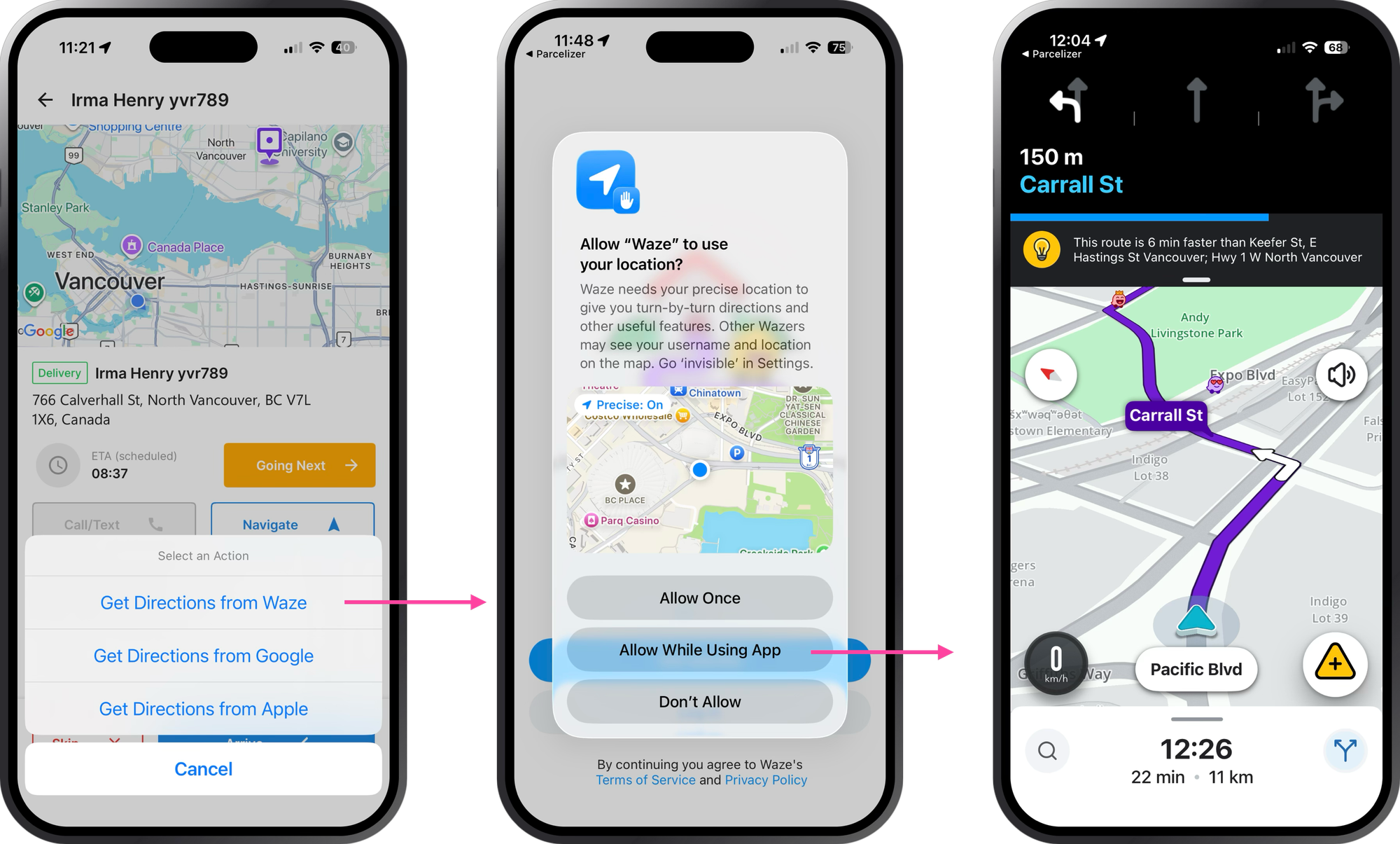
Waze deep linking works much the same way as it does with Google Maps, which shouldn't come as a surprise, since Google acquired Waze back in June 2013 for a reported $1 billion.
Endpoint: GET
https://waze.com/ul?
ll={LATITUDE-LONGITUDE}&
navigate=yes
{LATITUDE-LONGITUDE} is the end location of the route and must be a comma separated latitude/longitude pair. Unlike Google Maps, Waze does not have access to accurate, high fidelity place data so it only accepts exact coordinates. To convert an address into latitude/longitude coordinates before handing it off to Waze, use the Google Geocoding API.
navigate=yes tells Waze to launch turn-by-turn navigation to the destination right away.
Just like with Google Maps, whether Waze opens as a client app or a web page depends on the user's system configuration:
- On desktop: Waze opens as a web page.
- On a mobile device (and the Waze app is installed): The Waze app opens.
- On a mobile device (and Waze isn't installed): Waze opens as a web page.
Waze and Google Maps deep linking pricing
Deep linking for both Waze and Google Maps is completely free. Both the Waze deep link API (https://waze.com/ul?...) and the Google Maps URLs scheme (https://www.google.com/maps/dir/?api=1&...) are just URL formats. You're not calling a billed API. There's no API key, no quota, no per-request pricing. You can generate and fire as many of these as you like at zero cost, which is why deep linking is so popular.
When deep linking isn't enough
If turn-by-turn navigation matters to you but the loss of visibility once a driver is handed off to Waze or Google Maps is a dealbreaker, the Navigation Connect API (covered in the next section) might be the answer.
This article was written by Afi Labs, a Google Maps Premier Partner and reseller. We build route optimization, navigation, and fleet tracking software on Google Maps, and offer volume pricing on GMP licensing. Talk to an engineer or follow Afian on LinkedIn.
Next: Part 2: Google Maps turn by turn directions with the Navigation Connect API