
Never miss a moment with the Google Time Zone API
Get the time zone for a specific latitude and longitude with the Google Time Zone API.

Have you ever missed an important meeting because you forgot that Daylight Savings Time (DST) kicked in? If you have, the Google Time Zone API just might be able to help. It takes in GPS coordinates and a timestamp, and returns the base and daylight savings time offsets needed to calculate local time anywhere in the world.
In this guide, I’ll show you how the Google Time Zone API works and how to use it to flip those standard Coordinated Universal Time (UTC) responses from various Google Maps APIs into the actual 'wall clock' time your users expect. It's the difference between "2026-02-28T07:54:07Z" and "11:54 pm PST". To wrap things up, we’ll build a quick time map (source code / demo) that pulls the local time and timezone from anywhere in the world.
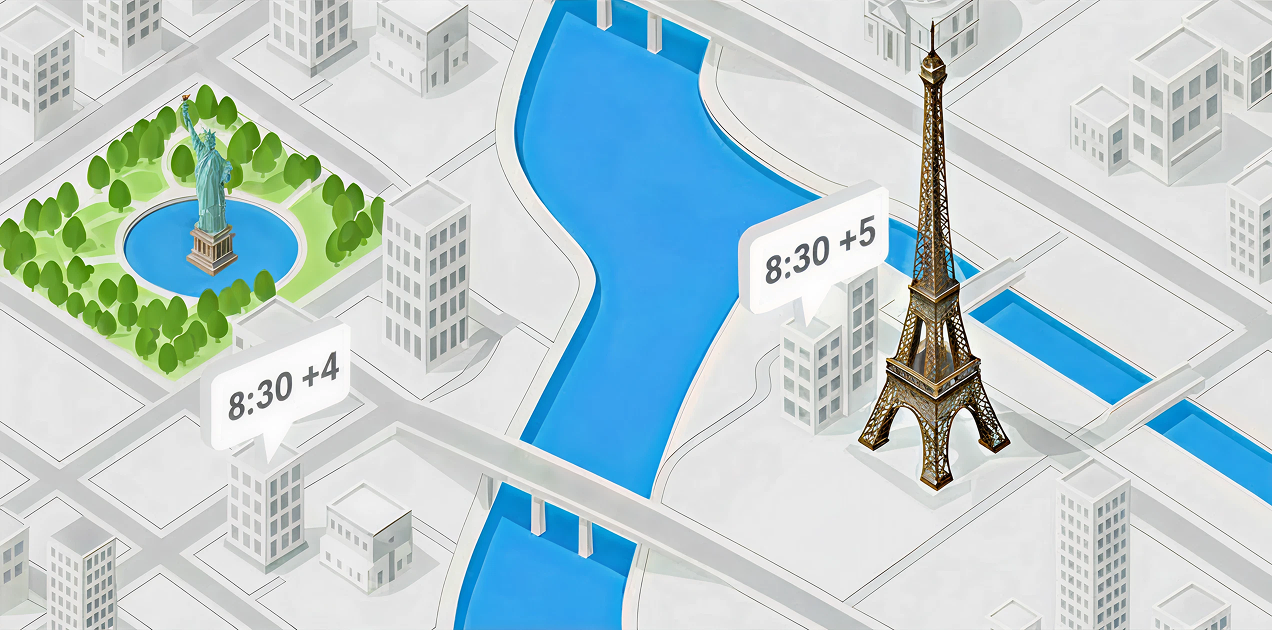


What is the Google Time Zone API and why is it useful?
The Google Time Zone API is a lookup service that tells you the local time anywhere in the world. But before I can explain how the Google Time Zone API works, you need to first understand how computers (your phone, laptop, servers etc) keep track of time.
In the late 1960s, Ken Thompson and Dennis Ritchie were at Bell Labs working on an early version of Unix, the operating system that would eventually run almost everything we use today. They ran into a classic problem in computer science - How does a computer know what time it is? The easiest solution, especially given the limitations in memory and storage back then, was to keep track of time in whole seconds from midnight, January 1, 1970. But midnight where exactly? Ken and Dennis worked out of Bell Lab's legendary Murray Hill offices in New Jersey, but if they had used East Coast Time (ET) the system would have been broken from day one because New Jersey observes Daylight Saving Time which gains an hour in spring and loses an hour in the fall. So they settled on London - specifically, at the Prime Meridian in Greenwich. This means that the Unix Epoch is 00:00:00 UTC on January 1, 1970.
So when the Google Maps Route Optimization API tells you that the vehicleStartTime of a route is "2024-07-08T16:00:00Z", it is saying that the route should start 1,720,454,400 seconds after January 1, 1970 because:
- There are 86,400 seconds in a standard day.
- Since the Epoch (January 1, 1970), exactly 19,912 days and 57,600 seconds (16 hours) have passed.
- 19,912 x 86,400 + 57,600 = 1,720,454,400 which when converted to UTC is 2024-07-08T16:00:00Z.
The Google Time Zone API is useful because it can tell us which time zone that route is in based on its location and gives us the metadata needed to convert that UTC time string into local time.
Google Time Zone API example
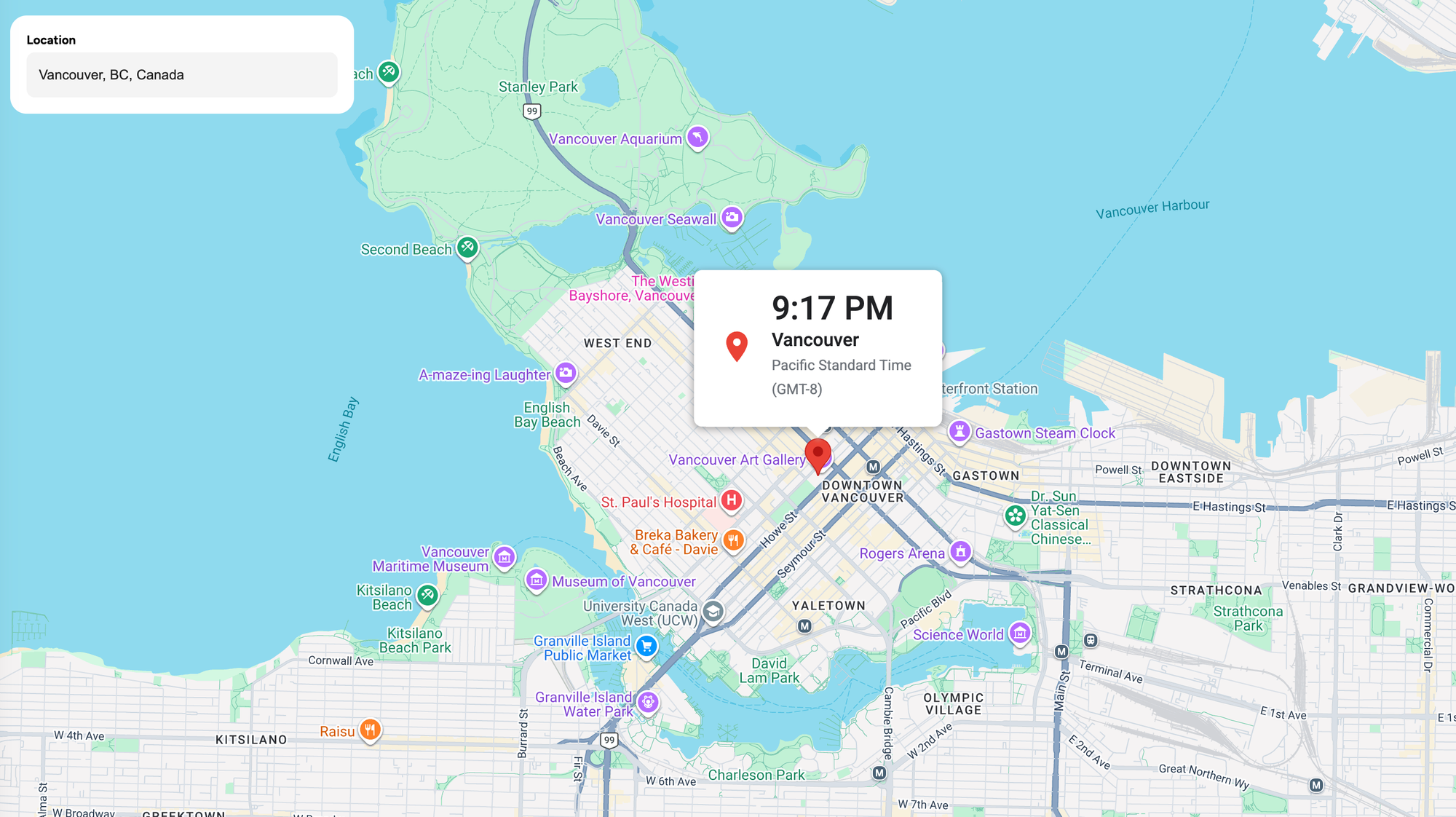
Here's how you get the time zone for Vancouver, Canada (49.2827, -123.1207).
Endpoint: GET
https://maps.googleapis.com/maps/api/timezone/json?key={YOUR_API_KEY}
&location={LOCATION}
×tamp={TIMESTAMP}{YOUR_API_KEY} is your Google Maps API key with the Google Time Zone API enabled.
{LOCATION} is a comma-separated latitude, longitude tuple e.g. location=49.2827,-123.1207, representing the GPS coordinates to look up. The location you choose should not be in the sea.
{TIMESTAMP} is the desired time as Unix epoch time i.e. seconds since midnight, January 1, 1970 UTC. This determines whether or not Daylight Savings should be applied, based on the time zone of the location.
Endpoint: GET
Response
{
    "dstOffset": 3600,
    "rawOffset": -28800,
    "status": "OK",
    "timeZoneId": "America/Vancouver",
    "timeZoneName": "Pacific Daylight Time"
}
dstOffset is the Daylight Saving Time offset in seconds.
rawOffset is the UTC offset in seconds.
timeZoneId is the IANA timezone string e.g. America/Vancouver.
timeZoneName is the human-readable name of the time zone e.g. "Pacific Daylight Time".
So the Google Time Zone API just told us that Vancouver is in the "America/Vancouver" time zone. Here's how to find the local time .
- The
rawOffsetis -28,800 This is the base time zone offset from UTC in seconds. If you divide -28,800 by 3,600 (the number of seconds in an hour), you get -8 hours. This tells you that Vancouver's standard "winter" time is UTC-8 (Pacific Standard Time). - The
dstOffsetis 3,600. This is the Daylight Saving Time adjustment in seconds. Because it's 3,600 (exactly 1 hour), it tells you two crucial things: DST is currently active for the Unix timestamp 1,720,454,400, and you need to add one hour to the standard time. - To get the local time, we take the Unix time stamp 1,720,454,400, subtract 28,800 seconds (
rawOffset) and add thedstOffsetof 3,600 seconds. The gives you 1,720,454,400 - 28,800 + 3,600 = 1,720,429,200. 1,720,429,200 converts to Monday, July 8, 2024, 09:00:00 AM Vancouver time.
So why use the Google Time Zone API at all if these time zone calculations just use basic math? Because dealing with time zones is hard (see Falsehoods programmers believe about time).
For starters, Daylight Savings Time doesn't happen at the same time everywhere. USA and Canada switch on March 8th while the UK and EU switch on March 29th. Australia swings the opposite way because it's their autumn. Also, the rules change from time to time. In 2023, Mexico abolished DST for most of the country.
Dealing with all these edge cases in code is a nightmare. Its better to let an API do the heavy lifting so that you can focus on presenting time sensitive information in a useful and consistent way in your app.
What's the difference between the Google Time Zone API and a date time library?
While a date time library such as day.js or moment.js can convert UTC into local time with just a few lines of code, these libraries are used to solve a fundamentally different problem from the Google Time Zone API. If you already know what time zone your vehicle, driver, asset or whatever object you are tracking is in, there's no need to use the Time Zone API at all. For example, you can use moment.js to convert UTC time to Vancouver time in just three lines of code.
import moment from 'moment-timezone';

const vancouverTime = moment.utc('2024-07 08T16:00:00Z').tz('America/Vancouver');

console.log(vancouverTime.format('MMMM D, YYYY h:mm A'));
// Output: July 8, 2024 9:00 AM
However, if all you have are coordinates, the Time Zone API can be used to match that location to a specific time zone, allowing your date time library to handle the conversion from UTC to local time automatically.
What is the Google Time Zone API used for?
The most common use case for the Google Time Zone API is displaying remote events in their correct local time on a centralized dashboard. For logistics, food delivery, or ride sharing platforms, this ensures a dispatcher in one time zone sees a delivery exactly as it happens in the local time of the customer, rather than forcing every event into UTC. The Google Time Zone API is how you reconcile when an event happens (such as when a trip or route starts and ends) with where it happens.
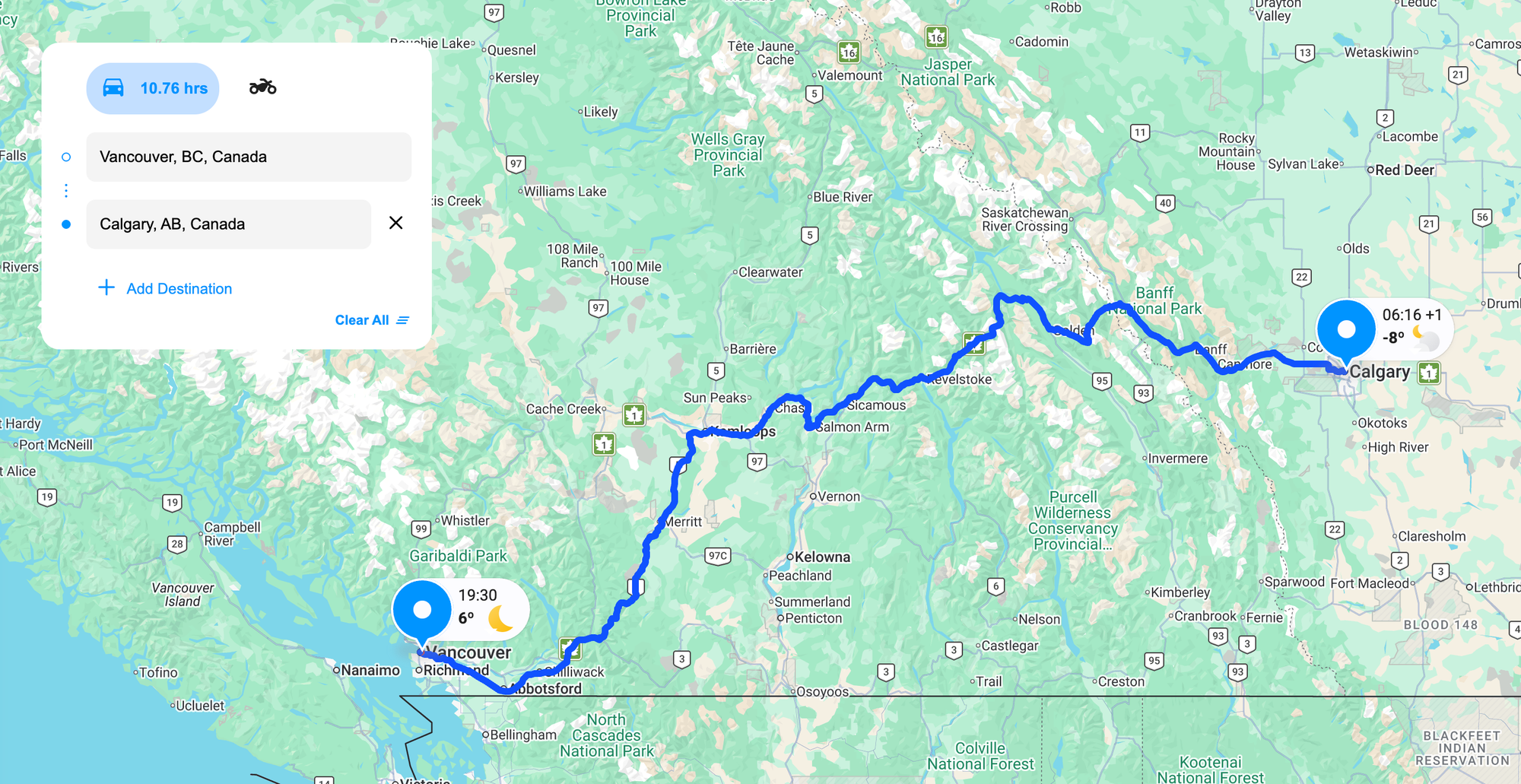
Take the example of a long distance trucking app that is helping a shipper plan a long haul trip starting in Vancouver, BC and ending in Calgary, AB. If the driver leaves Vancouver at 19:30 hrs, what time does he arrive? Not only is the journey long, Calgary observes Mountain Time which is one hour ahead of Pacific Time in Vancouver (edit: not any more - British Columbia decided to abolish Daylight Savings Time on 2 Mar 2026).
According to the information returned by the Google Routes API, if he leaves Vancouver at 2026-03-02T03:30:41.945Z (19:30 hrs on Sun 1 Mar, 2026), he will arrive in Calgary at 2026-03-02T13:16:21.945Z. What's this in local Calgary time?
Since the Google Time Zone API requires a timestamp parameter in seconds since the Unix Epoch, we first strip the milliseconds off 2026-03-02T13:16:21.945Z and convert it into Unix time. In moment.js, this is easy to do:
const moment = require('moment');

// 1. Parse the ISO string
const isoString = "2026-03-02T13:16:21.945Z";
const m = moment(isoString);

// 2. Convert to Unix Timestamp (Seconds)
const unixTimestamp = m.unix();

console.log(unixTimestamp);
// Output: 1772460981
Next, we call the Google Time Zone API by passing in timestamp=1772460981 and location=51.0446884%2C-114.0718852 (Calgary, AB). We get the following response:
{
    "dstOffset": 0,
    "rawOffset": -25200,
    "status": "OK",
    "timeZoneId": "America/Edmonton",
    "timeZoneName": "Mountain Standard Time"
}
Finally, we apply the offsets and use moment.js to format the time nicely for display on the frontend.
const moment = require('moment');

// 1. Your original UTC timestamp (in seconds)
const originalTimestamp = 1772460981;

// 2. Data from the Google API response
const apiResponse = {
    "dstOffset": 0,
    "rawOffset": -25200,
    "status": "OK",
    "timeZoneId": "America/Edmonton",
    "timeZoneName": "Mountain Standard Time"
};

// 3. Calculate total offset in milliseconds
// (-25200 + 0) * 1000 = -25,200,000 ms
const totalOffsetMs = (apiResponse.rawOffset + apiResponse.dstOffset) * 1000;

// 4. Create the Moment object and apply the offset
// We use .utc() to ensure we start from the base timestamp
const calgaryTime = moment.utc(originalTimestamp * 1000).add(totalOffsetMs, 'ms');

// 5. Format for the user
console.log("Local Calgary Time:", calgaryTime.format('YYYY-MM-DD HH:mm:ss A'));
// Output: "2026-03-02 06:16:21 AM"
The final result is 06:16 am the next day.
Google Time Zone API pricing
As with other Google Maps Platform APIs, the Time Zone API follows a pay-as-you-go pricing model, with volume discounts that lower the cost as your usage increases. Pricing starts at $5.00 CPM (cost per thousand) and there's a free usage cap of 5,000 API calls per month.
| 0 - 10k | 10k - 100k | 100k - 500k | 500k - 1M | 1M - 5M | 5M+ | |
|---|---|---|---|---|---|---|
| Time Zone API | FREE | $5.00 | $4.00 | $3.00 | $1.50 | $0.38 |
Working with a Google Maps Partner can provide access to discounted pricing at higher volumes. Alternatively, you could sign up for a Google Maps Subscription Plan to enjoy discounted pricing in return for paying a fixed price each month.
Google Time Zone API key
You can start using the Time Zone API by enabling it in on your Google Cloud Console. Search for the "Time Zone API" in the search bar at the top and click [Enable] to start using it in your Google Cloud project.
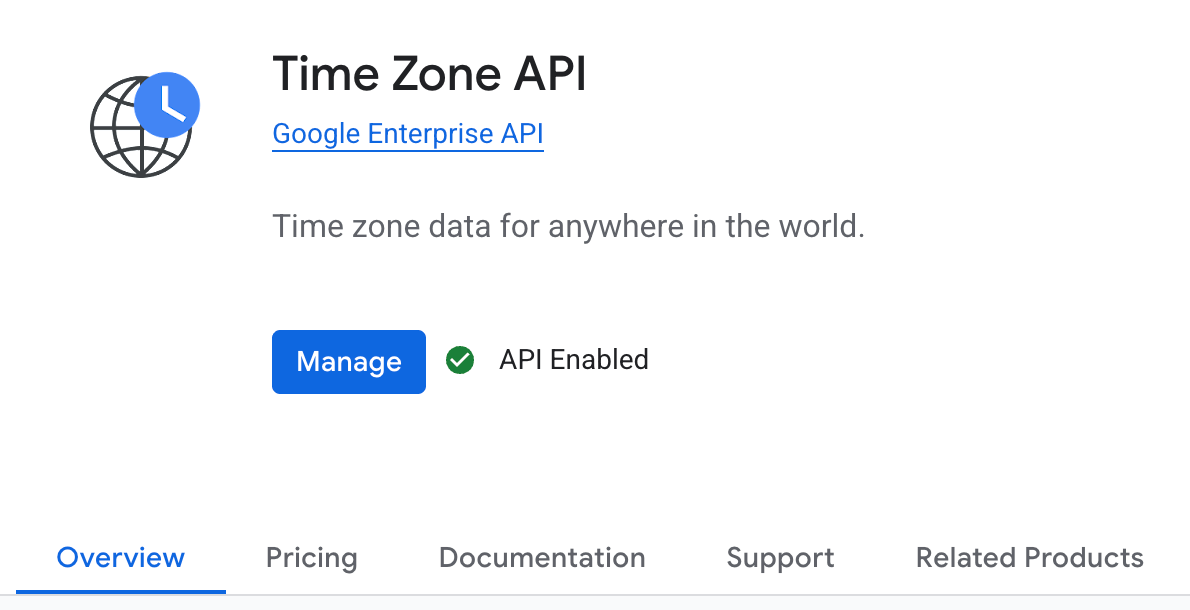
Once this is done, the API key linked to your active Google Cloud project should be able to access the Time Zone API right away.
Google Time Zone API alternatives
The biggest competition to the Google Time Zone API isn't an API from Mapbox or HERE Maps, its a geo-tz, a free and open source time zone lookup library that runs on your backend. You feed it coordinates, and it returns the time zone ID using a local database. No external API calls needed. Using geo-tz takes just a few lines of code:
const GeoTz = require('geo-tz');

// Vancouver Coordinates
const lat = 49.2827;
const lon = -123.1207;

// Perform the lookup
const result = GeoTz.find(lat, lon);

console.log(result);
// Output: [ 'America/Vancouver' ]
The main disadvantage of using it is that geo-tz does not return the time, offset, or the rules. It only returns the time zone name "America/Vancouver". To get the local time, you must use a library like moment.js alongside it.
Also, with geo-tz, the time zone boundary data is bundled into the library itself, so it only gets updated when the maintainer (a guy called Evan Siroky) publishes a new version. If a country changes its time zone rules or DST policy (which happens more often than you'd think, see British Columbia decides to abolish Daylight Savings Time) there's a lag until that update lands. With the Google Time Zone API, Google handles those updates on their end, so you're always getting the most up to date time zone data.
Building a Time Map with the Google Time Zone API
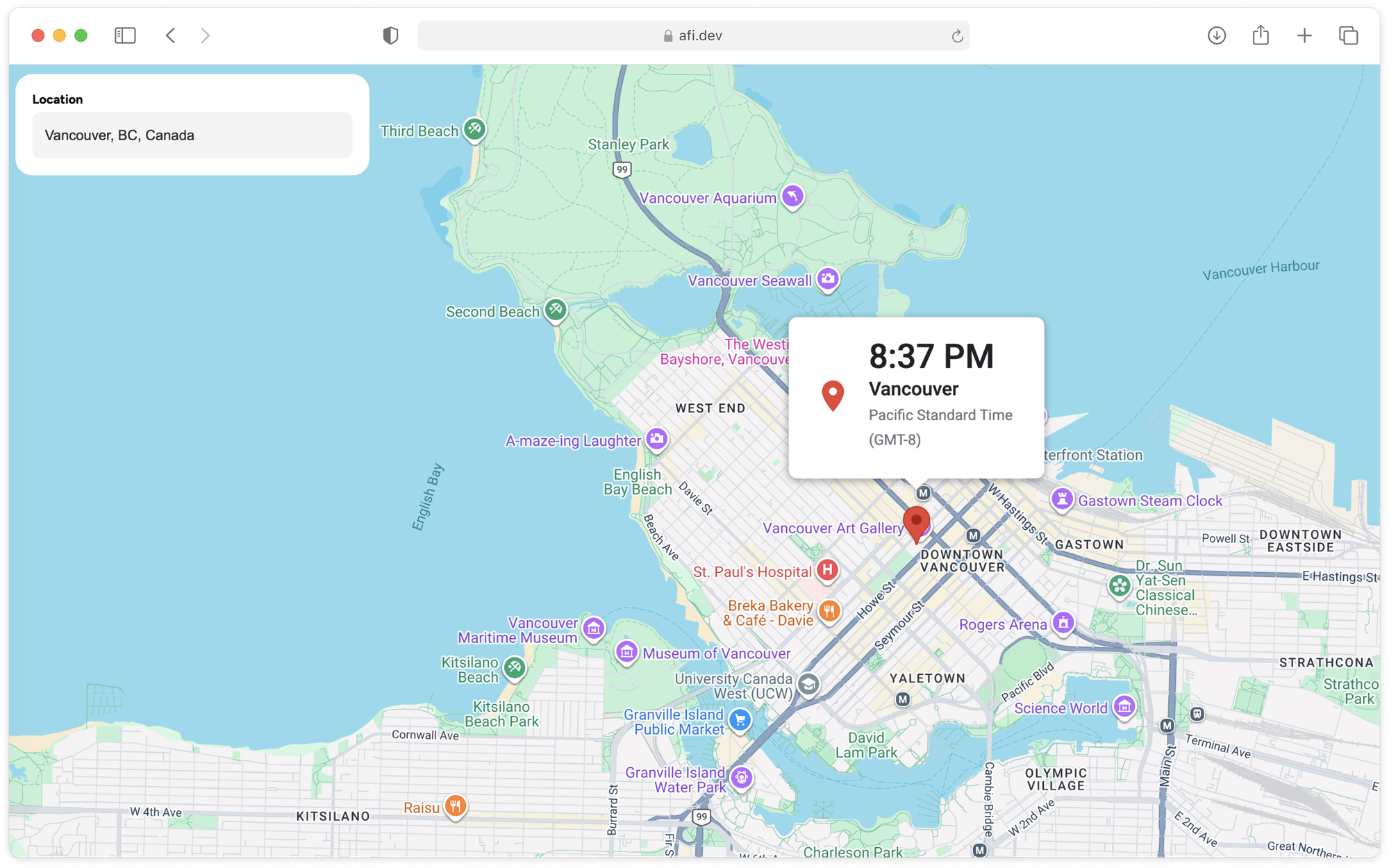
In this final section, we'll build an interactive time map. When a user selects a location or drags the map marker, the app reverse geocodes the coordinates to retrieve a readable place name, then calls the Google Timezone API to display the local time and time zone for that location.
How our code is organized
google_time_zone is a single page React app built with the @vis.gl/react-google-maps component library. There are two ways to follow along. If you have some software engineering experience, you should fork google_time_zone and run the app locally. Try making small changes or new features to the app. If you don't want to pull code from GitHub, you can still play around with a live demo at https://google-time-zone.afi.dev/.
App.jsx
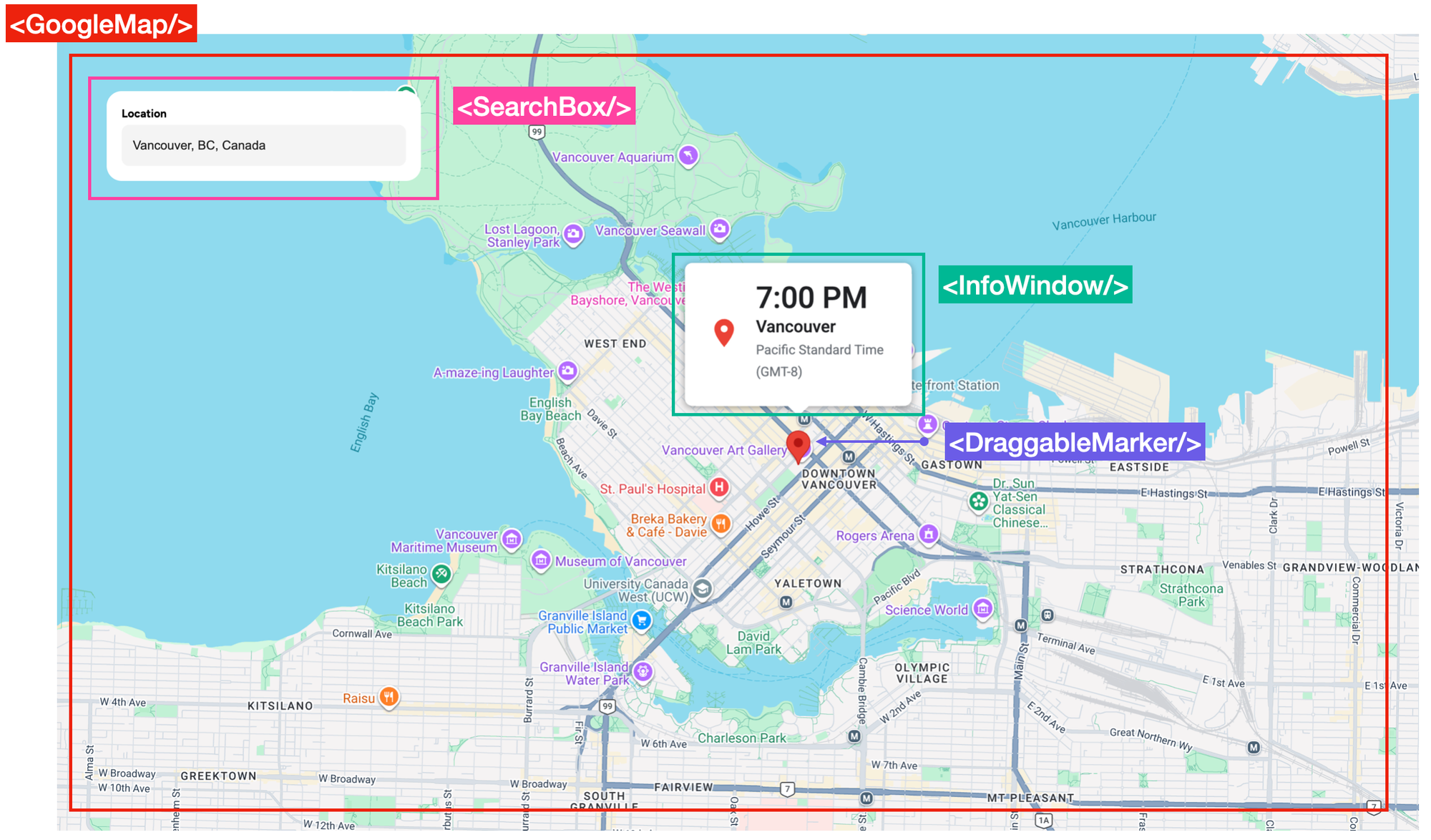
App.jsx is the root component of our React app. It manages three pieces of application state:
autocompletePlace, which stores the location selected from the search box,reversePlace, which stores the reverse geocoded address when the marker is dragged and,timezoneData, which stores the time zone information returned by the Google Time Zone API.
/*** App.jsx ***/
function App() {
  const [autocompletePlace, setAutocompletePlace] = useState(null);
  const [reversePlace, setReversePlace] = useState(null);
  const [timezoneData, setTimezoneData] = useState(null);
  //... rest of App.jsx
}
It also handles data fetching by defining the async functions that call the geocoding and time zone APIs and updates state with the results.
/*** App.jsx ***/
function App() {
  const fetchTimezone = useCallback(async ({ lat, lng }) => {
    try {
      const timestamp = Math.floor(Date.now() / 1000);
      const res = await axios.get(
        "https://maps.googleapis.com/maps/api/timezone/json",
        {
          params: {
            location: `${lat},${lng}`,
            timestamp: timestamp,
            key: import.meta.env.VITE_GOOGLE_TIME_ZONE_KEY,
          },
        },
      );

      if (res.data && res.data.status === "OK") {
        setTimezoneData(res.data);
      } else {
        setTimezoneData(null);
      }
    } catch (error) {
      setTimezoneData(null);
    }
  }, []);

  const handleSearchPlace = async ({ lat, lng }) => {
    const res = await axios.get(
      `${import.meta.env.VITE_API_URL}/reverse-geocode`,
      {
        params: { lat, lng },
      },
    );

    if (res.data && res.data.results) {
      const nearestPlace = res.data.results?.find((place) => !place.plus_code);
      setReversePlace(nearestPlace);
    }

    // Fetch timezone data after getting coordinates
    await fetchTimezone({ lat, lng });
  };

  // Rest of App.jsx
}
Lastly, it wires everything together by rendering the top level layout and wrapping the app in the Google Maps <APIProvider/>, and passing state and callback functions down to child components as props.
/*** App.jsx ***/
//... showing return statement only
return (
  <APIProvider apiKey={import.meta.env.VITE_GOOGLE_API_KEY}>
    <div className="App">
      <SearchBox onSelectAutocompletePlace={setAutocompletePlace} />

      <GoogleMap
        autocompletePlace={autocompletePlace}
        reversePlace={reversePlace}
        timezoneData={timezoneData}
        onDragEnd={handleDragEnd}
      />
    </div>
  </APIProvider>
);
SearchBox.jsx
The <SearchBox/> component provides a location search interface using the Google Places API. It initializes a Google Places service once the map and places library are loaded, then renders a labeled input field (<PlaceAutocompleteInput/>) that offers address autocomplete. This lets the user type an address or location name to get autocomplete suggestions. When a user selects a place, it passes that selection up to the parent component via the onSelectAutocompletePlace callback.
/*** components/SearchBox.jsx ***/
import { useMap, useMapsLibrary } from "@vis.gl/react-google-maps";
import { useCallback, useEffect, useState } from "react";

import Icon from "~/components/Icon";
import PlaceAutocompleteInput from "~/components/PlaceAutocompleteInput";
import "./SearchBox.scss";

const SearchBox = ({ onSelectAutocompletePlace }) => {
  const map = useMap();
  const googleMaps = useMapsLibrary("places");

  const [placeService, setPlaceService] = useState(null);

  useEffect(() => {
    if (googleMaps && map) {
      setPlaceService(new googleMaps.PlacesService(map));
    }
  }, [map, googleMaps]);

  const handlePlaceSelect = useCallback(
    (autocompletePlace) => {
      onSelectAutocompletePlace(autocompletePlace);
    },
    [placeService],
  );

  return (
    <div className="SearchBox">
      <label className="label">Location</label>

      <div className="input-group">
        <PlaceAutocompleteInput onPlaceSelect={handlePlaceSelect} />
      </div>
    </div>
  );
};

export default SearchBox;
PlaceAutocompleteInput.jsx
The <PlaceAutocompleteInput/> component attaches Google Places Autocomplete to a text input field. It uses a ref to connect the Autocomplete instance to the specific input element in the DOM.
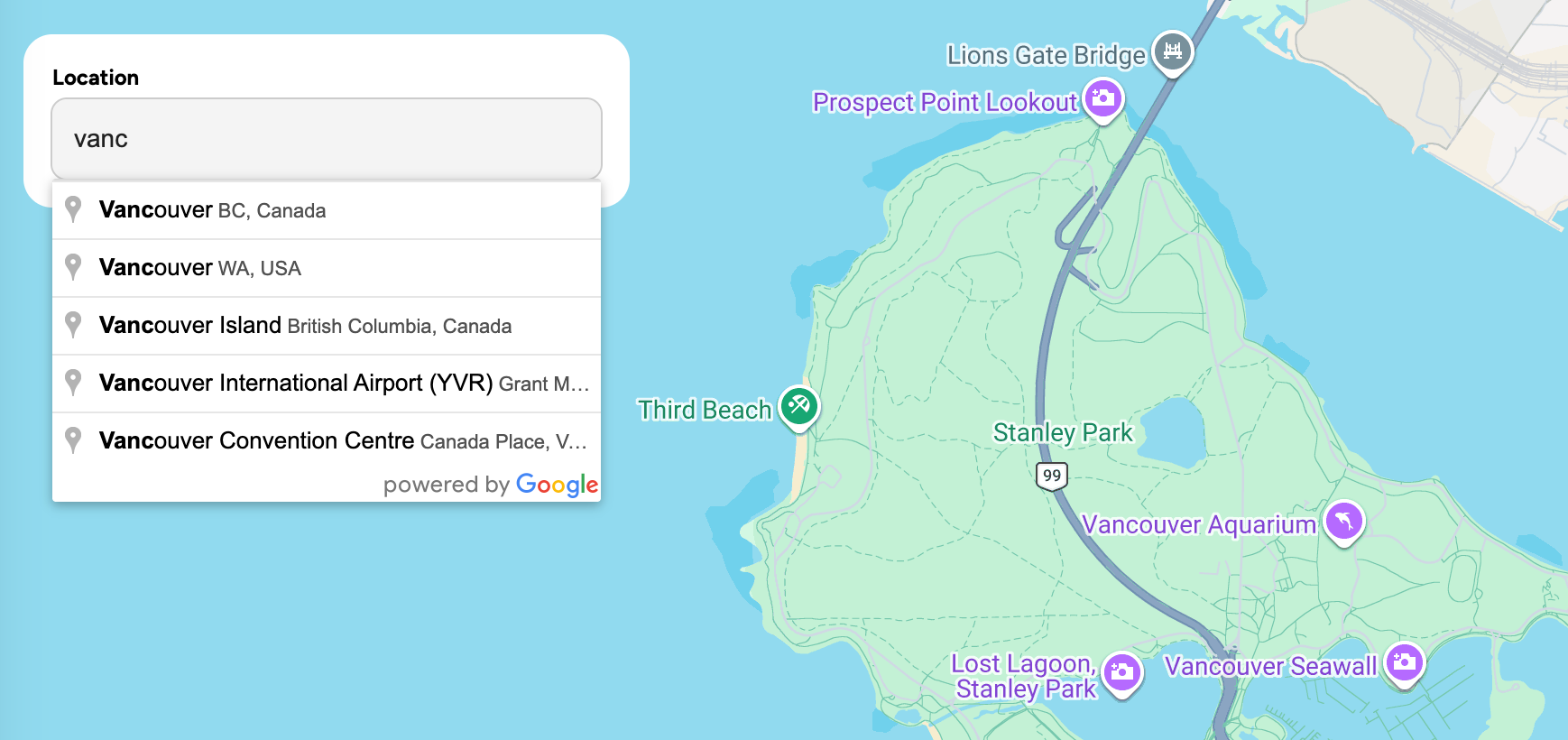
Once the Places library loads, it initializes an Autocomplete instance on the input, which is configured to return the place_id, geometry, name, and formatted address of the selected place. When a user types a location and selects one of the autocomplete suggestions, it fires the place_changed listener, which passes the selected place details up to the parent via the onPlaceSelect callback.
/*** components/PlaceAutoCompleteInput.jsx ***/
import { useMapsLibrary } from "@vis.gl/react-google-maps";
import { useEffect, useRef, useState } from "react";

const PlaceAutocompleteInput = ({ onPlaceSelect }) => {
  const [placeAutocomplete, setPlaceAutocomplete] = useState(null);
  const inputRef = useRef(null);
  const places = useMapsLibrary("places");

  useEffect(() => {
    if (!places || !inputRef.current) return;

    const options = {
      fields: ["place_id", "geometry", "name", "formatted_address"],
    };

    setPlaceAutocomplete(new places.Autocomplete(inputRef.current, options));
  }, [places]);

  useEffect(() => {
    if (!placeAutocomplete) return;

    placeAutocomplete.addListener("place_changed", () => {
      onPlaceSelect(placeAutocomplete.getPlace());
    });
  }, [onPlaceSelect, placeAutocomplete]);

  return (
    <div className="PlaceAutocompleteInput">
      <input ref={inputRef} />
    </div>
  );
};

export default PlaceAutocompleteInput;
GoogleMap.jsx
GoogleMap.jsx located in components/GoogleMap/index.jsx, renders a full screen Google Map. It has two main roles: it uses <MapHandler/> to adjust the map view when a place is selected from the search box, and it renders a <DraggableMarker/> when the autocompletePlace object is truthy i.e. a user has selected a location from the search box.
Like all of our Google Maps related blog posts and demos, GoogleMap.jsx uses the @vis.gl/react-google-maps library to implement the Google Maps Javascript API in a React centric way.
import { Map } from "@vis.gl/react-google-maps";

import MapHandler from "./MapHandler";
import LocationMarker from "./LocationMarker";
import DraggableMarker from "./DraggableMarker";

const DEFAULT_CENTER = { lat: 49.25307278849622, lng: -123.12095840000302 };

const GoogleMap = ({
  autocompletePlace,
  reversePlace,
  timezoneData,
  onDragEnd,
}) => {
  return (
    <div className="GoogleMap">
      <Map
        style={{
          height: "100dvh",
          width: "100dvw",
        }}
        defaultZoom={12}
        mapId={import.meta.env.VITE_GOOGLE_MAP_ID}
        defaultCenter={DEFAULT_CENTER}
        gestureHandling="greedy"
        disableDefaultUI
        reuseMaps
      >
        <MapHandler place={autocompletePlace} />

        {autocompletePlace && (
          <DraggableMarker
            place={autocompletePlace}
            reversePlace={reversePlace}
            timezoneData={timezoneData}
            onDragEnd={onDragEnd}
          />
        )}
      </Map>
    </div>
  );
};

export default GoogleMap;
DraggableMarker.jsx
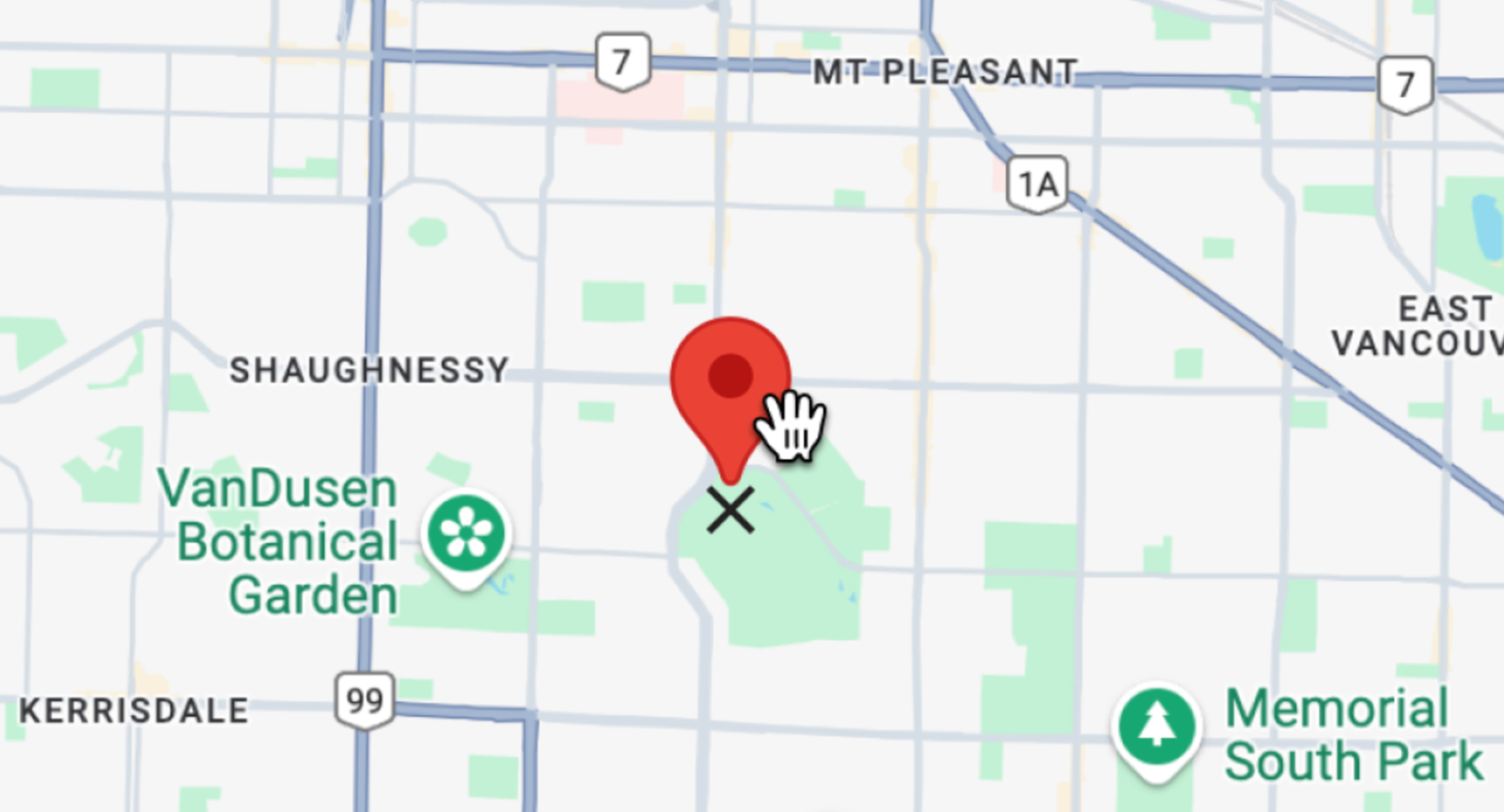
The <DraggableMarker/> component renders a draggable pin on the map with an info window that displays timezone details for the selected location. When dragged to a new spot, it updates its position and notifies App.jsx to fetch new place and timezone data. Clicking the marker toggles the info window open and closed.
/*** components/GoogleMap/DraggableMarker.jsx ***/
//... showing return statement only
return (
  <>
    <AdvancedMarker
      ref={markerRef}
      draggable={true}
      zIndex={2}
      position={position}
      onDragEnd={handleDragEnd}
      onClick={() => setInfoOpen((prev) => !prev)}
    >
      <Pin />
    </AdvancedMarker>
  </>
  //... rest of the return statement
);
The marker becomes draggable through two things working together. First, the component uses an <AdvancedMarker/> component from the @vis.gl/react-google-maps library instead of a regular marker because a regular marker does not support advanced features like dragging. Second, the draggable={true} prop is set on the <AdvancedMarker/>, which enables the drag behavior. The onDragEnd handler then captures the new coordinates when the user releases the marker, updates the local position state, and passes the new location up to the grandparent App.jsx component to trigger fresh data fetches.
/*** App.jsx ***/
function App() {
  const fetchTimezone = useCallback(async ({ lat, lng }) => {
    try {
      const timestamp = Math.floor(Date.now() / 1000);
      const res = await axios.get(
        "https://maps.googleapis.com/maps/api/timezone/json",
        {
          params: {
            location: `${lat},${lng}`,
            timestamp: timestamp,
            key: import.meta.env.VITE_GOOGLE_TIME_ZONE_KEY,
          },
        },
      );

      if (res.data && res.data.status === "OK") {
        setTimezoneData(res.data);
      } else {
        setTimezoneData(null);
      }
    } catch (error) {
      setTimezoneData(null);
    }
  }, []);
}
When the marker is released, its coordinates are passed to the fetchTimezone() method in App.jsx, which destructures them into lat and lng. These are then sent to the Google Timezone API along with the current time in seconds (Math.floor(Date.now() / 1000)) to retrieve the time zone information for those coordinates.
The final step is to display the place name, local time, time zone and GMT offset on an info window when the user selects a new location or clicks on the marker.
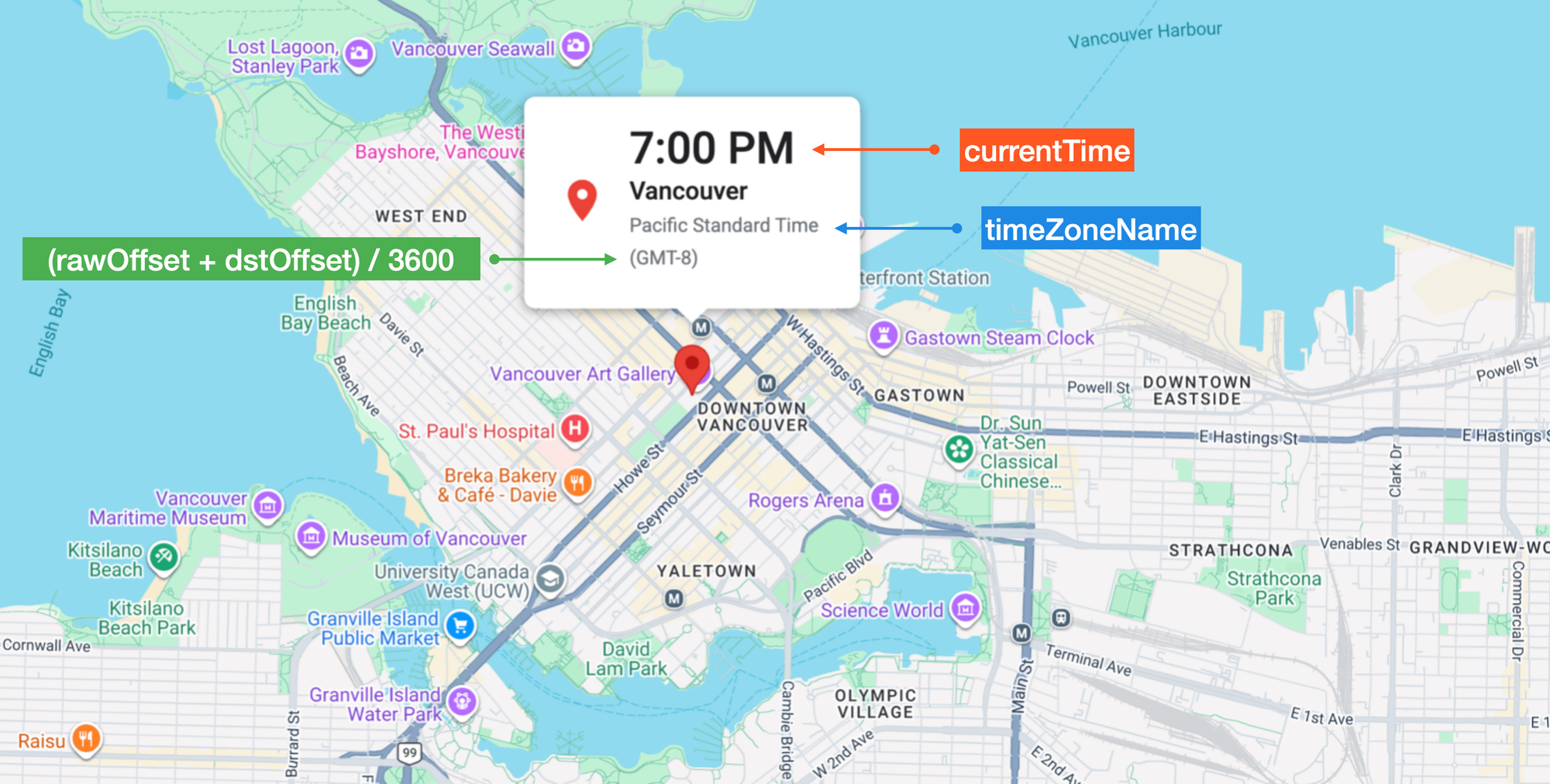
To do this, we add an <InfoWindow/> component to the return statement of DraggableMarker.jsx and connect it to the <AdvancedMarker/> component using the anchor prop. This tells Google Maps to attach the info window to that specific marker on the map. The react-google-maps library handles the rest internally - positioning the info window above the marker, drawing the little speech-bubble tail pointing down to it, and managing its placement on the map.
To display information in the info window, we need to parse the response from the Google Time Zone API, which looks like this:
{
    "dstOffset": 0,
    "rawOffset": -28800,
    "status": "OK",
    "timeZoneId": "America/Vancouver",
    "timeZoneName": "Pacific Standard Time"
}
To get the local "wall clock" time (like "7:00 PM") at the selected location, we pass in the current time and timeZoneId to the Intl.DateTimeFormat API (this is a built in Javascript API - no external libraries needed) and specify timeStyle: "short".
{
  new Intl.DateTimeFormat("en-US", {
    timeStyle: "short",
    timeZone: timezoneData.timeZoneId,
  }).format(currentTime);
}
The time zone name (timeZoneName) and GMT offset (simply add rawOffset to dstOffset and divide by 3,600 seconds) are similarly easy to obtain.
Setup and Run
To play around with the Time Map, head over to https://google-time-zone.afi.dev/ and enter an address or place name e.g. "Vancouver, BC" in the search box at the top left. Drag the marker around the map to see the local time and time zone anywhere on the map. It's particularly interesting to see how the time zones suddenly switches whenever you cross a country or state border e.g. at Karkara Kazakh border crossing station between Kazakhstan and Kyrgystan.
If you prefer to run the app locally:
- Fork and clone the google_time_zone repository on GitHub.
- In google_time_zone, run
npm installto install the dependencies followed bynpm start. - Update the
.envfile with a Google Maps API key that has the Google Time Zone API enabled.Open your browser to http://localhost:3000/ to run the app.
Wrapping Up
The Google Time Zone API doesn't have much star power, but it's one of those quietly useful tools that rounds out an application. If the Geocoding API is Michael Jordan, the Time Zone API is Scottie Pippen - not the first name you think of, but try winning a championship without it. Give it coordinates and a timestamp, and it hands back the time zone, UTC offset, and DST adjustment. It's the kind of API you don't think about until you need it, and then you're glad it exists.
👋 As always, if you have any questions or suggestions for me, please reach out or say hello on LinkedIn.