
Draw a Google Maps polyline in React
Draw routes, paths or boundaries using Google Maps polylines in React with the @vis.gl/react-google-maps library.

Markers are great for showing where something is. But to show how to get there, you need polylines. In this post, we'll cover what polylines are, how to draw them on a Google Map in React, which Google Maps APIs return them, and how to color individual segments to show traffic congestion on a route.
Part 1: React Google Maps: Build with Google Maps using React
Part 2: Google Maps with React: Add a Google Map and style it
Part 3: Work with Google Maps React map markers and info windows
Part 4: Draw a Google Maps polyline in React (this article)
Part 5: Three ways to add Google Autocomplete to your React app


What is a Google Maps polyline?
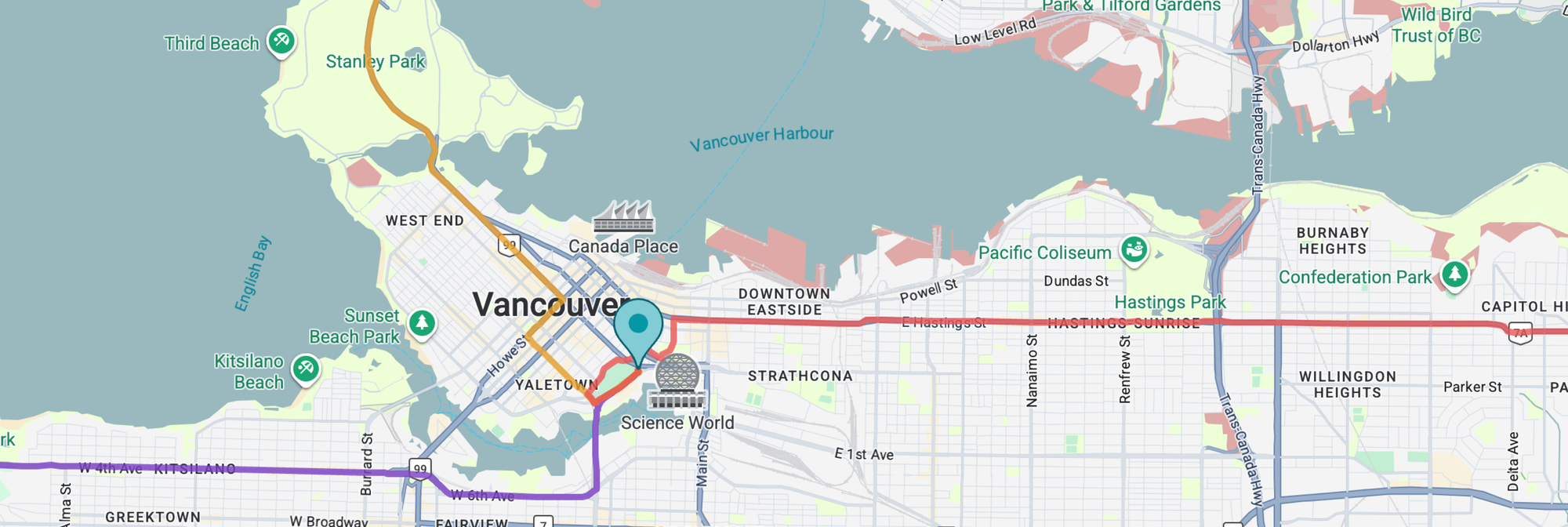
A polyline is a sequence of connected line segments rendered as an overlay on a map. Any route or set of driving directions displayed in Google Maps is drawn using one.
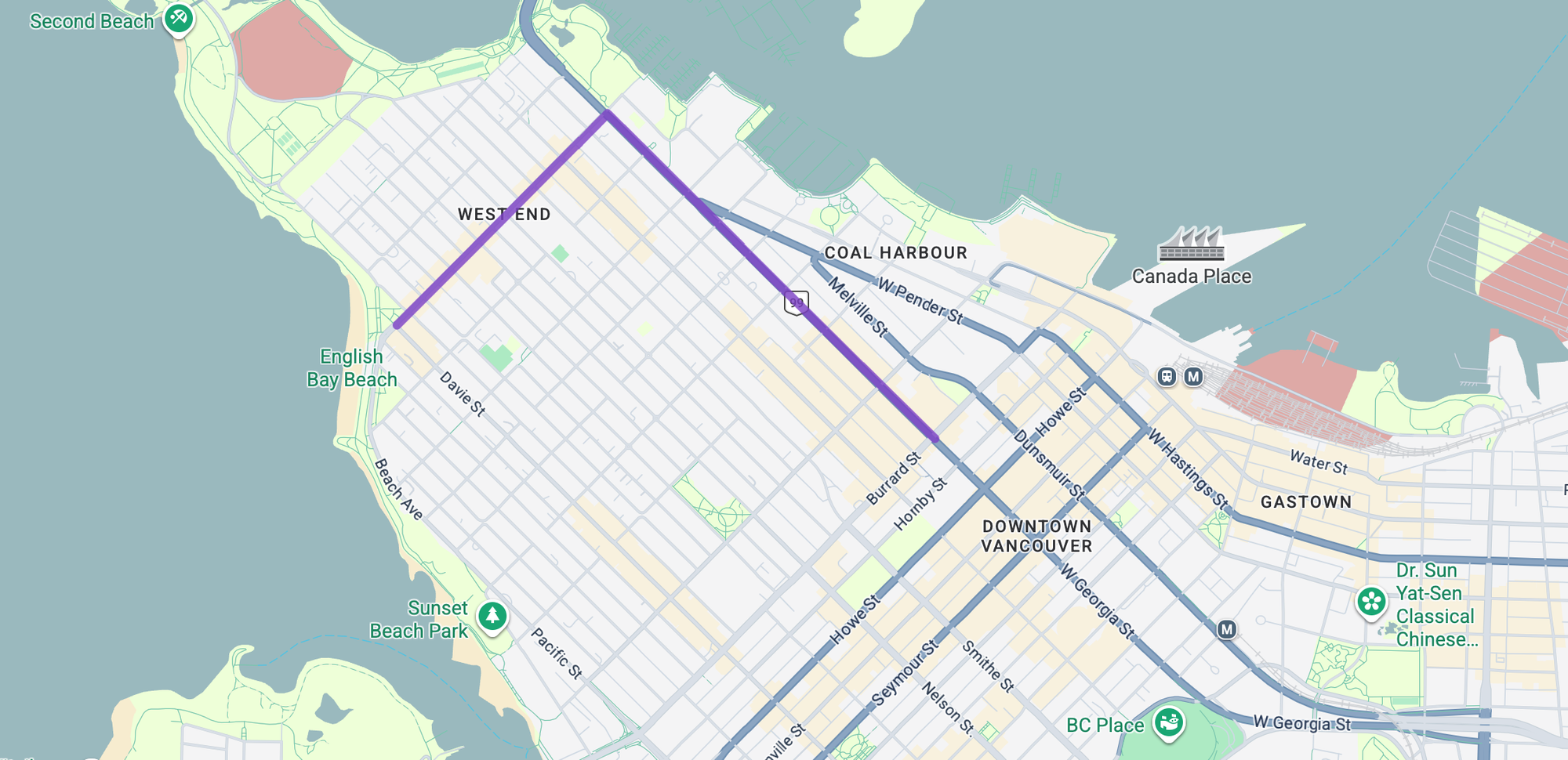
For developers, a Google Maps polyline is an instance of the google.maps.Polyline class (docs). It takes a path (an ordered sequence of coordinates) along with styling options like color, weight, and opacity e.g. if using the <Polyline/> component (docs) of the component from the @vis.gl/react-google-maps library:
<Polyline
  path={[
    { lat: 49.284398787274114, lng: -123.12103303966674 },
    { lat: 49.292572847878546, lng: -123.13364623670287 },
    { lat: 49.28725589455277, lng: -123.14175761743317 },
  ]}
  strokeColor={"#7B3FC4"}
  strokeWeight={5}
  strokeOpacity={0.8}
/>
For brevity, a polyline can also be represented using an encoded polyline string e.g.
<Polyline
  encodedPath={routePolylineD}
  strokeColor={"#7B3FC4"}
  strokeWeight={8}
  strokeOpacity={0.8}
/>
Unlike a polygon, polylines have a start and end point that doesn't close back on itself.
How do you get a Google Maps polyline?
There are three main ways to get data to create a polyline:
By collecting GPS coordinates using telematics
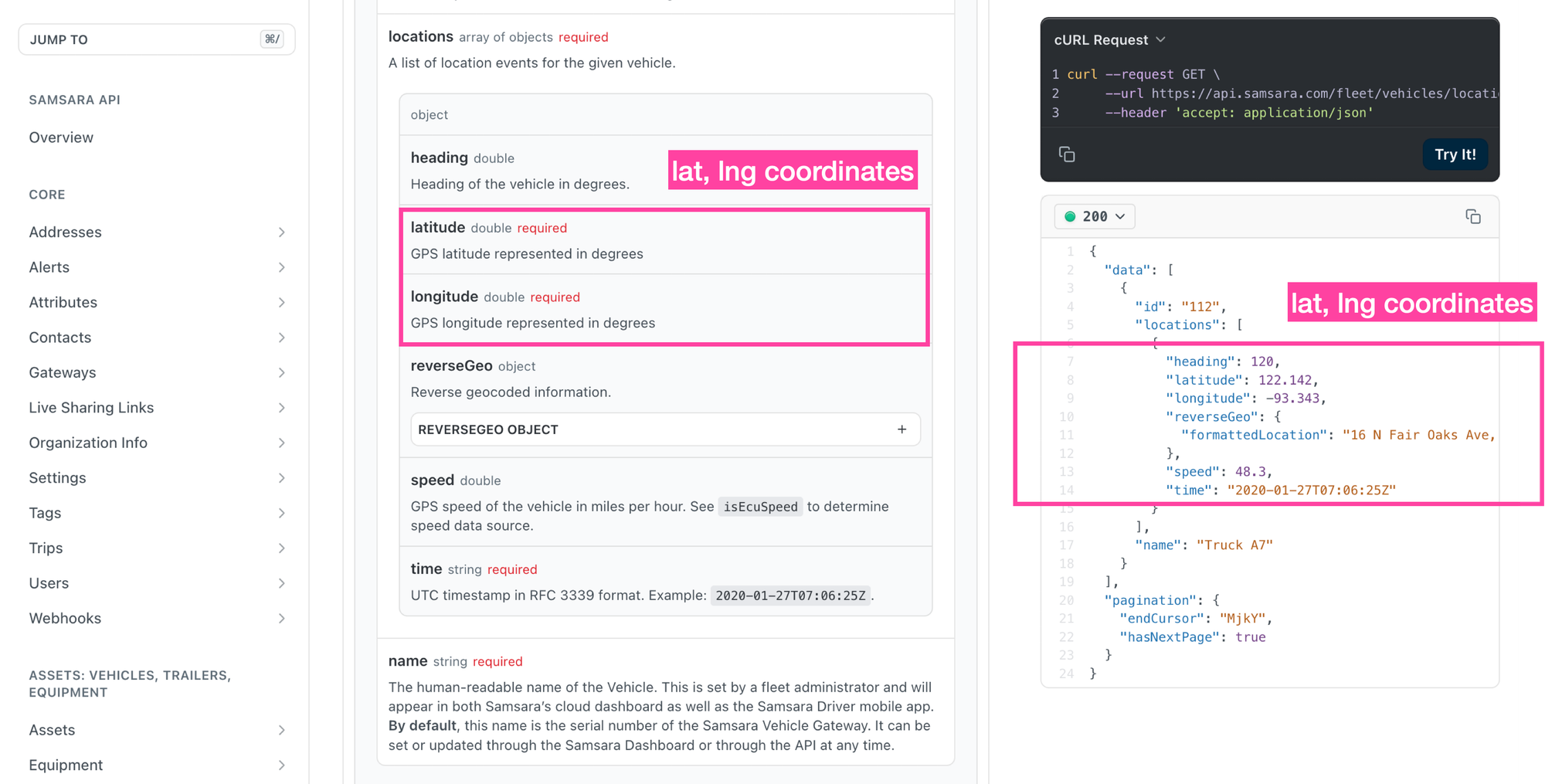
Telematics and fleet management platforms like Geotab, Samsara or Verizon Connect collect vehicle location data and expose it via export or API. To render a route polyline from this data, you extract the GPS coordinates into an array, convert each coordinate pair into a google.maps.LatLng object, and pass the resulting array to the path prop of <Polyline/>.
From known points on a route
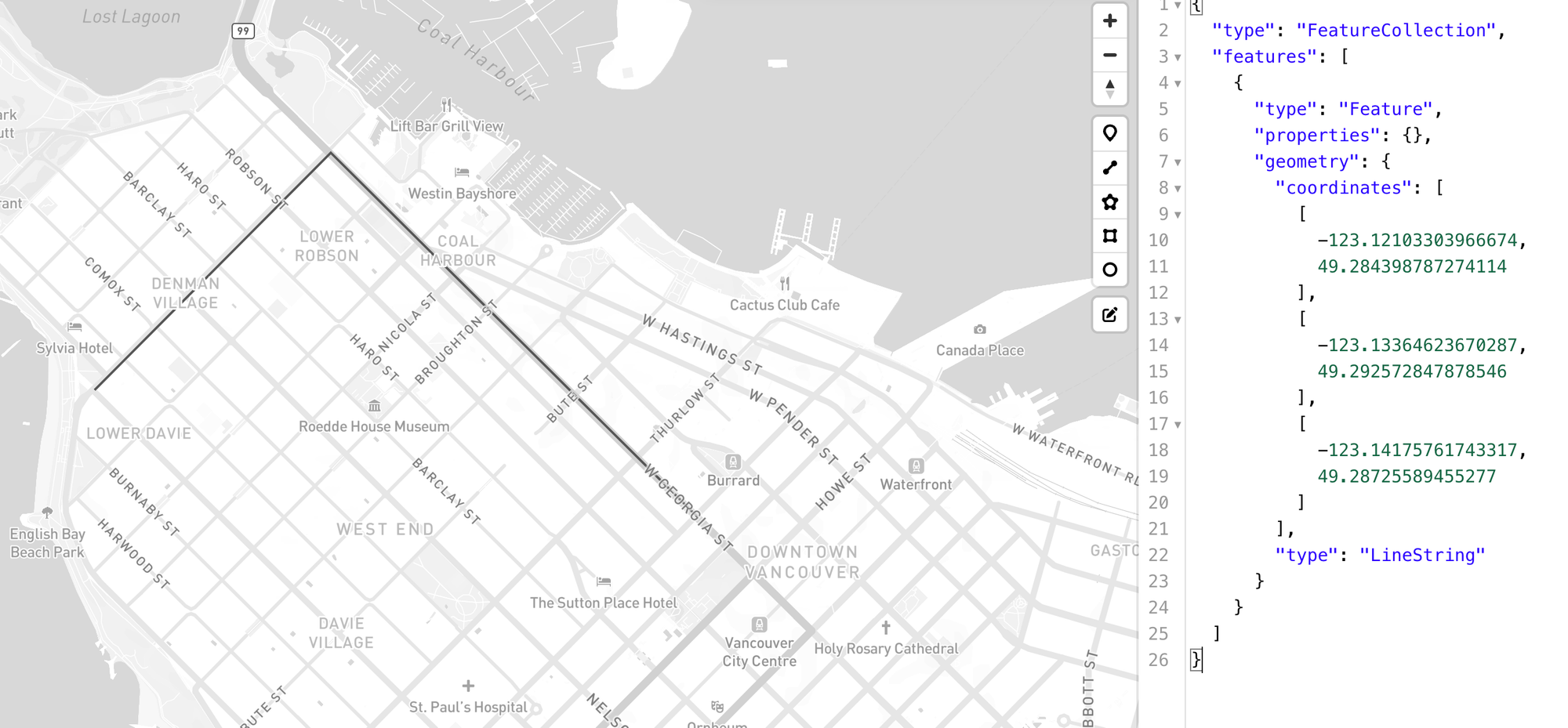
You can easily use free and open source tools like geojson.io to draw points, lines, and routes directly on a map and generate the corresponding GeoJSON. With that, you can extract the latitude and longitude pairs from the coordinates array (take note that GeoJSON format uses longitude, latitude, so you will need to switch the order up when converting into a LatLng object which uses latitude, longitude) and pass the resulting array to the path prop of <Polyline/>.
You can also use a tool like geojson.io to draw a route directly on a map and export it as GeoJSON. To use it with Google Maps, extract the coordinate pairs from the coordinates array and convert them into google.maps.LatLng objects, then pass the resulting array to the path prop of <Polyline/>.
[longitude, latitude] - the reverse of Google Maps LatLng(latitude, longitude), so make sure to swap the order during conversion.By calling the Google Maps Route API or GMPRO
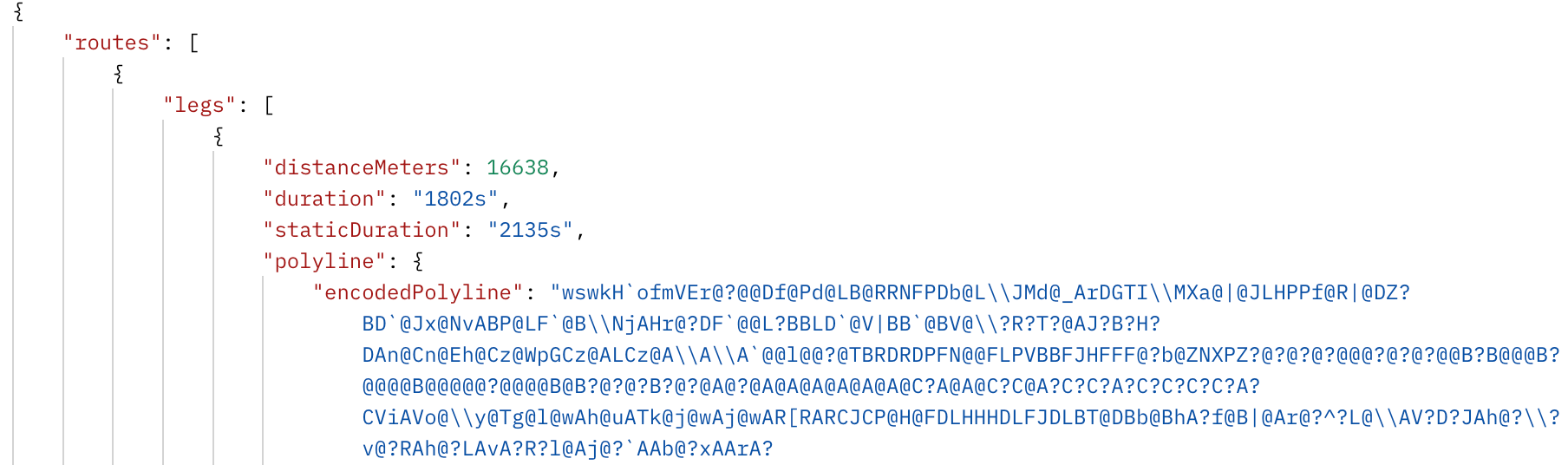
Both the Google Maps Routes API and Route Optimization API return an encoded polyline string in their response, which you can pass directly to the encodedPath prop of <Polyline/> to render the route.
Adding a Google Maps polyline to a map and styling it
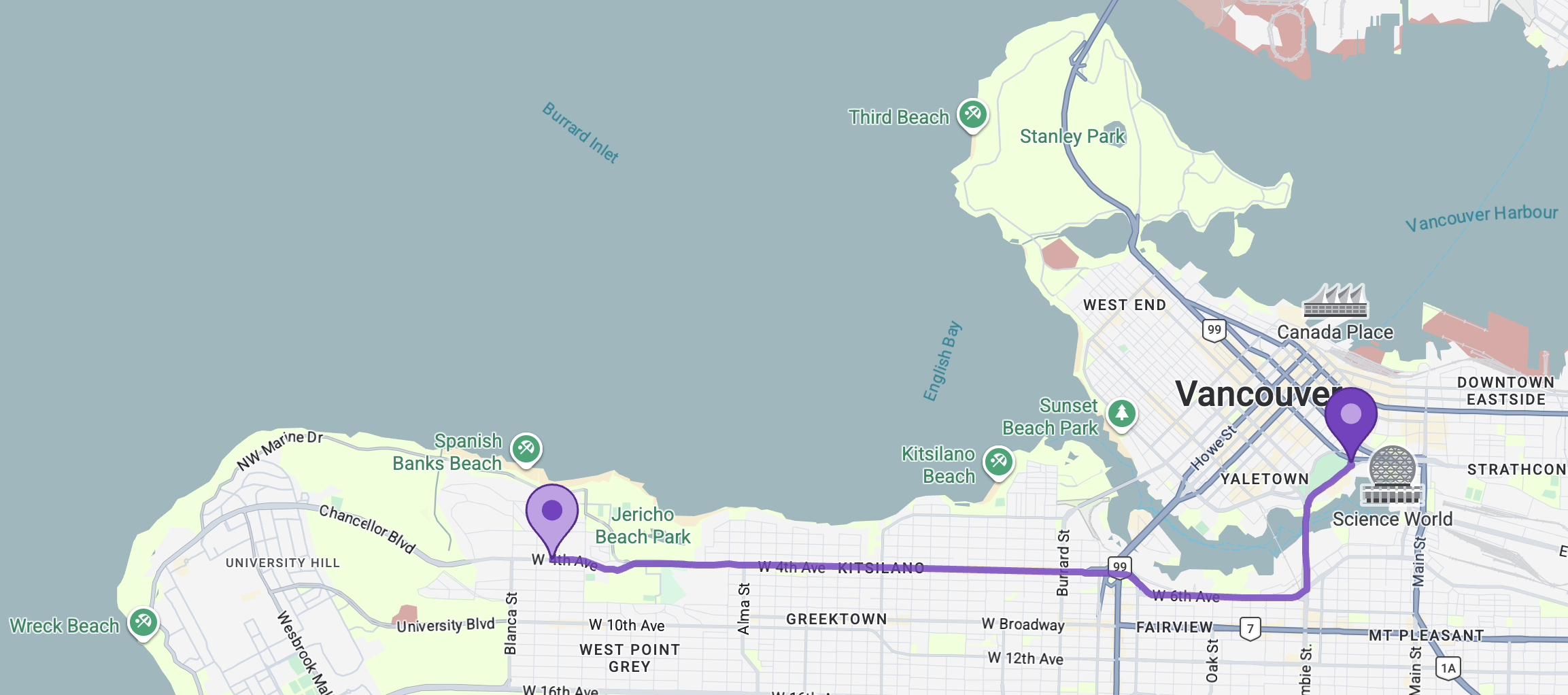
Once you have coordinate data, either as a LatLng array or an encoded polyline string, adding a polyline to a Google Map is straightforward. The following example renders a route using an encoded polyline string saved to the routePolyline constant:
/*** App.jsx **/
import { APIProvider } from "@vis.gl/react-google-maps";
import { Map } from "@vis.gl/react-google-maps";
import { AdvancedMarker, Pin } from "@vis.gl/react-google-maps";
import { Polyline } from "@vis.gl/react-google-maps";

import "./App.css";

const routePolyline =
  "ozukHjm_oV@uA?iA@w@@qB?g@@W?_A@q@D_C?[?cA?Q@M?OBMB[XoBTuANeARuAZqB?ADYDW@S@CB_@@a@?C@I@gA?e@?ADY@OAo@Cc@Ea@COCKCOEUUmAOw@?A[eBESCUCUAYASAU?Q?e@@Q?u@?w@@k@@eD?M@kA@_@@aABaG@[@iCDyBCUDiE@oA@o@?i@?S@}B?o@?a@?o@?UA}@C}@AgA?m@Ee@?sE?[@m@?Y@gC?q@?aBBaCB{G@wA@oA@aE?]BgE@yB@mADmK?WBmI@[?U@eD@gD@_@@{I@M@{DBeI@_A@_D@qB?}A@{DDkJ?Q?u@BiI@w@?W@qB@gC@kC?A@u@@{B?sABuE@y@FsM@kDBkHDaK?aB@w@BiI@_B@_A?{@B{DBgC?e@@qABuI?a@?k@D_@@M@O@K@wD@mC?[@m@?m@?o@?]@c@?c@?CBkA@yA@w@?O?_@@W?W?_@?U@Y@Q?K@I@E?C@IBOBI@IBIDOFOZm@n@oAd@}@JY?ABERc@P_@\\m@\\o@LWLYVi@Ni@?CF[DU?yA@cA@mB?w@@gA@iDCUFgMDsG?u@BuCDqL?w@@{E?e@D]@E?G?m@@iB?e@BgE@}A@aA?uG?E?EAG?Q@yC@q@Co@?UC_@C_@CQEW?ASiAIWUk@i@wAEIQe@M]KUW@_A@m@@q@@[@G?Q?a@FU@G?G?w@BwABE@wADU@G@QDsDGeAE_@?q@?E?w@AsBCYAW?i@Ag@E]?]AWMMEMAIAMAA?OACAKAIAEAEAKESKMGKKKKEEACACIKMWGMEKEOGQCGW_AY_AKWEOEMCICKGMGMGEMKq@mBIUIUACGQGM?AIQi@wAEIKU_@aAEMGOUi@O_@k@wAMa@Si@QEGAG?A?E@G@G@?@";

function App() {
  return (
    <APIProvider apiKey={import.meta.env.VITE_GOOGLE_MAPS_API_KEY}>
      <Map
        style={{ width: "100vw", height: "100vh" }}
        defaultCenter={{ lat: 49.2827, lng: -123.1207 }}
        defaultZoom={13}
        mapId={import.meta.env.VITE_GOOGLE_MAPS_MAP_ID}
      >
        <Polyline
          encodedPath={routePolyline}
          strokeColor={"#7B3FC4"}
          strokeWeight={5}
          strokeOpacity={0.8}
        />

        <AdvancedMarker
          position={{ lat: 49.2770045, lng: -123.1091168 }}
          title={"purple"}
        >
          <Pin
            background={"#7B3FC4"}
            glyphColor={"#C4A0E8"}
            borderColor={"#5A2A94"}
            scale={1.5}
          ></Pin>
        </AdvancedMarker>

        <AdvancedMarker
          position={{ lat: 49.2690379, lng: -123.20997659999999 }}
          title={"purple"}
        >
          <Pin
            background={"#C4A0E8"}
            glyphColor={"#7B3FC4"}
            borderColor={"#5A2A94"}
            scale={1.5}
          ></Pin>
        </AdvancedMarker>
      </Map>
    </APIProvider>
  );
}

export default App;
By default the polyline renders as a blue line. You can customize its appearance using the following props (see the PolylineOptions interface for a full list):
strokeColor is the color of the polyline.
strokeOpacity a number between 0 and 1.0 that determines the opacity (0 is fully transparent, 1 is fully opaque) of the polyline.
strokeWeight is the thickness of the polyline.
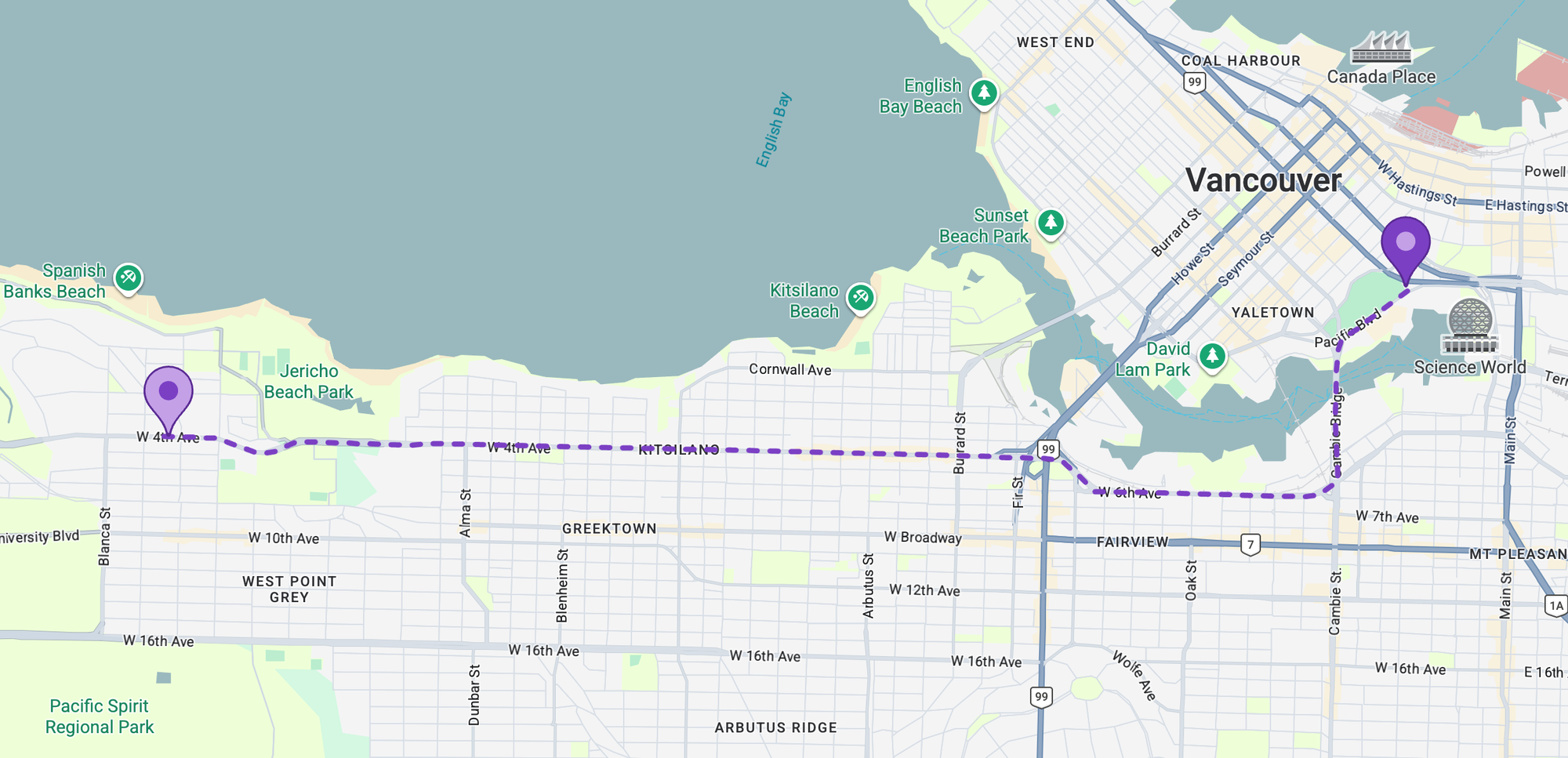
If you want to render the polyline as a dashed or dotted line, you can use the icons prop, which lets you repeat a symbol (or an inline SVG) along the path at a set interval.
<Polyline
  encodedPath={routePolylineA}
  strokeOpacity={0}
  icons={[
    {
      icon: {
        path: "M 0,-1 0,1",
        strokeOpacity: 1,
        strokeColor: "#7B3FC4",
        strokeWeight: 5,
        scale: 4,
      },
      offset: "0",
      repeat: "20px",
    },
  ]}
/>
Two key things to note: strokeOpacity={0} hides the underlying solid line, and repeat controls the spacing between dots.
Showing real time traffic on a Google Maps polyline
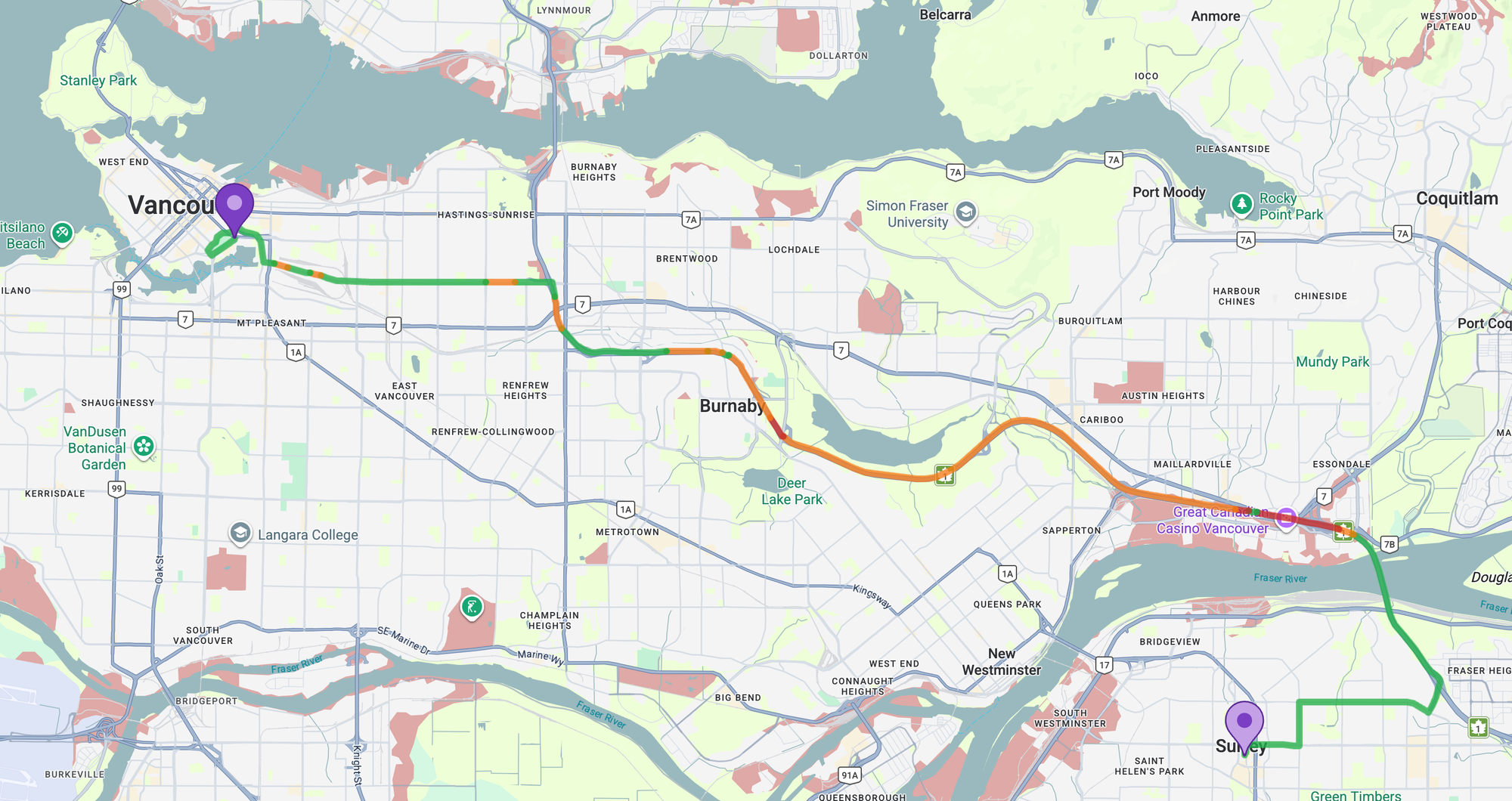
To display real time traffic congestion on your polylines just like in the Google Maps app, here's what you need to do:
- Request driving directions from the Google Maps Routes API (not the older Directions API) with
"extraComputations": "TRAFFIC_ON_POLYLINE"and"routingPreference": "TRAFFIC_AWARE". - The response will include a
travelAdvisory.speedReadingIntervalsarray, where each interval has astartPolylinePointIndex,endPolylinePointIndex, and aspeedvalue (NORMAL,SLOW, orTRAFFIC_JAM).
{
  "speedReadingIntervals": [
                    {
                        "startPolylinePointIndex": 0,
                        "endPolylinePointIndex": 84,
                        "speed": "NORMAL"
                    },
                    {
                        "startPolylinePointIndex": 84,
                        "endPolylinePointIndex": 87,
                        "speed": "SLOW"
                    },
                    {
                        "startPolylinePointIndex": 87,
                        "endPolylinePointIndex": 95,
                        "speed": "TRAFFIC_JAM"
                    }]
}- Decode the full polyline into a
LatLngarray.
const decodePath = (encodedPath) => {
  return geometryLibrary.encoding.decodePath(encodedPath).map((point) => ({
    lat: point.lat(),
    lng: point.lng(),
  }));
};- Split the polyline into segments by using the start and end indices from each speed interval to slice the decoded coordinate array into separate sub arrays.
const newPolylines = route.travelAdvisory.speedReadingIntervals.map(
  (interval) => {
    const newPoints = polylinePoints.slice(
      interval.startPolylinePointIndex,
      interval.endPolylinePointIndex + 1,
    );
    //... return statement (in step 5 below goes here)
  },
);
- Re-encode each coordinate segment back into an encoded polyline string and assign a color based on its
speedvalue.
const SPEED_COLORS = {
  SLOW: "#F57C00",
  NORMAL: "#00B248",
  TRAFFIC_JAM: "#C62828",
};

return {
  path: geometryLibrary.encoding.encodePath(newPoints),
  options: {
    strokeColor: SPEED_COLORS[interval.speed] || SPEED_COLORS.NORMAL,
    strokeWeight: 6,
  },
};
- Render a separate
<Polyline/>for each segment. Each segment gets its own<Polyline/>with its encoded sub-polyline passed to theencodedPathprop and its corresponding color asstrokeColor.
{
  polylines.map((polyline, index) => (
    <Polyline
      encodedPath={polyline.path}
      strokeColor={polyline.options.strokeColor}
      strokeWeight={5}
      strokeOpacity={0.8}
    />
  ));
}
Full source code for the steps above can be found at react_google_maps_demo. If you want to see how traffic aware polylines are implemented in a production app, check out https://routes-api-demo.afi.dev/ and its corresponding GitHub repository, routes_api_demo.
The best way to learn React
It's tempting to let AI write your code, but you won't learn much that way. A better approach is to study examples (whether AI generated or from the code samples on this blog) and then build the app yourself. If you're learning to build Google Maps apps with React specifically, the example library from @vis.gl/react-google-maps is an excellent starting point.
In the next section, I'll show you how to add a simple address autocomplete text box to your Google Map.
This article was written by Afi Labs, a Google Maps Premier Partner and reseller. We build route optimization, navigation, and fleet tracking software on Google Maps, and offer volume pricing on GMP licensing. Talk to an engineer or follow Afian on LinkedIn.
Next: Part 5: Three ways to add Google Autocomplete to your React app