
Fleet tracking with the Google Navigation Connect API
Get real time fleet tracking and driver visibility without having to build a live tracking backend with the Google Navigation Connect API.

If you run a food delivery, courier, ride share or last mile logistics business, knowing where your drivers are is essential to daily operations. Real time fleet tracking lets you tell customers when their food will arrive, flag packages that are running late, and confirm that drivers are where they're supposed to be.
In this blog post, I'll tell you all about the Google Navigation Connect API (also known as Nav Connect), which gives you accurate, real time fleet tracking while providing your drivers with turn by turn navigation in the Google Maps app. It's a lightweight alternative to the Navigation SDK, and gives you ongoing driver locations and traffic aware ETAs without having to build your own live tracking backend. I'll show you how it works, run through some common use cases, and close with production ready code you can use to integrate the Navigation Connect API into your driver apps right away.
Part 1: Create a Waze and Google Maps deep link using Maps URLs
Part 2: Fleet tracking with the Google Navigation Connect API (this article)
Part 3: Turn by turn directions with Waze using the Navigation Connect API
What is the Google Navigation Connect API?
The Navigation Connect API pairs the simplicity of Maps URLs with the real time trip orchestration backend of Fleet Engine. Your drivers get turn by turn navigation in the Google Maps app, while you receive live driver locations and traffic aware ETAs. Just like Maps URLs, drivers tap a link or button in your app to start navigation in the Google Maps app. But in addition to providing turn by turn directions, the Google Maps app also sends your driver's live location to Google's servers, which you can retrieve via API or Google Cloud Pub/Sub.
Who is the Google Navigation Connect API for?
The Google Navigation Connect API is a good fit for any company that needs to track point to point trips and share that information both internally with operations teams and externally with customers.
A roadside assistance provider (like AAA in the US or BCAA in Canada) that works with many independent tow truck drivers is a good example. These drivers are typically contractors who own their trucks, so the provider can't install onboard GPS tracking devices in their vehicles. But they already use Google Maps to get around, so it makes sense to give them an app that launches Google Maps directly to the stranded motorist's location while sharing the tow truck's real time location and ETA back to the motorist.
What does the Google Navigation Connect API do?
The first thing to understand about Nav Connect is that it targets a small number of companies that deal in trips - primarily in logistics, ride share, food delivery, and field services. For a food delivery service, a trip might be picking up Chinese takeout and dropping it at a customer's home while for a pest control company, it's the drive from one customer to the next on the route.
If the company has a driver app ("driver" being a generic term for whoever provides the service, whether the food delivery courier or the pest control technician), that app usually includes a screen showing the route from the driver's current location to the destination, which is almost always the customer's address. This is an important point: for Nav Connect to work, every trip needs a well defined origin and destination.
Nav Connect lets you add a [Navigate] button to your driver app. When the driver taps it, turn by turn navigation launches inside the Google Maps app while the driver's location and ETA are tracked in the background. You can share this information with the customer through a live tracking link, so they know when to expect their delivery or service.
How does the Google Navigation Connect API work?
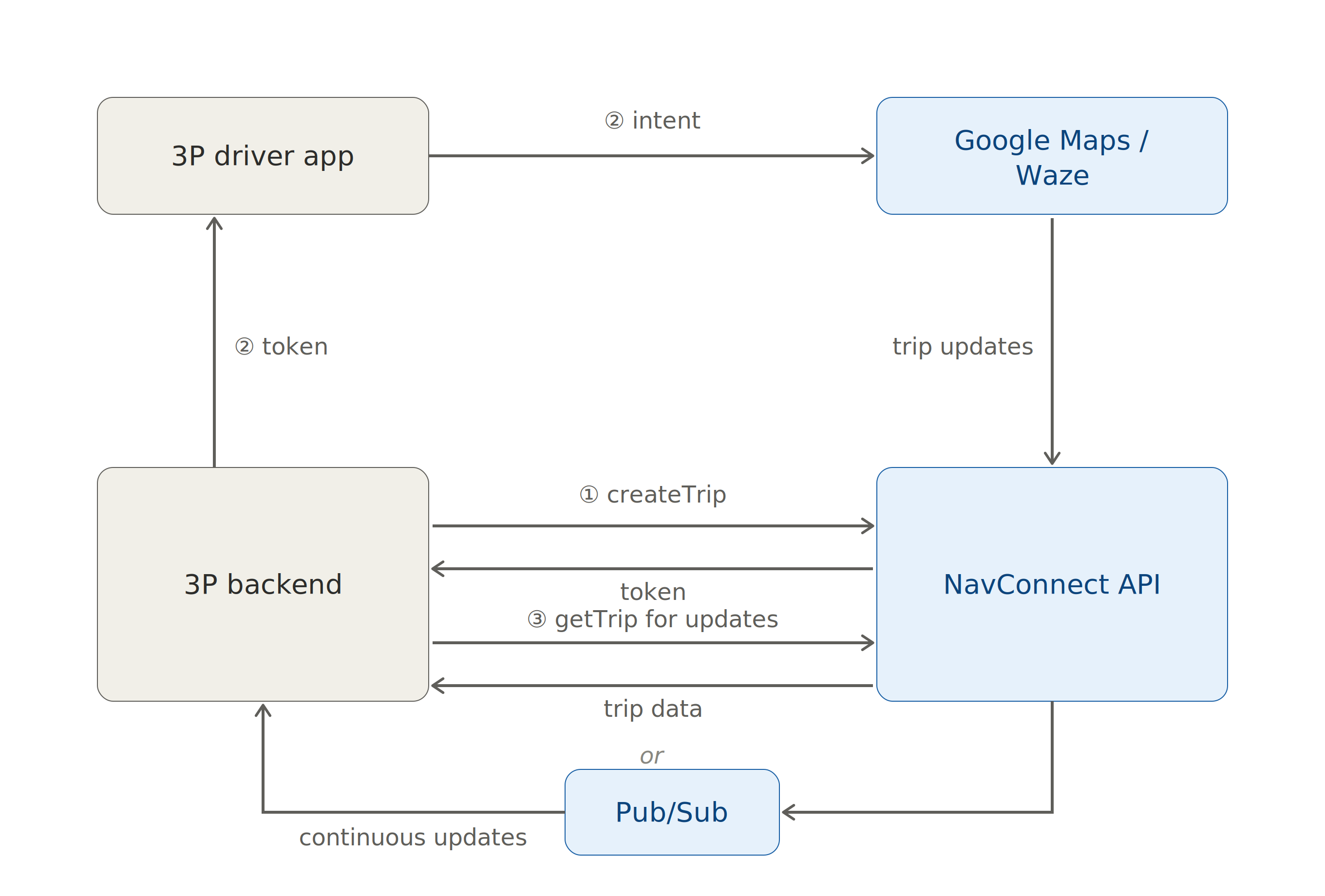
The Navigation Connect API lifecycle has three main steps:
- Create a trip (1) on your backend and receive a trip token.
- Add the trip token to a launch URL (2a) so the driver can launch (2b) Google Maps from your app.
- Listen for trip updates (3) and display the driver's progress on a map.
Before we dive into the specifics about how to use the Navigation Connect API, it's worth clarifying what it does and does not do. Google provides the live tracking infrastructure, with continuous telemetry updated every five seconds. But you still need to build everything else:
- The driver app, published to the App Store or Google Play Store
- The backend that stores trip data (at minimum a unique trip ID, customer information, and the Navigation Connect trip token) and,
- The live tracking link and frontend that show the driver's real time location, pulled from the Navigation Connect API.
Google Navigation Connect API pricing
Nav Connect is free to use while in Experimental (pre-GA). Once it moves to GA (General Availability), expect it to be priced slightly less than the Navigation SDK, which costs $0.05 per destination.
Setting up the Google Navigation Connect API
Getting Nav Connect up and running in the Google Cloud Console is a bit more involved. Before you can use it, you need to provide a real app name along with a bundle ID or package name (the unique string that identifies an app to iOS or Android), which means you need a working app that's already published on the app store.
Google requires this to verify that the handoff between your app and the Google Maps app comes from your registered app, not someone impersonating you. When a trip launches, it checks that the phone's app identity (bundle ID on iOS, package name on Android) matches the one you provided when you signed up for Navigation Connect.
With that out of the way, here's how to register for the Navigation Connect API.
Enable the Navigation Connect API
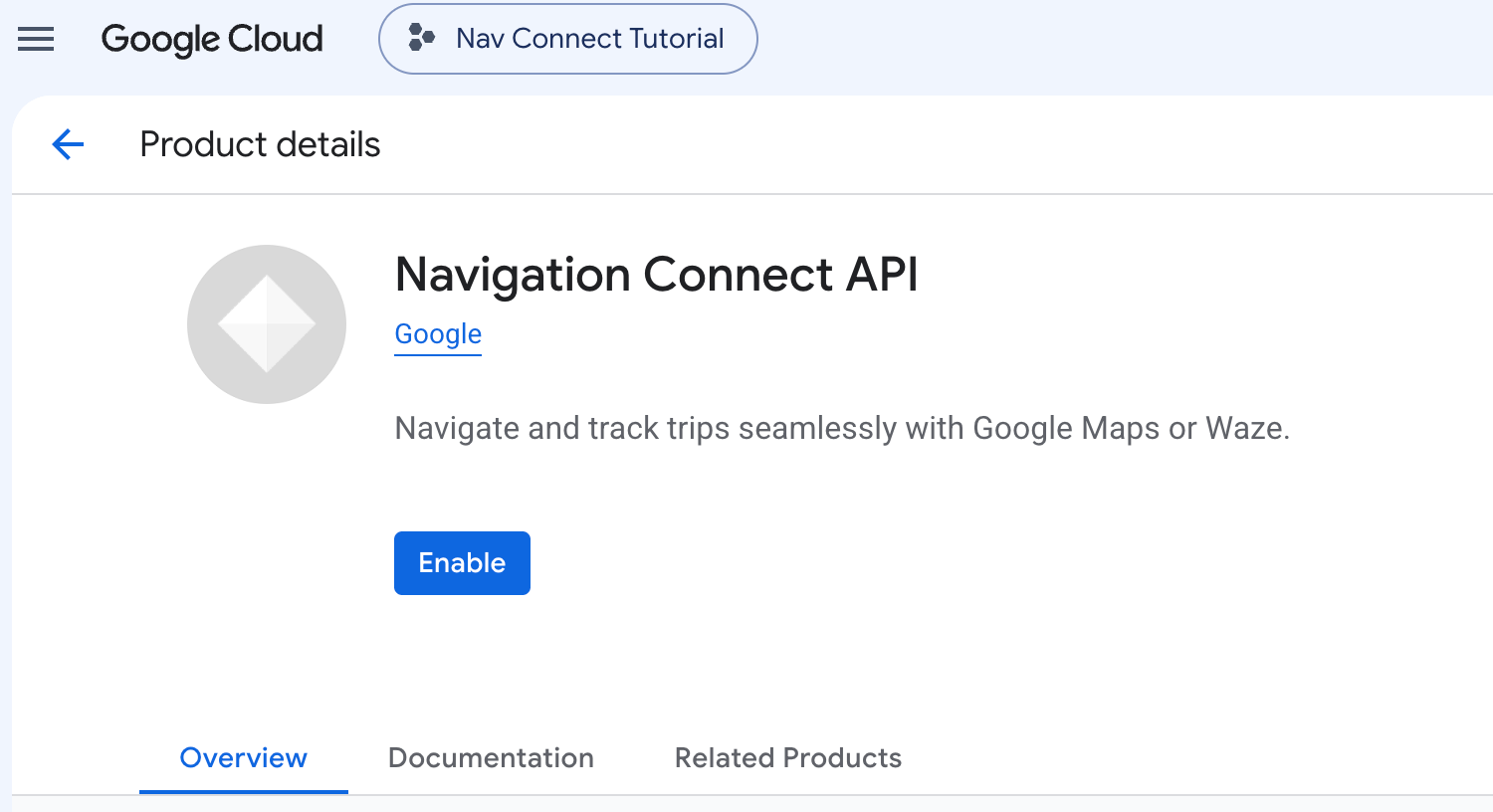
In the Google Cloud Console, create a new project (mine is called "Nav Connect Tutorial" and search for "Navigation Connect API". Choose the first search result that pops up. Click [Enable] to get it set up on your account.
Verify your app
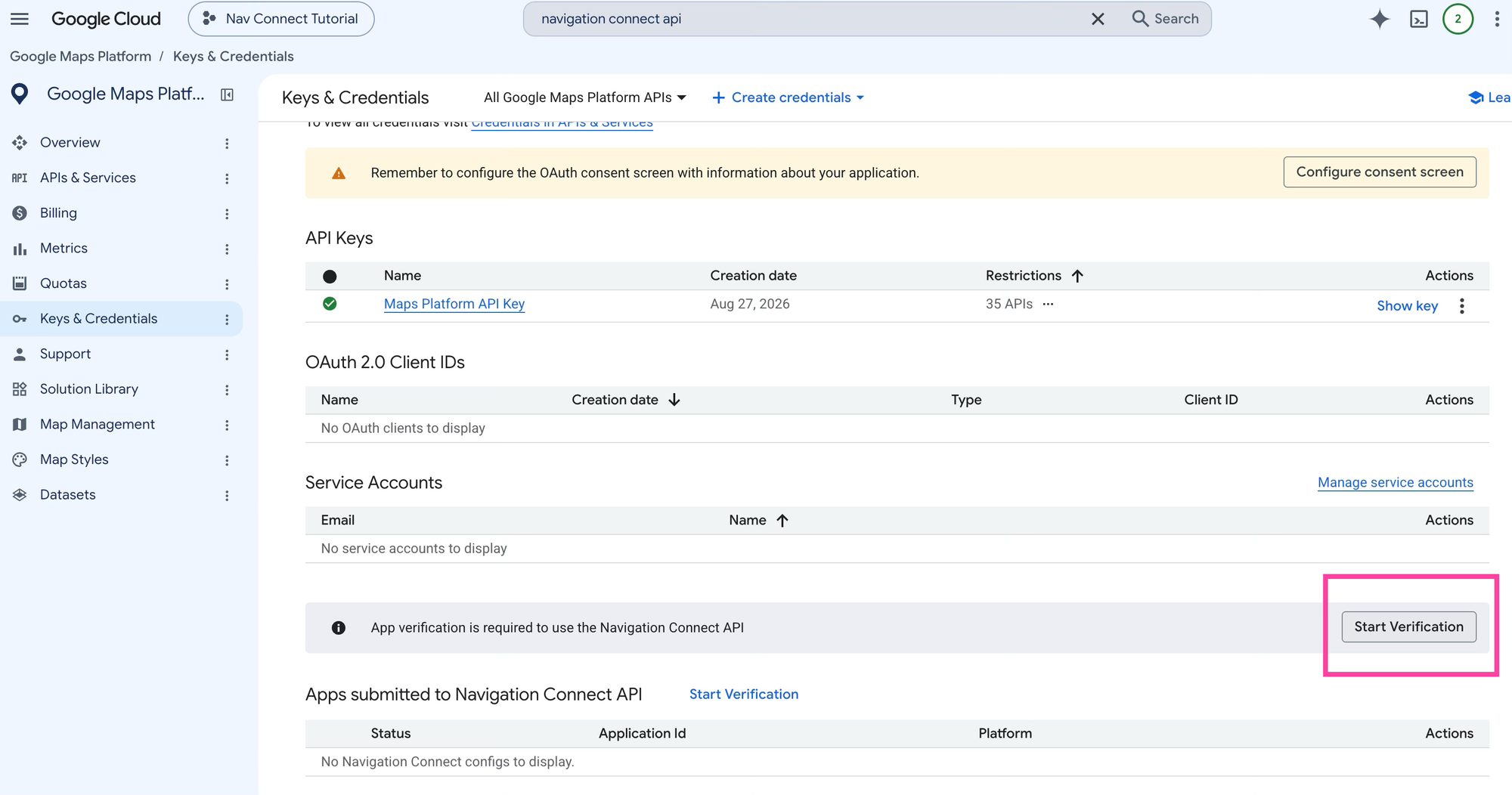
In the Google Maps Platform section of the Cloud Console, select [Keys & Credentials]. You should see a [Start Verification] button on the bottom right (you might need to scroll down a bit). Click it.
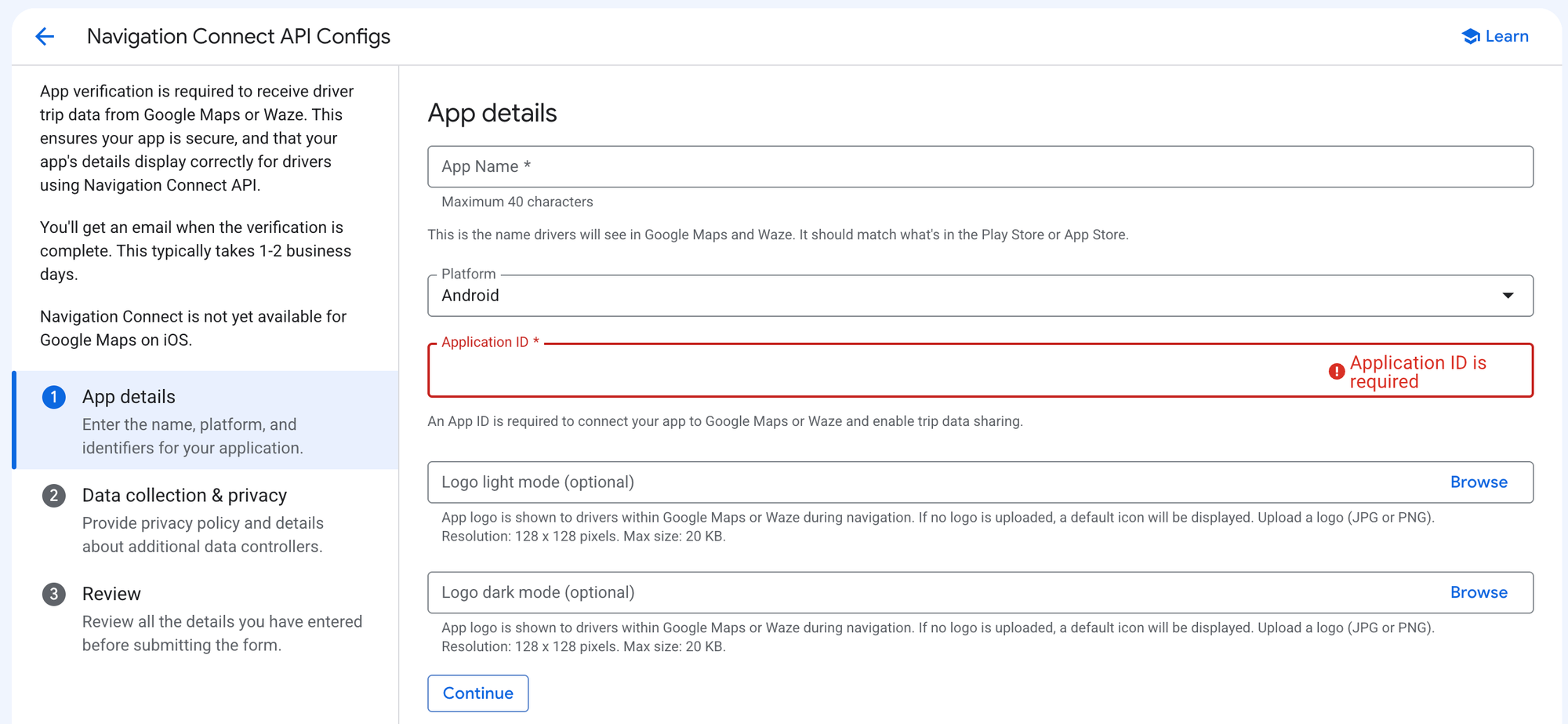
You'll see a form asking for more information about your app. Fill it up (the most important field is Application ID which is either your bundle ID for iOS or package name for Android). It should look something like com.realgreen.driver.
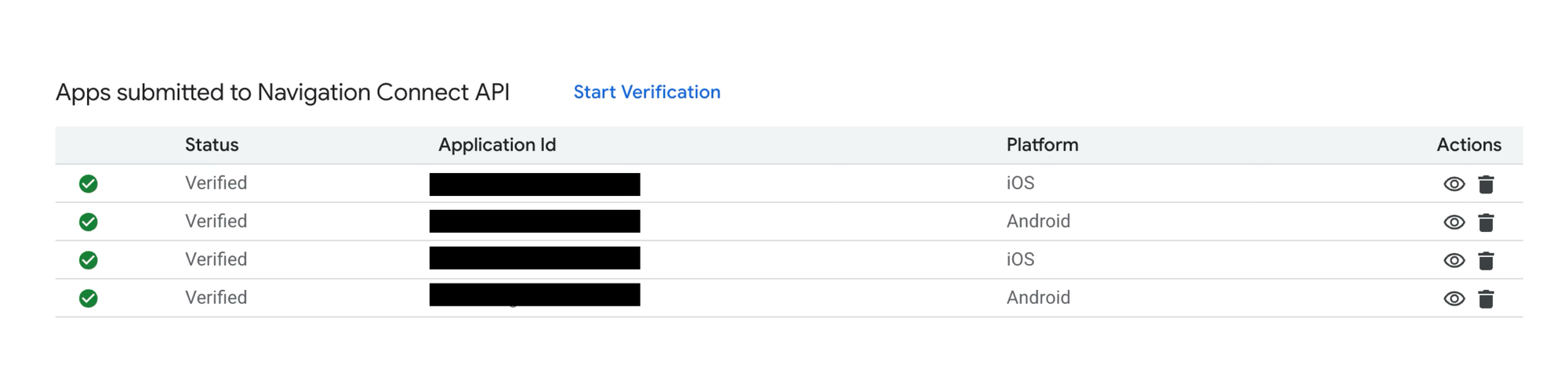
It will take a few days for the team at Google Maps to verify your information, but once that's done you'll see the approved app listing on the [Keys & Credentials] page.
Set up a service account
Calls to Navigation Connect are made from your backend, and authenticating them requires a service account. The app ID verifies the client (app) side of the handoff, while the service account authenticates the server side. Creating a service account is easy. In the Cloud SDK (formerly known as the Google Cloud CLI),
- Create a service account which will be used to access the Navigation Connect API.
gcloud --project=${project_id} iam service-accounts create navigationconnect- Give the account the Service Account Token Creator role.
gcloud projects add-iam-policy-binding ${project_id} \
  --member=serviceAccount:${service_account_email} \
--role=roles/iam.serviceAccountTokenCreator- Give the account the Navigation Connect administrator role.
gcloud projects add-iam-policy-binding ${project_id} \
    --member=serviceAccount:${service_account_email} \
    --role=roles/navigationconnect.admin
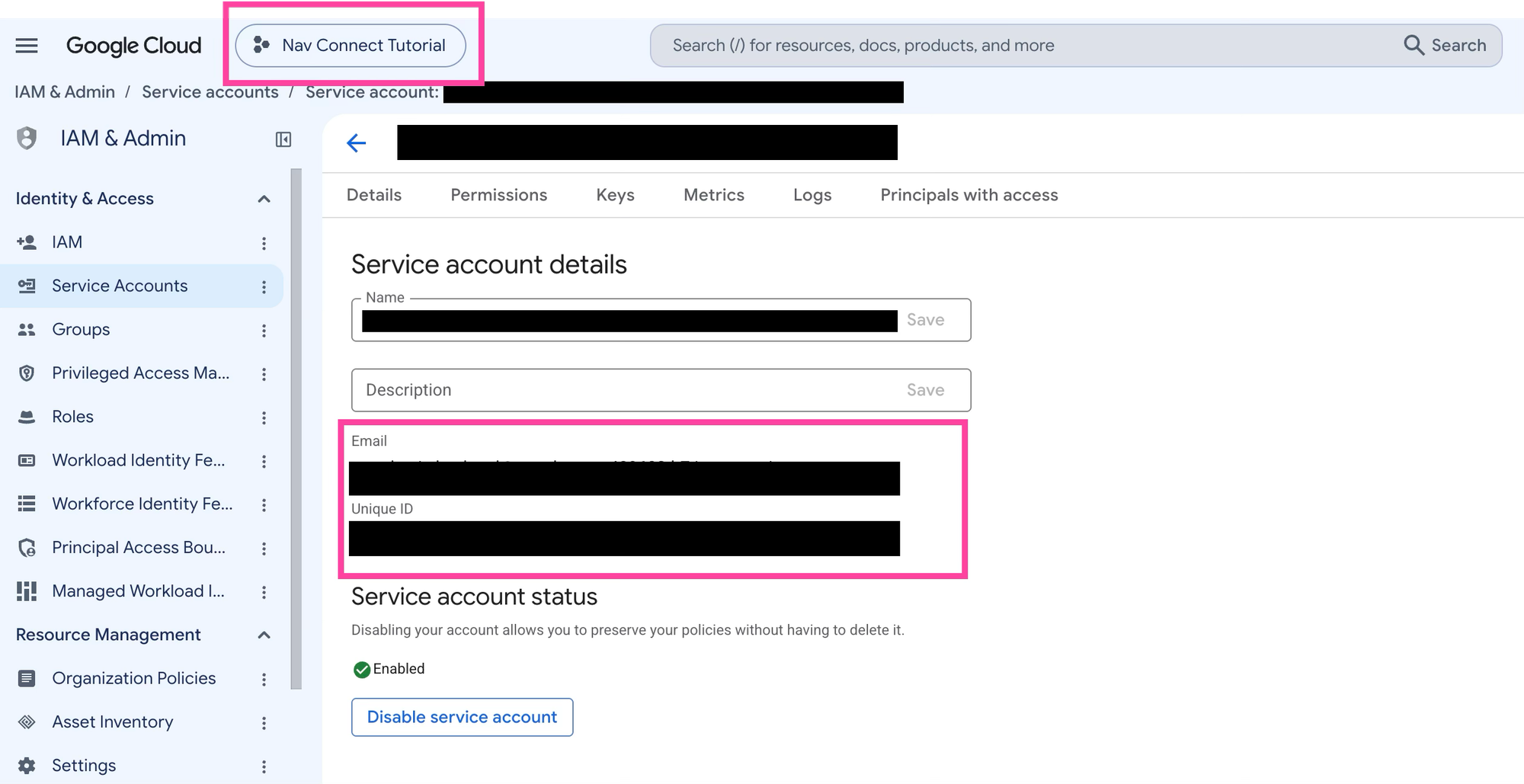
Replace ${project_id} with your project ID and ${service_account_email} with your service account email address. Once a service account is created, this information can be found in the [Service Accounts] section of your Cloud Console.
Google Navigation Connect API worked example
Let's walk through how a typical driver app uses Navigation Connect. Real Green is scheduling software built specifically for lawn care and landscaping companies. Their software package includes a driver app that routes the landscaper to the customer's home.
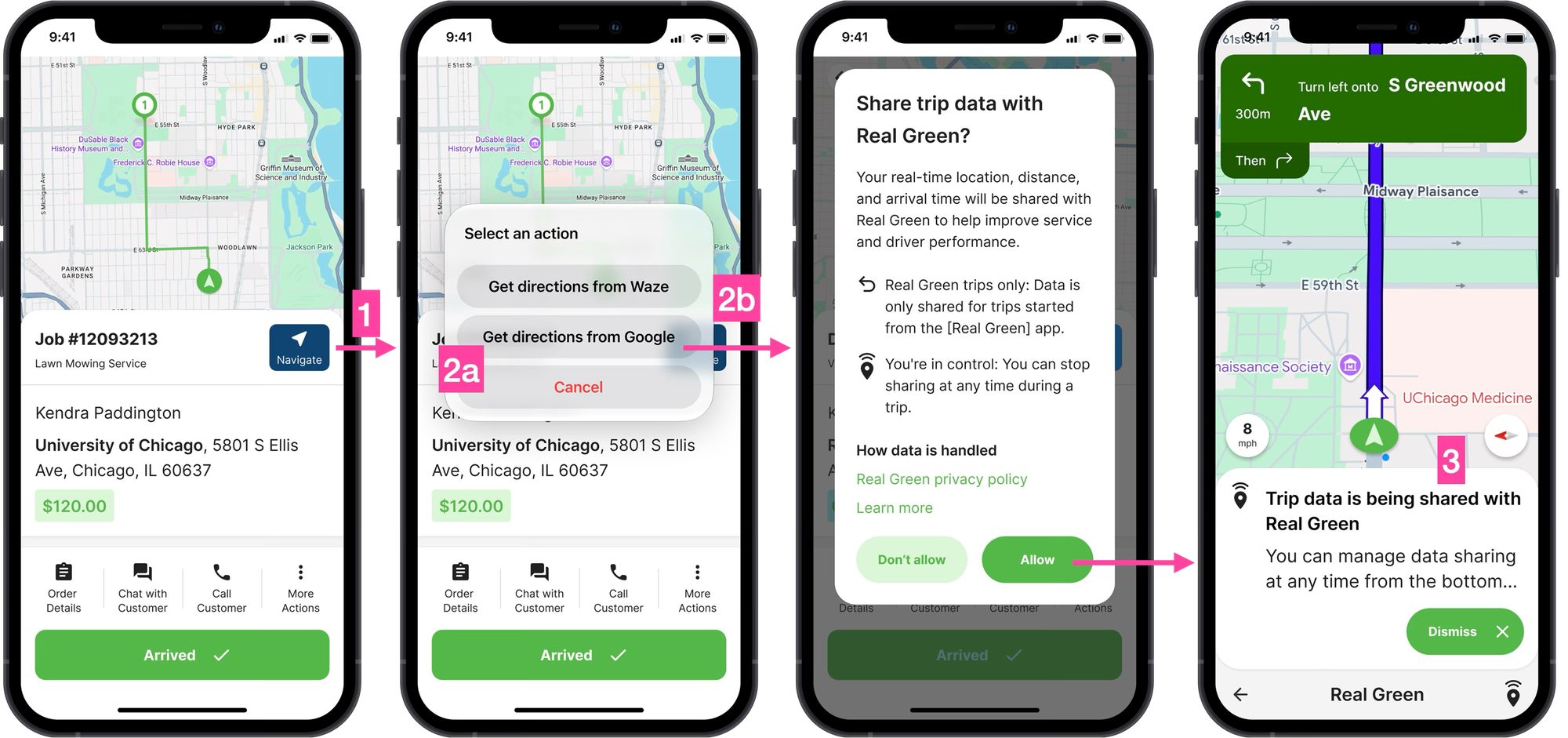
1. Creating a trip and obtaining a trip token
When the landscaper is about to start a new job, the app shows a map with their current location (the origin) and the customer's home (the destination). To get turn by turn navigation, they tap the [Navigate] button.
This makes a pass through call to Real Green's backend which in turn calls the Create Trip endpoint of the Navigation Connect API.
Endpoint POST https://navigationconnect.googleapis.com/v1/projects/{PROJECT_ID}/trips?tripId={TRIP_ID}
Headers
Content-Type: application/json
Authorization: Bearer {ACCESS_TOKEN}
Request Body
{
  "androidAppId": "com.realgreen.driver",
  "iosAppId": "io.realgreen.driver",
  "config": {
    "enablePubsub": true
  }
}
One thing to note: there's no origin or destination in this body. The trip's destination goes in the launch URL as the destination parameter (step 2), and the origin is set automatically from the driver's live location when navigation starts.
{PROJECT_ID} is the Google Cloud project ID that has the Navigation Connect API enabled.
{TRIP_ID} is the unique identifier you generate when creating a trip. You create it, not Google. It's also how you retrieve trip updates later. If you use Node, an easy way to do this is by using crypto.randomUUID(), which is built into Node JS.
const { randomUUID } = require("crypto");

const tripId = randomUUID();
{ACCESS_TOKEN} is the short lived OAuth token your service account uses to authenticate with the Navigation Connect API.
Response
{
    "name": "projects/{PROJECT_NUMBER}/trips/{TRIP_ID}",
  "authToken": {
    "token": {NAV_CONNNECT_TOKEN},
    "expireTime": "2026-09-01T08:00Z"
  },
  "state": "NEW",
  "execution": {
    "traveledDistanceMeters": 0,
    "stopAddedInRoute": false
  },
  "createTime": "2026-09-01T06:00:00Z",
  "updateTime": "2026-09-01T06:00:00Z"
}
{PROJECT_NUMBER} is your project's unique numeric identifier. It points to the same Google Cloud project as your alphanumeric Project ID.
{TRIP_ID} is the UUIDv4 trip ID generated by your backend.
{NAV_CONNECT_TOKEN} is the authenticated trip token that the CreateTrip endpoint returns. Your mobile app adds this to the launch URL to start live tracking with turn by turn navigation in Google Maps or Waze.
2. Add the Nav Connect token to a launch URL
To open Google Maps or Waze on the driver's device, we need to append the Nav Connect token created in step 1 to a launch URL.
In iOS, use this URL string as a deep link:
https://www.google.com/maps/dir/?api=1&
destination={DESTINATION}&
dir_action=navigate&
action_token={NAV_CONNECT_TOKEN}
{DESTINATION} is the end location for the route. It can be a place name, an address, or a comma-separated latitude/longitude pair.
{NAV_CONNECT_TOKEN} is the trip token from earlier.
dir_action=navigate forces the Google Maps app to start turn by turn navigation right away.
For Android, you should pass the URL string as an intent, which looks like this.
import android.content.Intent
import android.net.Uri
import java.net.URLEncoder

private fun launchNavigation(destination: String, navConnectToken: String) {
    val encodedDestination = URLEncoder.encode(destination, "UTF-8")

    val url = "https://www.google.com/maps/dir/?api=1" +
        "&destination=$encodedDestination" +
        "&dir_action=navigate" +
        "&action_token=$navConnectToken"

    val intent = Intent(Intent.ACTION_VIEW, Uri.parse(url)).apply {
        setPackage("com.google.android.apps.maps")
        putExtra(Intent.EXTRA_REFERRER_NAME, "android-app://$packageName")
    }

    // Only launch if Google Maps is installed
    if (intent.resolveActivity(packageManager) != null) {
        startActivity(intent)
    } else {
    }
}
In the code sample above, $packageName refers to Kotlin's built-in packageName property, which is accessible in Android components like Activities, Fragments, and Services.
This extra step is required only for Android. Adding the packageName to the intent with:
putExtra(Intent.EXTRA_REFERRER_NAME, "android-app://$packageName")tells Nav Connect which app initiated the navigation request. That way, Google Maps or Waze can display a return button or link that takes the user back to your app during the active trip.
3. Listen for trip updates
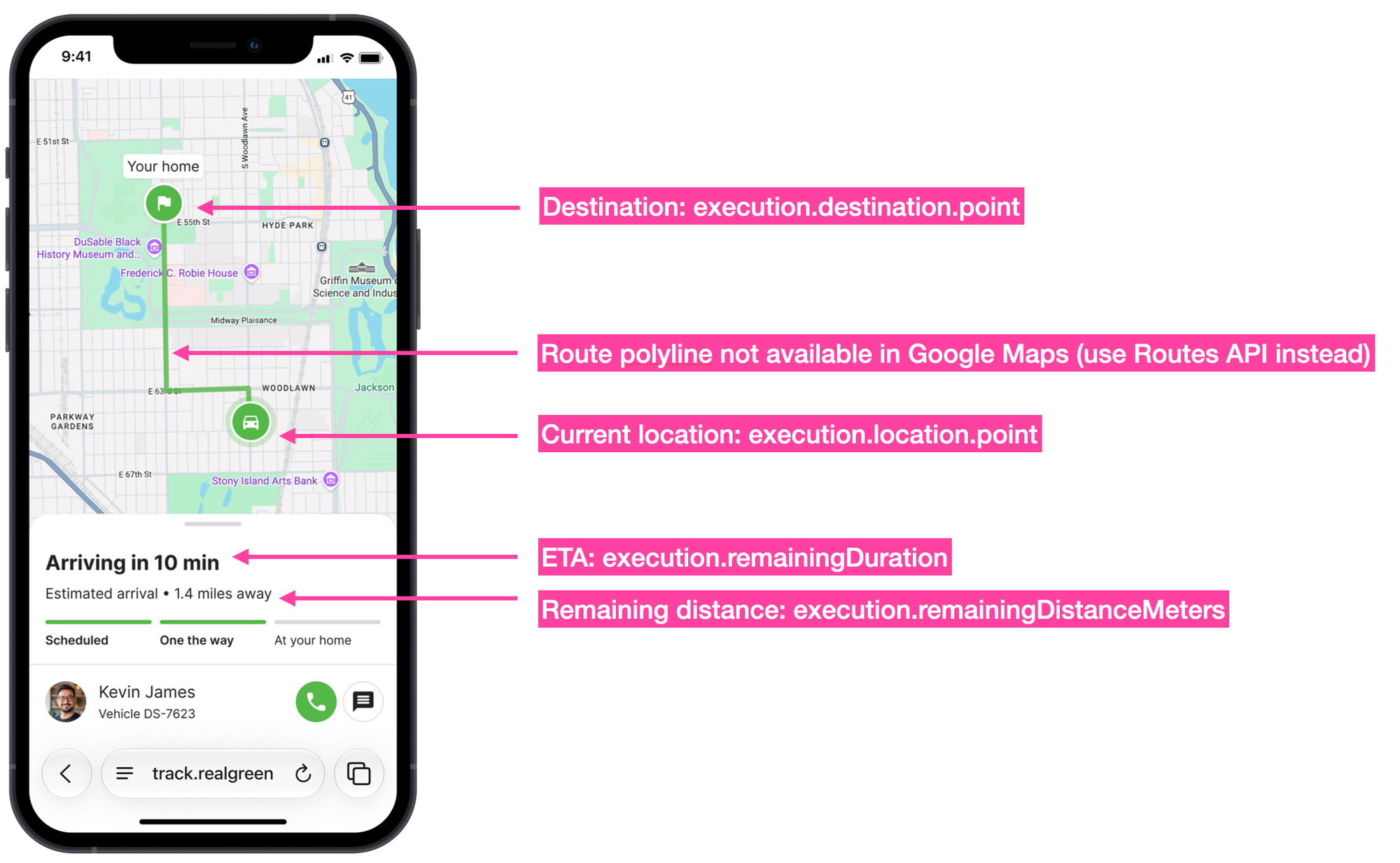
When a trip is ENROUTE (i.e. it has been authenticated and started successfully), you can poll the Get Trip endpoint to fetch the trip's current data. You can then use this data to build a real time tracking page that lets your customers follow the driver's location and trip progress.
Endpoint: GET
https://navigationconnect.googleapis.com/v1/projects/{PROJECT_ID}/trips/{TRIP ID}
Headers
Content-Type: application/json
X-Goog-Api-Key: YOUR_API_KEY
{PROJECT_ID} is the Google Cloud project ID that has the Navigation Connect API enabled.
{TRIP_ID} is the unique identifier you used to create a trip.
Response
{
  "name": "projects/{PROJECT_NUMBER}/{TRIP_ID}",
  "state": "ENROUTE",
  "execution": {
    "origin": {
      "point": {
        "latitude": 49.2827,
        "longitude": -123.1207
      }
    },
    "destination": {
      "point": {
        "latitude": 50.1163,
        "longitude": -122.9574
      }
    },
    "location": {
      "point": {
        "latitude": 49.2811279,
        "longitude": -123.0297862
      },
      "sourceTime": "2026-08-31T23:01:30-07:00",
      "serverTime": "2026-09-01T06:00:00Z"
    },
    "traveledDuration": "910s",
    "remainingDuration": "1980s",
    "traveledDistanceMeters": 7611,
    "remainingDistanceMeters": 127050,
    "stopAddedInRoute": false
  }
}
name uniquely identifies each trip. It follows this format: projects/{PROJECT_NUMBER}/trips/{TRIP_ID}, where {PROJECT_NUMBER} is your Google Cloud project's numeric ID and {TRIP_ID} is the identifier you assigned to the trip.
state is the current trip status (e.g. "NEW" or "ENROUTE"). There are eight possible statuses in total.
| Status | Description |
|---|---|
| STATE_UNSPECIFIED | The trip state is unspecified. |
| NEW | The trip was created but has not yet started. |
| ENROUTE | The transporter is enroute to the destination. |
| SUSPENDED | The trip was suspended. |
| FAILED | The trip failed to complete successfully. |
| CLIENT_ERROR | The trip failed due to a client error. |
| CANCELED | The trip was explicitly canceled by the developer. |
The most valuable part of the response is the TripExecution object (docs). It holds all the real time data regarding the trip's progress, including the driver's current location:
origin: Starting point (latitude/longitude)destination: End point (latitude/longitude)location: Real time vehicle position with:- Current coordinates (
point) sourceTime: When location was captured (in the driver's time zone)serverTime: When server received it (in Google's server time zone)
- Current coordinates (
And remaining distances and durations:
traveledDuration: Time elapsed since trip startremainingDuration: Estimated time to destinationtraveledDistanceMeters: Distance covered so farremainingDistanceMeters: Distance remaining to destination
Will the Google Navigation Connect API be a commercial success?
I'm not convinced. And I say that as a Google Maps partner who has built and implemented Google Maps APIs for hundreds of clients.
For turn by turn directions, Google positions Navigation Connect between Maps URLs, which are free, and the Navigation SDK, which costs $0.05 per destination. That leaves it in an uncomfortable spot. More expensive than free, but less capable than a fully featured in-app navigation module that gives you free rein over design and branding, plus the ability to build custom business logic into the navigation flow. If a passenger changes their pickup location for instance, navigation can reroute automatically if you are using the Navigation SDK. Not with Nav Connect.
Companies like Maps URLs because they're free, period. They're not looking to pay more for more (and here, "more" means the real time tracking infrastructure that comes with Navigation Connect). Some genuinely do want that tracking and will consider paying for it, but that segment is small and not nearly large enough to carry the product to broad commercial success. Google has been here before. Its dedicated live tracking product, Fleet Engine, did not see strong uptake either. Anyway if you want live location sharing for free you can always use Whatsapp location tracking.
One of Navigation Connect's main selling points is that it saves you the time and engineering effort of building a live tracking backend for your driver app. But building one is surprisingly easy (see Building a live driver tracking backend using Google Firebase Real Time Database), and the time you'd save is now spent learning about Nav Connect and making sure your workflow conforms to it. The Navigation Connect API won't work for you if you need a real time record of where your driver has been, or if your trip workflow breaks into distinct segments e.g. a driver picking up a package at one location and delivering it to another.
This brings me to my last reason the Navigation Connect API is a tough sell. The industries that need live tracking most, ride share, last mile logistics, field services etc, already have it built into their apps. Most taxi companies, for example, track driver locations the moment a driver opens their app so they can match each driver to the nearest passenger. When the driver switches to in-app navigation (via the Navigation SDK or something else), the tracking simply continues and the trip state might move from ENROUTE to PASSENGER_ONBOARD to mark that a pickup just happened.
Persuading these companies to swap their fixed cost tracking infrastructure for a pay per API call product that does less is a big ask.
This article was written by Afi Labs, a Google Maps Premier Partner and reseller. We build route optimization, navigation, and fleet tracking software on Google Maps, and offer volume pricing on GMP licensing. Talk to an engineer or follow Afian on LinkedIn.
Next: Part 3: Turn by turn directions with Waze using the Navigation Connect API